Installation
The installation process for Proton requires setting up a BCMS server first. Instructions for doing that can be found in the Browsium Client Management Server guide. Once the BCMS server is setup, ensure the Proton license key is installed and the system is active. Then continue with this guide to learn more about the Proton interface, capabilities and even a basic tutorial walkthrough.
To collect data and get the most out of the Proton system, the Browsium Client will need to be installed on desktop systems in the organization. Administrator rights are required for installation of the standalone Browsium Client but requires only standard user permissions during use. The Browsium Client EXE can also be packaged for use in a software distribution system with typical software installation settings. Refer to section 2.5 for the available command-line switches. The remainder of this section provides details on the individual components of Proton, along with important information to ensure a successful installation.
Proton Components
Section titled “Proton Components”Browsium Proton is comprised of four main components: Proton Service, Proton Database, Proton Manager and Browsium Client. Proton Service and Proton Database can be run on a single server or distributed and clustered among multiple servers to increase scalability. For the purposes of this guide, “Proton Server” refers to the logical grouping of Proton Service and Proton Database. Each component can be seen in relation to the others in the following diagram and are explained in more detail below.
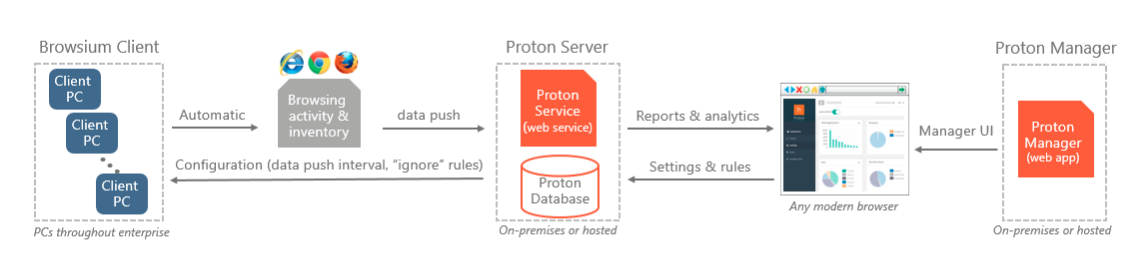 {width=“6.5in” height=“1.45625in”}
Browsium Client Manager Service — a web service, running on IIS (or IIS Express in the case of Proton Express) that communicates with all other Proton components to facilitate data collection, reporting, and client management.
Browsium Client Manager (Proton) Database — a highly scalable database, built on Microsoft SQL Server, that holds all the data collected from clients and queries for the reporting system.
Browsium Client Manager — a web application that provides the user interface into the Proton Server for reporting and configuration.
Browsium Client — a lightweight software agent used for gathering inventory and activity data and automatically (and silently) uploading it to the Browsium Client Management Server. The Browsium Client also includes the agent functionality for Browsium Ion and Browsium Catalyst, resulting in a single client installation that works with all the modules in the Browsium suite.
With the introduction of the Browsium Client Management Server and integration with Browsium Proton, each of the components above (except the Client) are shared with BCMS. Only a single database instance is required to support both Proton and BCMS. Likewise with the Proton Service. The Proton Manager is limited to some additional navigation tabs and screens within the BCMS interface.
Proton Setup
Section titled “Proton Setup”As mentioned previously, getting Proton setup and running is merely a matter of entering the Proton license key in BCMS and the server and service components are ready to go.
Browsium Client Setup
Section titled “Browsium Client Setup”Browsium Client Setup (Browsium-ClientSetup.exe) installs the browser extensions and the Browsium Controller (BrowsiumController.exe) on end user systems. Browsium Controller manages communications with the Proton Server, along with managing configuration and control of the extensions. Browsium Management Service (BrowsiumService.exe) runs as a Windows service with System privileges to handle content loading for Ion and Catalyst projects that require elevated permissions. Browsium Monitor (BrowsiumMonitor.exe) is responsible for ensuring that Browsium Controller is running reliably.
- Browsium Client Extension Microsoft Internet Explorer
An extension to facilitate Proton communication between Microsoft Internet Explorer and the Browsium Controller.
- Browsium Client Extension for Microsoft Edge (Legacy)
An extension to facilitate Proton communication between Microsoft Edge and the Browsium Controller.
- Browsium Client Extension for Microsoft Edge (Chromium)
An extension to facilitate Proton communication between Microsoft Edge and the Browsium Controller.
- Browsium Client Extension for Google Chrome
an extension to facilitate Proton communication between Google Chrome and the Browsium Controller.
- Browsium Client Extension for Mozilla Firefox
An extension to facilitate Proton communication between Mozilla Firefox and the Browsium Controller.
The standalone Browsium-ClientSetup.exe is needed to enable Proton on additional client systems. This installer can be downloaded from the BCMS Manager web page or extracted from the Browsium Proton zip file that you were provided by Browsium. See section 2.4 for more details on installing Browsium Client.
System Requirements
Section titled “System Requirements”The BCMS environment, and embedded Proton feature set, is designed to support a wide range of Windows systems and configurations. This section details the minimum requirements for each component of Proton.
BCMS Service & Database
Section titled “BCMS Service & Database”Operating System Windows Server 2008 R2 or later
.NET Framework Version 4.0 or later
Additional Components Microsoft IIS 7 or later
Microsoft SQL Server 2017 Express or higher
Processor 1 GHz or faster 32-bit (x86) or 64-bit (x64) processor
Memory 4 GB RAM
Section titled “Memory 4 GB RAM”Browsium Client
Section titled “Browsium Client”+----------------------+--------------------------------------------------------------------------+ | Operating System | Windows 10 (1607) or later | | | | | | Windows Server 2008 R2 or later (for terminal servers) | +======================+==========================================================================+ | Browsers | Microsoft Internet Explorer 8, 9, 10, or 11 | | | | | | Microsoft Edge (Legacy) 40 or later (machine must be domain joined)\ | | | Microsoft Edge (Chromium) 80 or later (machine must be domain joined)\ | | | Google Chrome 39 or later\ | | | Mozilla Firefox 48 or later (41 or later with Browsium legacy extension) | +----------------------+--------------------------------------------------------------------------+ | .NET Framework | Version 4.0 or later (full version only) | +----------------------+--------------------------------------------------------------------------+ | Processor | 1 GHz or faster 32-bit (x86) or 64-bit (x64) processor | +----------------------+--------------------------------------------------------------------------+ | Memory | 1 GB RAM, 2 GB for multi-user terminal servers | +----------------------+--------------------------------------------------------------------------+
Proton Manager
Section titled “Proton Manager”Proton Manager is a client-side web application hosted on your server that provides the user interface to Proton, including the charts, reports, data, analytics, configuration, and administration interfaces.
Recall the Proton Manager is incorporated into the BCMS Manager. It is not a standalone component and is not installed separately from the BCMS installation.
Browsium Client Manager is a client-side web application, all the code necessary to render the user interface is run completely within your browser.
Because all the code runs in your browser, Browsium Client Manager works best when accessed via the most modern, fastest browsers available. We recommend the latest version of Edge, Chrome or Firefox.
Installing Browsium Client Management (Proton) Server
Section titled “Installing Browsium Client Management (Proton) Server”There is no Proton specific setup or installer. BCMS must be installed first, and the Proton features activated by entering a valid license code.
To install BCMS, see the Browsium Client Management Server Administration Guide and follow the steps for installation and setup.
Once you have a functioning server, next install Browsium Client using Browsium-ClientSetup.msi, which requires the address of your BCMS server to complete setup.
When setup is complete see [section 4.1](#connecting-to-proton-manager-for-the-first-time) for instructions on how to connect to the Proton Manager.[]{#_Installing_Browsium_Proton .anchor}
For information on configuring Proton and BCMS to use Single Sign On for user authentication, see the Browsium Client Management Server Administration Guide.
Installing Browsium Client
Section titled “Installing Browsium Client”The value of Proton data relies on having active client systems generating usage, activity, and inventory data. Information on installation and deployment of the Browsium Client package can be found in the Browsium Client Installation and Deployment Guide.
 {width=“0.9194444444444444in” height=“0.9194444444444444in”}
Section Three
Introduction to
Proton Reporting
In this section you will learn:
-
More about the Proton reporting system
-
Where to find configuration settings in Proton
-
How to filter data and view reports in Proton