Ion Deployment in the Enterprise
Like any enterprise software deployment, Ion deployment in the enterprise requires careful planning. This begins with the Browsium Client, which is designed to be centrally deployed and managed by IT and be completely invisible to end users.
The Ion configuration required by the Browsium Client is delivered by an independently deployed Ion project file. Once the Browsium Client is installed on all PCs in the enterprise, and configured with a pointer to the project file, no additional direct management is necessary.
To provide maximum flexibility for managing enterprise deployments, Ion supports a variety of methods for deploying the Browsium Client and hosting project files (containing Ion Profiles, rules, and settings). In this section, we’ll examine the available deployment options, provide recommendations, explain the loading & caching behaviors, and offer specific deployment guidance for typical enterprise scenarios.
The Ion configuration is read from an Ion project file — a single, XML-formatted data file containing the Profiles, rules, and settings that were created by Ion Configuration Manager. The file can be pushed out to a known location on end user PCs, stored on a shared network location, or hosted at an easily accessible URL. The project file can be updated easily and separately from the Browsium Client executable code, making ongoing support and maintenance easy to integrate into existing organizational processes.
Each client system must be made aware of the location of the Ion project file containing the configuration that is relevant to that user’s web applications. Your organization may use one configuration for all end users or have separate configurations for various departments or geographic locations. As many enterprise organizations are standardizing on a single Windows image, standardizing on a single Ion configuration is a modern best-practice.
A client system loads its Ion configuration by reading the project file referenced in the LoadFromFileName registry value. As an Ion administrator, you determine the best way to deploy this registry value to your organization. You can do this using a variety of methods, ranging from scripted registry editors to Group Policy.
Many organizations prefer to use Group Policy to deploy this registry value. The registry preference extension for Group Policy is often the most efficient way to streamline the LoadFromFileName registry value deployment. Another option is to use Browsium’s ADM and ADMX templates, which can be easily customized for the location of your project file. These templates, with usage instructions, can be found in the Browsium Ion Knowledge Base. See section 5.4 for details on deploying Ion project files and LoadFromFileName registry pointers.
Deploying Browsium Client
Section titled “Deploying Browsium Client”To get the most out of Ion, you’ll want to install Browsium Client on every licensed PC in your enterprise. This is easy to do using Browsium-ClientSetup.exe and some careful planning.
Ion seat licenses are required for each PC, so check your Browsium license agreement before deploying. Unlicensed users will be unable to obtain a seat reservation from the Browsium Client Management System.
It is assumed that the reader of this guide is familiar with enterprise deployment of client software and has available tools to perform a scaled deployment. Section 2.6 of this guide details the command line switches available when installing Browsium Client in an enterprise environment. These options range from silent installation with no installation user interface visible to end users to pre-configuring the Ion license key in the client registry.
Installing Browsium Client
Section titled “Installing Browsium Client”To deploy Browsium-ClientSetup.exe with an Ion license key, there are two simple steps:
-
Retrieve a copy of Browsium-ClientSetup.exe from the Browsium Ion zip file you received from Browsium.
-
Find your 28-character Ion license key provided to you by Browsium to include in your installation command line script as the value for ION_PRODUCT_KEY.
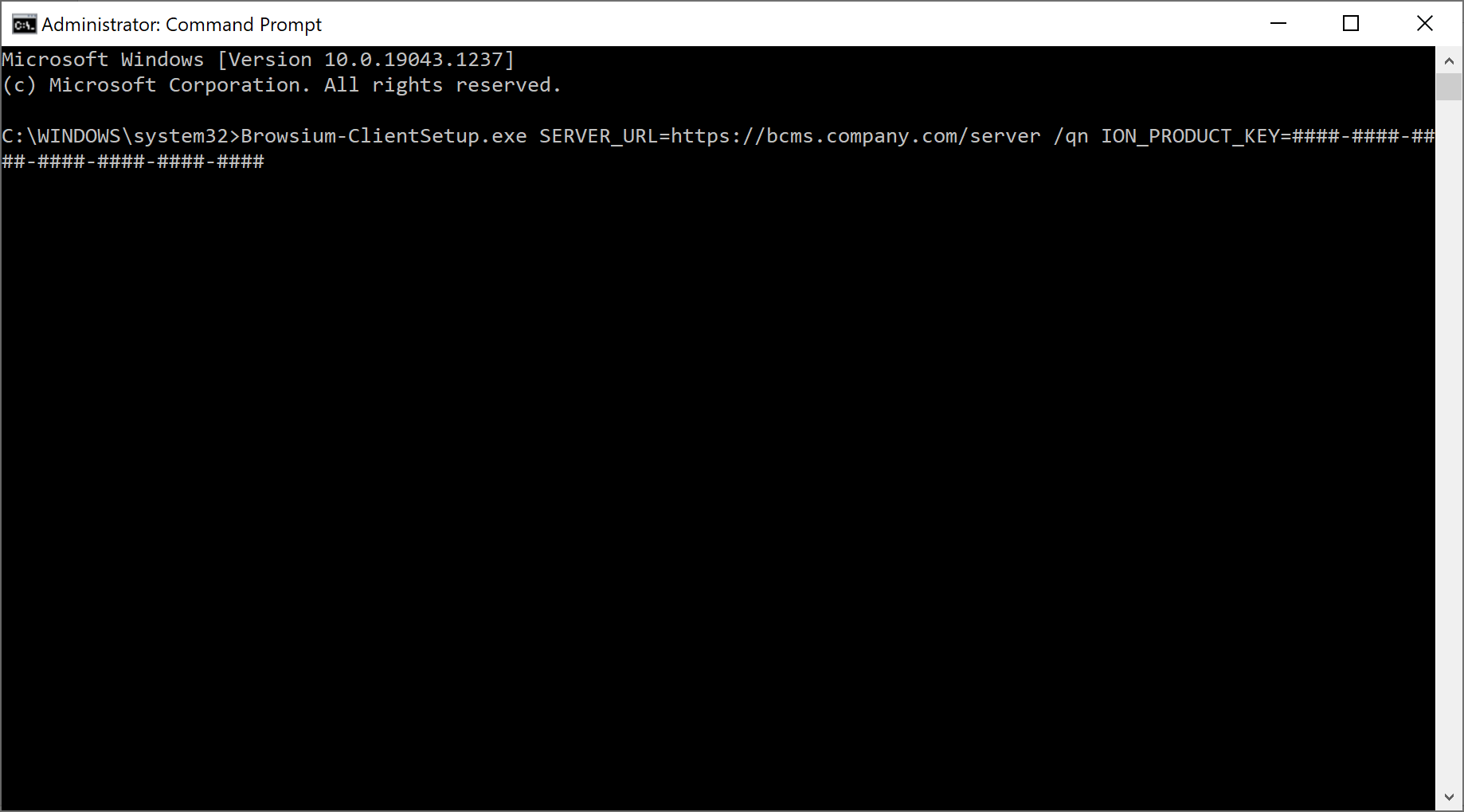
The following example will install Browsium-ClientSetup.exe with an Ion license key in Quiet Mode with No User Interface. Launch the Command Prompt as Administrator, enter the path to Browsium-ClientSetup.exe (located in C:\Browsium for this example), add the /qn switch, and substitute your Ion license key provided by Browsium for the hash marks (#).
 {width=“5.913081802274716in” height=“0.8715955818022747in”}
Managing the Browsium Client Browser Extensions
Section titled “Managing the Browsium Client Browser Extensions”Detailed information on managing the Browsium Client Browser Extensions can be found in the Browsium Client Installation and Deployment Guide.
Understanding Ion Project Registry Locations
Section titled “Understanding Ion Project Registry Locations”Before looking at deployment specifics for enterprise client systems, it is important to understand methodologies for deploying configurations on test systems during configuration development. Ion makes it easy to test a configuration without requiring a centralized deployment methodology. This is done via the Start Test Configuration option from the File menu of Ion Configuration Manager.
This option saves the project file to disk, places a pointer to the file in the system registry, and start the Browsium Controller to process the new configuration. The pointer is written to the LoadFromFileName registry value in HKEY_LOCAL_MACHINE\SOFTWARE\(Wow6432Node)\Browsium\Ion.
Start Test Configuration should only be used for project development and testing as it requires Ion Configuration Manager which should never be made available to end users. In addition, the HKEY_LOCAL_MACHINE\SOFTWARE\(Wow6432Node)\Browsium\Ion registry location should only be used for testing as it is easily overwritten by Ion Configuration Manager and may not persist during a Browsium Client upgrade.
The last concept that must be understood before embarking on an Ion deployment is the precedence hierarchy for the evaluation of configurations when multiple LoadFromFileName values are found on a system. Ion follows this hierarchy to load the configuration that will be used on a given end user system (and on test systems). Once a valid configuration is found, Ion will stop searching and that configuration will be used.
Deploying different Ion configurations using multiple methodologies on a single PC may cause unpredictable results as only the configuration highest in the hierarchy will be used.
The following table provides the hierarchy of Ion configuration precedence. The string “(Wow6432Node)” in the registry path denotes the Wow6432Node registry key that will be included in the path on 64-bit Windows systems. 32-bit Windows systems do not contain this key, hence the use of parentheses in the chart.
Global Java Profiles and the Block Unmanaged Java setting create Java Deployment Rule Set files in system directories and therefore must be read from HKEY_LOCAL_MACHINE. Browsium Controller will not load Ion projects containing these settings from HKEY_CURRENT_USER and an error will be logged in Event Viewer.
Working with Test Configurations in Group Policy Environments
Section titled “Working with Test Configurations in Group Policy Environments”Understanding configuration loading hierarchy is critical to ensuring configurations load as expected during project development. Testing on systems that receive a LoadFromFileName value via Group Policy may not behave as expected.
Ion reads LoadFromFileName from the Test Configuration location prior to Group Policy locations to ensure that the project you are testing is used by Browsium Controller. However, as soon as you Clear Test Configuration, the configuration deployed via Group Policy will become the active project. This will make it difficult to compare your new Test Configuration with a native, unmanaged environment. To achieve a clean Ion test system, you must remove your system from the domain, exclude it from Ion project file Group Policy settings, or temporarily delete the LoadFromFileName value delivered by Group Policy. (It will return on the next Group Policy refresh.)
Browsium recommends testing Ion on systems that are not controlled by Ion project file Group Policy settings to avoid configuration conflicts.
Testing on Multi-user Server Systems
Section titled “Testing on Multi-user Server Systems”As mentioned previously, Ion Configuration Manager should be installed only for administrators and project developers — not for end users. However, this creates a challenge when working on a multi-user server system, such as a Citrix XenDesktop, VM Horizon or Microsoft Terminal Server environment.
Start Test Configuration writes to the HKEY_LOCAL_MACHINE registry hive so that all Ion features are functional during project development and testing. (Global Java Profiles and Block Unmanaged Java settings cannot be read from the HKEY_CURRENT_USER hive.) This means the Ion configuration will be deployed for all users on a multi-user system if any user with administrator privileges uses Start Test Configuration from Ion Configuration Manager. Therefore, Browsium recommends that project development and testing be performed on a single-user system only.
Start Test Configuration in Ion Configuration Manager always writes to the shared HKEY_LOCAL_MACHINE registry hive on a multi-user system.
[]{#_Export_rRules_to .anchor}
Deploying Ion Configurations
Section titled “Deploying Ion Configurations”Since Ion is a client-side solution, getting the configuration settings to the client is critical for proper operation. Configuration management is extremely flexible and can be tailored to meet the design and requirements of your environment.
Ion’s project files are standard XML documents, allowing you to take full advantage of this versatile and very compact format. Configurations are easy to update by simply replacing the project file on end user systems, network share, or web server.
By design, Ion will not look in any specific location for a project file — you must configure where each client system will look for the configuration. This only needs to be done once, no matter how often the project file is updated — provided the file name and file location do not change. The following steps provide guidance to specify where Ion should look for the project file.
Browsium Controller cannot detect a new project file unless the Controller is already running — and it only runs continuously if a project is detected when the Controller starts (or if you have Proton or Catalyst deployed as all three modules share the single Browsium Controller). Therefore, initial project deployment requires a Controller restart, typically via a system reboot or user logoff/logon.
There are two options for deploying the Ion project file — on each client system or hosted on a file share or web server. Browsium recommends the hosted method for deploying configurations. Ion Client makes the network calls needed to retrieve the configuration from the hosted project file, which is then cached locally, so no additional packaging or user login configuration steps are needed when using the hosted option.
When using a project file loaded from a client system, administrators must use some other software distribution solution (SMS, SCCM, login script, file copy, etc.) to deploy the project file to the client file system.
Project File Deployment Option A: Network Share or Web Server Location
Section titled “Project File Deployment Option A: Network Share or Web Server Location”In this section you will learn how to instruct Ion to load the configuration from a network share or web server location. To do this, you must edit the system registry manually (for local testing) or via a script or Group Policy (for remote deployment) to create the LoadFromFileName registry value and data at the appropriate location. Browsium recommends using the registry preference extension for Group Policy or the Browsium ADM and ADMX templates as the most efficient way to streamline deployment of this registry value.
The Ion project file (.bcx) must be stored in a client-system-readable location on the network share or web server. For network share locations, Browsium recommends client systems have only read access permissions to ensure the file is not accidently removed or modified. For both network share and web server locations, organizations must ensure client systems have both security credentials for, and network access to, the resource.
Security credentials must be established for the client system, not the end user as required by Catalyst, as the Ion project file is accessed directly by the Browsium Service, which runs with System privileges. This can be accomplished on an Active Directory domain by giving all machine accounts read access to the project file or by simply setting read permission for Everyone.
Remote/mobile users will need to have VPN access if the file or web server hosting the Ion configuration file is not publicly accessible and the user’s system has not cached the configuration from a prior connection.
If the network share or web server is unavailable when Browsium Controller starts, and no configuration is found in Ion’s cache from a previous connection, the Controller will not start (provided neither Proton nor Catalyst are configured on the client system). As long as the client system successfully connects to the server once during Controller startup, the project file (configuration) will be cached indefinitely.
The following registry keys and associated values must be created, depending on the system and user accounts being targeted:
For per-user settings on 32-bit or 64-bit Windows systems, find or create:
HKEY_CURRENT_USER\Software\Policies\Browsium\Ion
For per-machine settings on 32-bit Windows systems, find or create:
HKEY_LOCAL_MACHINE\Software\Policies\Browsium\Ion
For per-machine settings on 64-bit Windows systems, find or create:
HKEY_LOCAL_MACHINE\Software\Wow6432Node\Policies\Browsium\Ion
Then create or populate the following String Value in the Ion key:
LoadFromFileName (REG_SZ) = \\Server\Share\Ion\… [the path to your Ion project file]
This setting will direct Ion to the project file the next time Browsium Controller is started.
Slashes in the file path must be escaped with a slash when invoking Regedit.exe via a .reg file. So \\Server\Share becomes \\\\Server\\Share. http://server/file remains http://server/file.
In this example, LoadFromFileName has been configured to use the Ion project file “Ion test.bcx” in the \\server\share directory on a 64-bit Windows system. These entries can be scripted and delivered to the Registry on remote clients via the following text in a .reg file.
Windows Registry Editor Version 5.00
[HKEY_LOCAL_MACHINE\SOFTWARE\Wow6432Node\Policies\Browsium\Ion]
“LoadFromFileName”=“\\\\server\\share\\Ion test.bcx”
 {width=“5.82531605424322in” height=“0.9627952755905512in”}
Project File Deployment Option B: Client File System Location
Section titled “Project File Deployment Option B: Client File System Location”In this section you will learn how to instruct Ion to load the configuration file from a local file system location. To do this, you must edit the system registry manually (for local testing) or via a script or Group Policy (for remote deployment) to create the LoadFromFileName registry value and data at the appropriate location. Browsium recommends using the registry preference extension for Group Policy or the Browsium ADM and ADMX templates as the most efficient way to streamline deployment of this registry value.
The Ion project file (.bcx) must be stored in a user-readable location on the client PC. If not already on the client PC, administrators must have a distribution plan and process for ensuring the project file is copied to the client PC prior to starting the Browsium Controller. If the Controller is unable to find the project file in the defined location, and none exists in the cache from a previous configuration, the Controller will not start. For more information on Ion project file caching behaviors see the Ion Project File Caching Behavior section.
The following registry keys and associated values must be created, depending on the system and user accounts being targeted:
For per-user settings on 32-bit or 64-bit Windows systems, find or create:
HKEY_CURRENT_USER\Software\Policies\Browsium\Ion\
For per-machine settings on 32-bit Windows systems, find or create:
HKEY_LOCAL_MACHINE\Software\Policies\Browsium\Ion\
For per-machine settings on 64-bit Windows systems, find or create:
HKEY_LOCAL_MACHINE\Software\Wow6432Node\Policies\Browsium\Ion\
Then create or populate the following String Value in the key:
LoadFromFileName (REG_SZ) = C:\directory\… [the path to your Ion project file]
This setting will direct the Ion software to the project file the next time the Controller is started.
Slashes in the file path must be escaped with a slash when invoking Regedit.exe via a .reg file. So C:\directory becomes C:\\directory in the registry value.
In this example, LoadFromFileName has been configured to use the file “Ion test.bcx” in the C:\Browsium directory on a 64-bit Windows system. These entries can be scripted and delivered to the Registry on remote clients via the following text in a .reg file.
Windows Registry Editor Version 5.00
[HKEY_LOCAL_MACHINE\SOFTWARE\Wow6432Node\Policies\Browsium\Ion]
“LoadFromFileName”=“C:\\Browsium\\Ion test.bcx”
 {width=“5.642374234470691in” height=“0.9325579615048118in”}
Readying End User PCs to Use the Browsium Client
Section titled “Readying End User PCs to Use the Browsium Client”After you have deployed the Browsium Client (Browsium-ClientSetup.exe) to your end user PCs, it is very important to follow a few steps to ensure the software is running and ready to process the Profiles and rules contained in your Ion configuration.
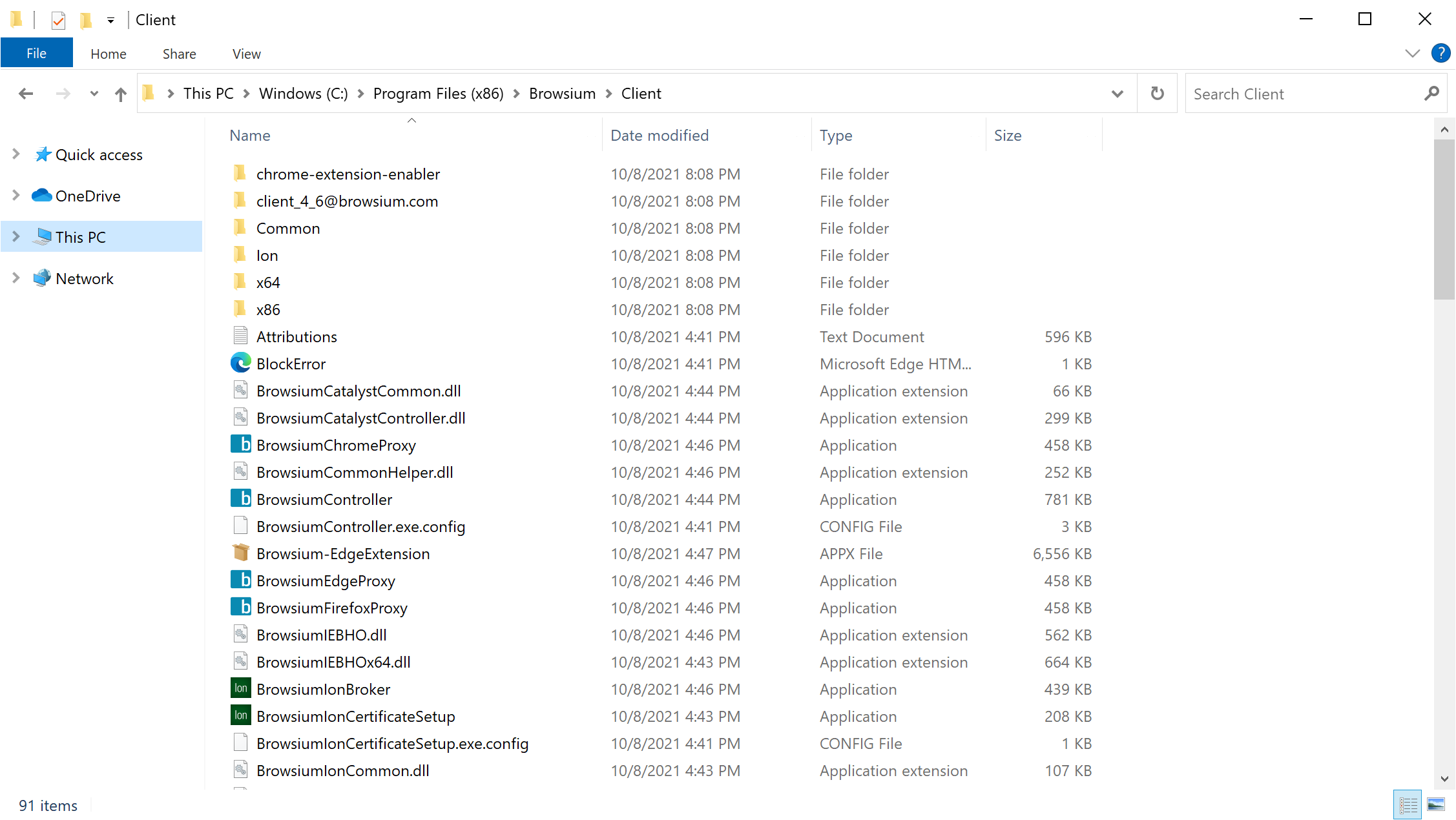
In addition to ensuring that the Browsium Internet Explorer add-on and/or Microsoft Edge (Chromium) Extension are enabled, per the guidance in section 5.2, the Browsium Controller process must also be running. The Browsium Controller does not start automatically after installation of the Browsium Client, even if an Ion configuration is present. The Browsium Controller can be started by restarting the computer (and will start automatically upon every logon) or by manually starting BrowsiumController.exe found in the Browsium\Client directory in Program Files (Program Files (x86) on 64-bit Windows systems). This operation can be scripted by executing “BrowsiumController.exe /Start” but must be performed with User, not Administrator, privilege. For this reason, most organizations find that allowing the Controller to start after a reboot (or logoff/logon) is the most efficient option.
 {width=“5.9686286089238845in” height=“3.363091644794401in”}
If Ion Configuration Manager has been installed, it can be used to start, stop, and restart the Controller as required. This method should only be used on systems run by administrators trained in creating and modifying Ion configurations.
Verifying Deployment Settings
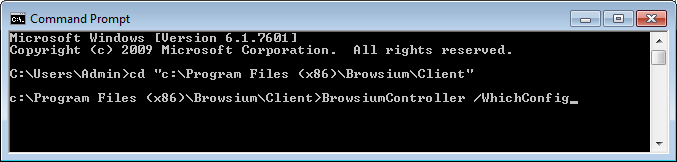
Section titled “Verifying Deployment Settings”Browsium Controller provides a command-line function to query the system and identify the location of the Proton, Ion, and Catalyst configurations to be used the next time the Controller starts. The command BrowsiumController /WhichConfig is run from a Command Prompt.
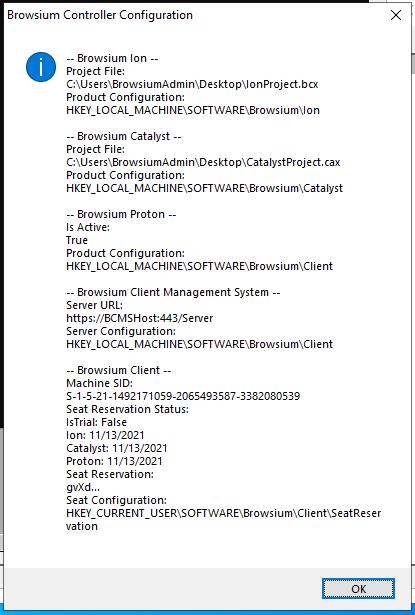
In the following example, a system is setup with an Ion project file deployed to HKEY_LOCAL_MACHINE\SOFTWARE\Wow6432Node\Policies\Browsium\Ion with the value
”C:\Browsium\Ion project.bcx” stored in LocalFromFileName. (This example also contains a Catalyst project file and a Proton Server URL.)
The query uses registry reflection so the result ignores the Wow6432Node key on 64-bit systems, although it’s in the path of the registry value.
Executing this command …
 {width=“4.909666447944007in” height=“1.1749628171478566in”}
… results in the configuration acknowledged as:
 {width=“2.961049868766404in” height=“4.427083333333333in”}
‘WhichConfig’ shows the Ion, Catalyst, and Proton configurations TO BE LOADED at the next Controller restart. The values shown may be different from the currently loaded configurations, if the values in the registry keys have been changed since the Controller was last started.
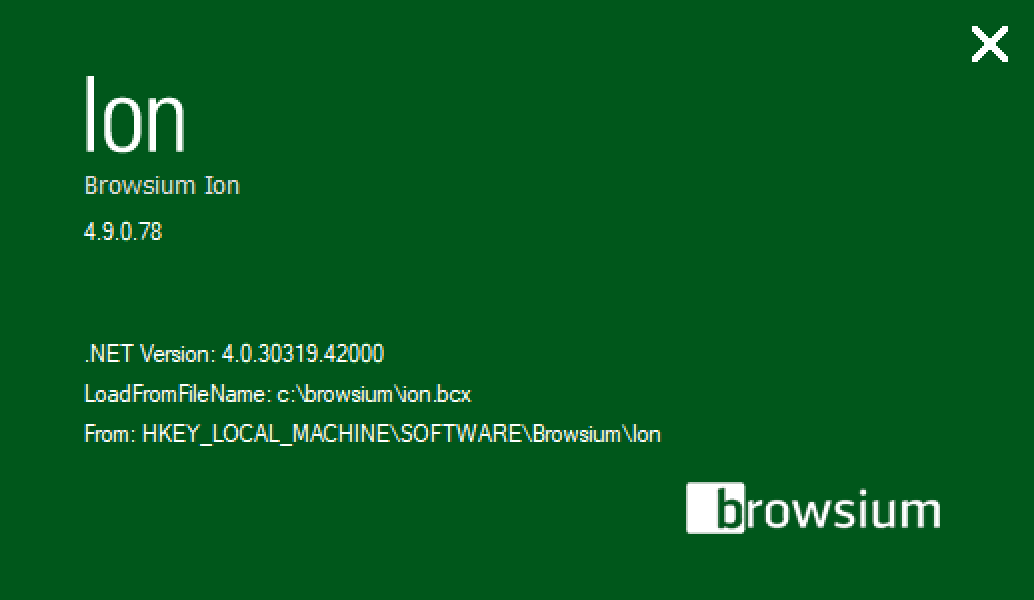
In addition to the command line option, administrators running Ion Configuration Manager can quickly check which configuration will load when the Controller is restarted by viewing About Box. Select ‘About Browsium Ion Configuration Manager’ from the Help menu. When the Ion About Box loads, press the Ctrl key to reveal the project file information. In addition to the LoadFromFileName registry location and project file path and name, you will see the installed .NET CLR version — another way to ensure the system is ready and working properly for testing.
In the following example, the project is read from the registry location written by Start Test Configuration, which takes precedence over all other registry locations as detailed in section 5.3.
 {width=“4.612188320209974in” height=“2.676152668416448in”}
Understanding the Ion Project File Caching Process
Section titled “Understanding the Ion Project File Caching Process”Browsium Controller reads the Ion project file (the configuration containing Profiles, Rules, and Settings) when the Controller is started, then continues operating using that configuration until the Controller restarts and looks for a new project file, or until the configuration changes if non-default Project Update Activation settings are used. See section 5.6.2 for more details on Project Update Activation.
Ion Project File Caching Behavior
Section titled “Ion Project File Caching Behavior”Browsium Controller attempts to load the configuration from the Ion project file defined in the LoadFromFileName registry value whenever the Controller is started. The location of the file can be local on the client system, a network share, or a web server. The Controller must be able to reach the location where the file is stored, and the user must have at least read permissions on the project file. When the configuration is loaded, a copy of the project file is cached locally in the user’s AppData (HKCU deployment) or ProgramData (HKLM deployment) directory.
If multiple users share the same PC with unique user accounts, or when using a multi-user terminal server, each user will cache a copy of the project file in his/her AppData directory. Those files will be identical if the LoadFromFileName registry value is in HKEY_LOCAL_MACHINE (one entry for all users), or may be different if LoadFromFileName is in HKEY_CURRENT_USER (unique entry per user). However, as detailed in section 5.3, Ion Limited Profiles are not supported in HKEY_CURRENT_USER so that registry location is being deprecated in a future release.
If the original Ion project file is not available (the network location is temporarily unreachable or the file has been moved, renamed, or deleted), Browsium Controller will load the previously cached copy of the project file and operate using that configuration until the Controller is restarted and a new project file is available.
This capability makes Ion extremely robust and able to remain fully functional regardless of what happens to the project file after it has been loaded and the Browsium Client processes are running.
How Ion Handles Project File Polling
Section titled “How Ion Handles Project File Polling”Some customers deploy Ion in a staged rollout to their enterprise user base, which requires updating project files as new web application or Java version management settings are required. In order to ensure client systems obtain the updated project file, Ion includes a configuration polling mechanism to check for modified versions of the project file. When Browsium Controller identifies a different file in the target location defined in the LoadFromFileName registry value, by comparing the MD5 hash of the cached file against the target file, the target file is retrieved and cached locally. If the hash matches the current cached file, the target project file is not retrieved.
To ensure a robust user experience, and avoid corrupting data entry or other business processes, by default, newly cached project files will not be loaded until the Controller is restarted, most commonly at the next system restart or user logoff/logon. This functionality is governed by the Project Update Activation setting in Project Settings.
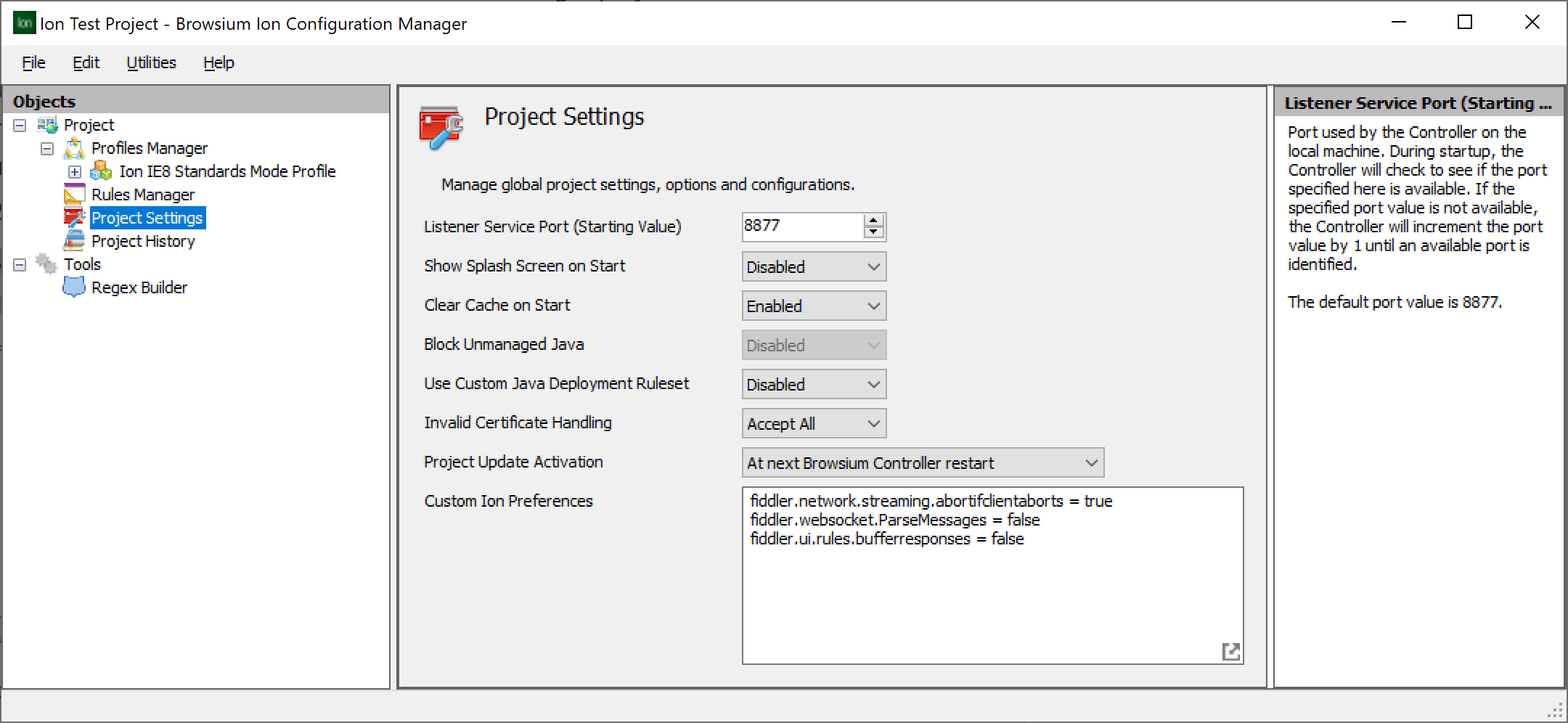 {width=“5.588707349081365in” height=“2.5770155293088366in”}
This setting can be changed to activate the new project immediately or at a scheduled time.
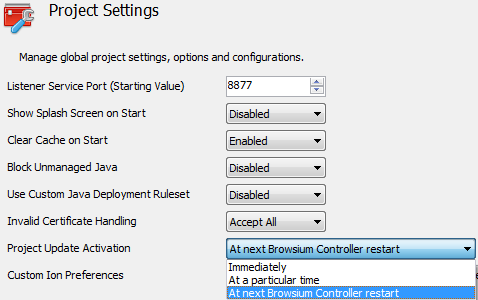 {width=“3.623844050743657in” height=“2.2743799212598423in”}
When “At a particular time” is selected, a Project Update Time field is added. This field defaults to 2am but can be changed to any time value. It uses the client’s system clock so that 2am is 2am for every user, regardless of time zone.
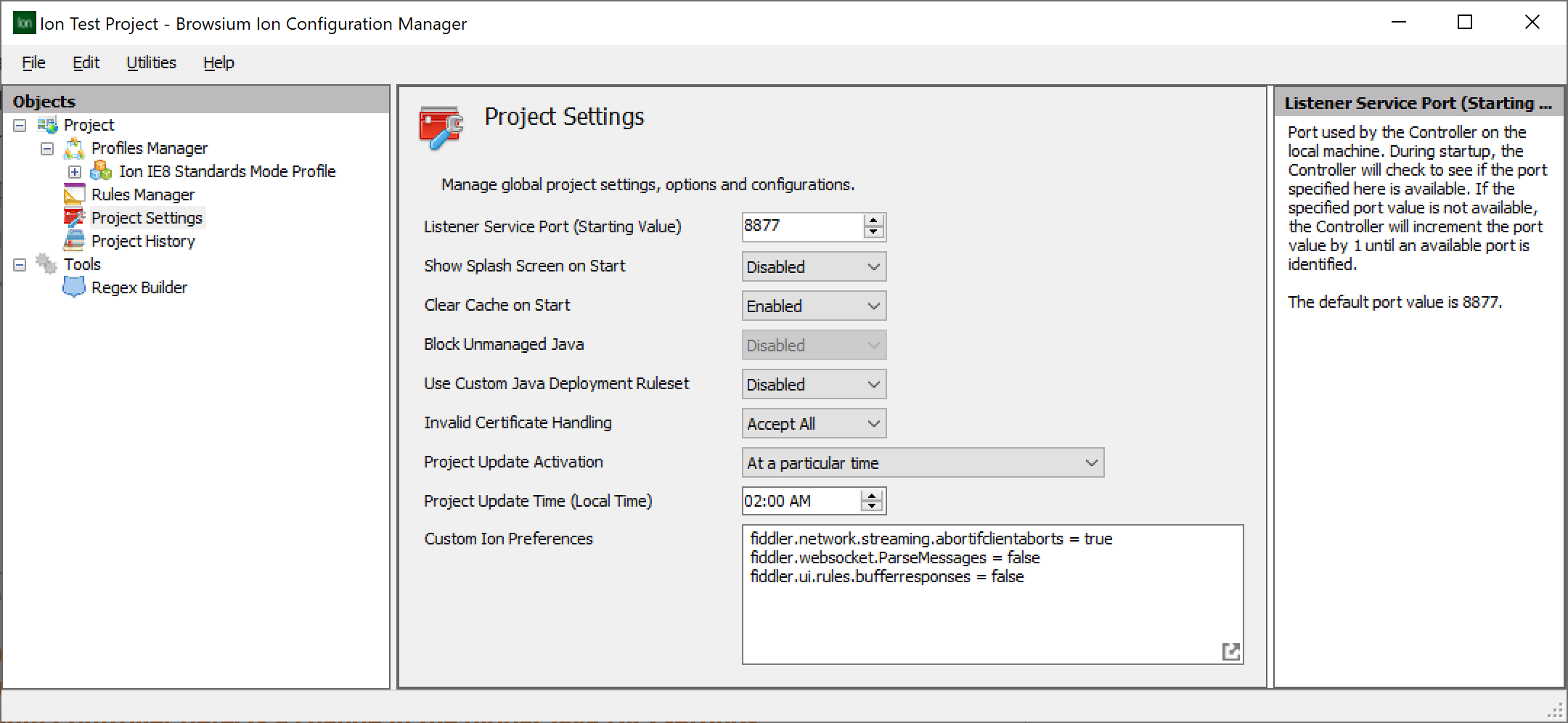 {width=“5.6978893263342085in” height=“2.627360017497813in”}
All Ion-managed instances of Internet Explorer will be closed automatically when the new configuration is loaded. In addition, native instances of Internet Explorer will also be closed if the Browsium Controller detects a change in the global Java DRS settings controlled by the Ion configuration. Careful planning is recommended when choosing non-default options so users working in Internet Explorer are not interrupted by an Ion configuration deployment.
The client polling mechanism checks the target project file location at a regular time sequence interval, using a randomly generated seed time point. The randomly generated seed value helps ensure large scale deployments do not simultaneously try to retrieve the project file, avoiding a denial of service or network traffic storm issues. Therefore, it may take up to an hour for the in-memory Ion configuration to be updated with Project Update Activation set to ‘Immediately’.
Browsium Controller simply compares the computed MD5 hash of two files and uses the target file if the two signatures are different. No effort is made to determine which file is newer (either by time/date stamp or content analysis) so administrators must ensure updates to the target file location are done carefully to avoid clients regressing to an older Ion project file configuration by mistake.
Managing Browsium Client Logging Settings
Section titled “Managing Browsium Client Logging Settings”In a default installation, Browsium Client logs Warning level information which will provide basic information about the Ion configuration and any important errors that may occur on client systems, including errors from Proton and Catalyst if configured on the client.
Browsium Client can be configured to record more detailed logging information to troubleshoot problems or validate Ion configuration settings on the local system. Browsium Client logging is written to the standard Windows event log under an application-level source named Browsium. The Logging Level setting determines the amount and type of data collected in the Windows event log. This table summarizes the various levels and data collected:
Value Level Description
1 Error Writes Error entries
2 Warning Writes Warn and Error entries (Default)
4 Info Writes Info, Warn and Error entries
Section titled “4 Info Writes Info, Warn and Error entries”To adjust the level of logging, a registry value must be configured on the target system. Once the logging value is created, the Browsium Controller must be restarted to recognize the specified logging value.
Browsium Controller looks in the Windows registry for the presence of the logging setting at HKEY_CURRENT_USER\Software\Browsium\Client. The value is a REG_DWORD type, with value name “LogLevel”. The data in that value can be 1, 2 or 4 (see chart above).
 {width=“5.838845144356956in” height=“1.0124409448818898in”}
If no LogLevel registry value is present in the defined registry location (the default Browsium Client state), or any invalid values are found at that location, Browsium Client will revert to using the default Level 2 — Warning.
 {width=“0.9in” height=“0.9in”}
Appendix A
Appendix A: Troubleshooting
In this section, you will learn:
-
How to recognize issues with an Ion configuration
-
What to do when Ion is not working as expected