Ion Configuration Manager Overview
Ion Configuration Manager enables you to create the Ion project files containing Profiles, Rules, and Settings that are deployed to client PCs. This section looks at the various elements of Ion Configuration Manager. ’
Ion Configuration Manager must be run with elevated, administrator privilege as it writes to the HKEY_LOCAL_MACHINE registry hive and Windows system directories to enable Java remediation. It will prompt for elevated privilege automatically.
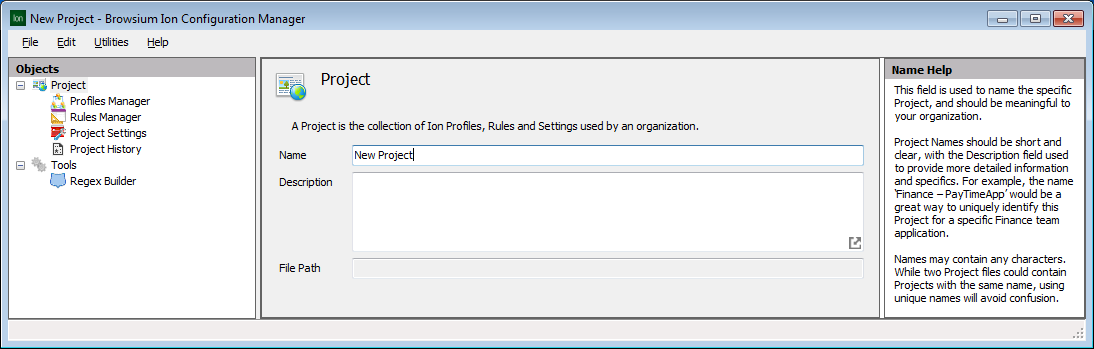
Ion Configuration Manager is designed with the look and feel of an MMC snap-in, with three main functional areas:
Objects Pane (Left) — Tree view containing Project and Tools nodes
Content Pane (Center) — Main data and content window
Actions Pane (Right) — Contextual links for common tasks and steps
 {width=“5.674677384076991in” height=“1.8103193350831146in”}
Some data entry fields will display an  {width=“0.22916666666666666in” height=“0.23958333333333334in”} icon in the lower right hand corner of the text entry field. Clicking this link on any screen will open the extended and powerful text editor. The text editor is provided for easily working with complex text fields, as well as offering syntactical highlighting for easy and readable visual layout. When done editing using the text editor, simply click the OK or Cancel buttons to save (or discard) changes made.
The Actions Pane contains regularly used and context related common functions. The Add, Edit, Delete, Copy, Cut, Paste items appear in the Actions Pane based on the specific task being completed. The behavior of these items is the same in all scenarios. Some interfaces may not support items such as Copy and Paste, and will not be displayed.
See the Project Node, Profiles Node, Rules Manager Node, Project Settings Node and Tools Node sections for a detailed description of each Objects Pane.
Menu Bar
Section titled “Menu Bar”Ion Configuration Manager Menu Bar provides access to key functions related to creating, editing, and testing Ion projects.
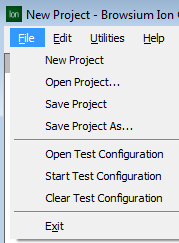
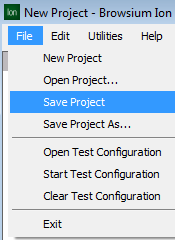
The first menu you will interact with is the File menu. It contains the typical functions to create a New Project, Open Project (a .BCX file on disk), and Save Project (or Save Project As) to a .BCX file. It also has three special functions to Open/Start/Clear Test Configuration which require more detailed explanations.
 {width=“1.6123326771653543in” height=“2.18880905511811in”}
To aid in configuration testing and tuning, Ion Configuration Manager allows project developers to automatically apply project file pointers directly in the system registry and start or restart the Browsium Controller to process the new configuration. This is performed via Start Test Configuration from the File menu, which writes the file pointer to the LoadFromFileName registry value in HKEY_LOCAL_MACHINE\(SOFTWARE\(Wow6432Node)\Browsium\Ion before starting or restarting the Browsium Controller. This operation closes any open Ion-managed instances of Internet Explorer to speed up testing project changes and avoid inconsistencies between open processes and the new configuration.
Start Test Configuration reduces delays and overhead of manual registry edits or deploying registry changes via Group Policy. Open Test Configuration opens the project file found in LoadFromFileName (if Start Test Configuration had been run prior). Clear Test Configuration clears the LoadFromFileName value, stops Browsium Controller (if it’s not configured for Proton or Catalyst), and clears the Internet Explorer cache.
Start Test Configuration automatically saves the current project before writing the LoadFromFileName registry value and restarting the Controller. If the project has not been saved prior, you will be prompted to save the file to a new location.
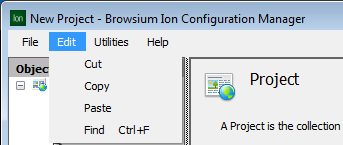
The Edit menu provides Cut, Copy, and Paste functions to assist in project editing and moving rules and Profiles between projects. These functions are also available in the Actions pane for many of the Managers for easy access. The Edit menu also has a Find function (available from the menu or via Control-F) which searches for specific strings inside the project.
 {width=“2.1662839020122484in” height=“0.9157753718285214in”}
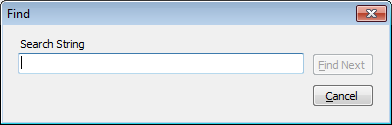
The Find function will search all text in the Project Node, excluding the Project Node itself, starting with the current location of the cursor, and continue looping through the project continuously as you select Find Next.
 {width=“2.503588145231846in” height=“0.798338801399825in”}
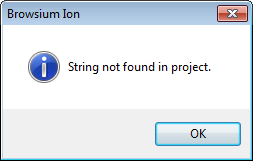
If the string is not found anywhere in the project, you will receive a ‘string not found’ error.
 {width=“1.9302045056867891in” height=“1.2283114610673667in”}
The Find function does not highlight the matched strings in the project file. It simply brings the appropriate manager node or page into focus. In addition, Find does not search the Tools Node. If the Tools Node is selected when Find is invoked, the result will always be ‘string not found’. Select any view in the Project Node to and try the search again.
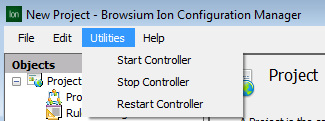
You can use the Utilities menu to manage the Browsium Controller (BrowsiumController.exe) process. You may need to Start/Stop/Restart the Browsium Controller to load new configurations or reproduce troubleshooting steps.
 {width=“2.7148939195100614in” height=“1.0107753718285215in”}
Project Node
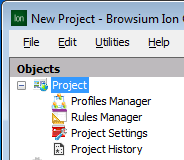
Section titled “Project Node”The Project node displays the configuration file currently loaded in Ion Configuration Manager. An individual project file (.BCX file extension) contains all of the configuration information needed for a given set of rules and Profiles. Ion Configuration Manager is designed to load one project per instance. Loading multiple projects can be done by opening each project in another Ion Configuration Manager instance. Rules and Profiles (and individual configuration items that make up a Profile) can be copied and pasted between projects.
 {width=“1.444915791776028in” height=“1.256447944006999in”}
Loading a project (or creating a new project) brings up the Project details in the Content Pane.
{width=“5.493413167104112in” height=“1.75249343832021in”}
Project details (Name and Description) can be edited on this screen. Projects are assigned a default name and a blank description and should be edited to reflect information and labeling relevant to your organization. The project’s File Path is blank until you save the project file. This field cannot be edited but will be updated automatically if the project is saved to a new location.
Use Save Project from the File menu to save a project for future editing or deployment.
 {width=“1.4652602799650043in” height=“1.1325218722659667in”}
Profile Node
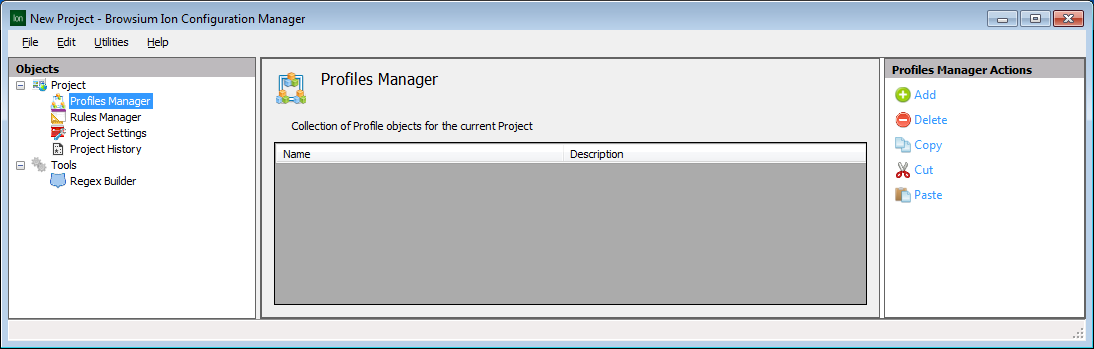
Section titled “Profile Node”Profiles contain the rendering mode, environment settings, and specific browser plug-ins to be used in rendering content. To create a new Profile, use the Actions Pane ‘Add’ item.
 {width=“5.060983158355206in” height=“1.6145406824146982in”}
The Actions Pane includes the Delete, Copy, Cut, Paste items which are helpful when working on a project populated with several Profiles. The Copy, Cut and Paste items integrate with the system clipboard and are especially useful when working with multiple Ion Configuration Manager instances loaded with unique project files.
[]{#_Browser_Engine_Selection .anchor}
Profile Type Selection
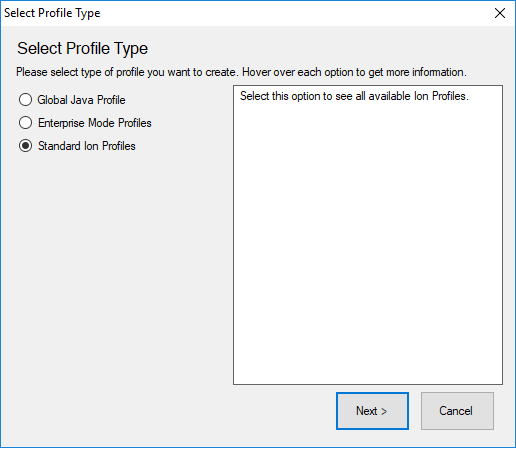
Section titled “Profile Type Selection”Profiles are the basis for all Ion settings management. To start any type of Ion managed configuration, the first step is to select which type of Profile to create. Ion offers three types of Profiles:
-
Global Java Profile
-
Enterprise Mode Profiles
-
Standard Ion Profiles
 {width=“4.177913385826772in” height=“3.6597222222222223in”}
Global Java Profile
Section titled “Global Java Profile”Global Java Profiles are designed for Ion configurations which ONLY require Java version management. A Global Java Profile cannot modify or manage any other browser settings. Selecting this Profile type will launch the Java Wizard, which guides the Java management process and settings.
Enterprise Mode Profiles
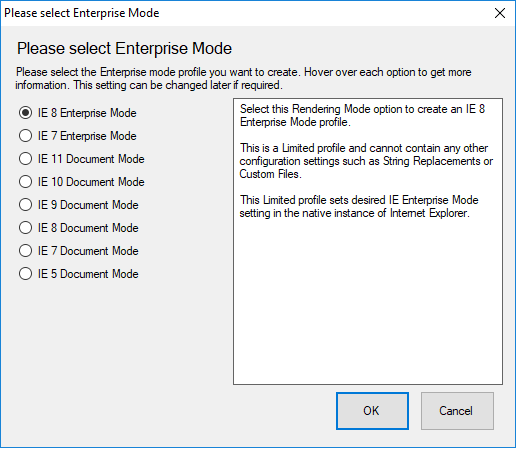
Section titled “Enterprise Mode Profiles”Enterprise Mode Profiles can be created and managed within the Ion Configuration Manager. Unlike Standard Ion Profiles, Enterprise Mode Profiles simply enable the Microsoft Enterprise Mode feature.
 {width=“3.955936132983377in” height=“3.4652777777777777in”}
Enterprise Mode Profiles are ‘limited’, in that no other browser settings can be modified or managed. For example, no Java management is possible with an Enterprise Mode Profile selection.
Standard Ion Profiles
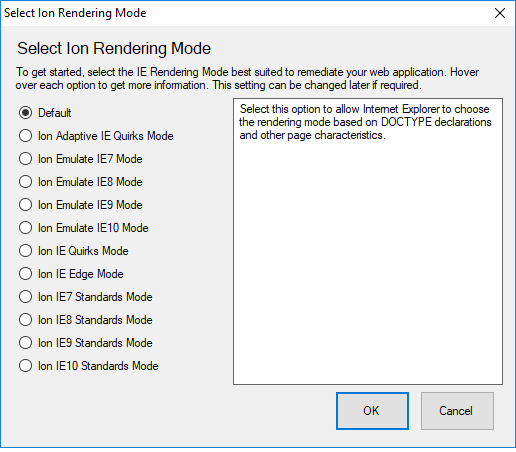
Section titled “Standard Ion Profiles”Standard Ion Profiles are the most flexible and powerful type of Profile available. To being, select the Rendering Mode that most Rendering modes are a collection of settings, anchored by Internet Explorer Document Modes, designed to provide maximum backward compatibility for business applications that require legacy versions of Internet Explorer. This screen shows the available rendering mode templates:
 {width=“3.4553040244969377in” height=“3.0409722222222224in”}
This chart provides a list of the Internet Explorer rendering modes accessible by Ion:
+-----------------------------+-------------------------------------------------------------------------------------------------------------------------------------------------------------------------------------------------------------------------------------------------------------------------------------------------------------------------------------------------------------------------------------------------------------------------------------------------------------------------------------------------------------------------------------------------------------------------------------------+ | Rendering Mode | Description | +=============================+===========================================================================================================================================================================================================================================================================================================================================================================================================================================================================================================================================================================================+ | Default | This creates an empty Profile with no Document Mode or customized values. All settings are default settings or blank values. | +-----------------------------+-------------------------------------------------------------------------------------------------------------------------------------------------------------------------------------------------------------------------------------------------------------------------------------------------------------------------------------------------------------------------------------------------------------------------------------------------------------------------------------------------------------------------------------------------------------------------------------------+ | Ion Adaptive IE Quirks Mode | Renders content by dynamically selecting either the IE7 Standards or Quirks Mode rendering behavior based on the presence and location of a DOCTYPE on the page. Pages will be rendered using the IE7 Standards behavior if the page contains a DOCTYPE in the 1^st^ position (no text preceding the declaration) and that DOCTYPE declaration is anything other than ‘QUIRKS’. Pages will be rendered using the Quirks Mode behavior if the page has no DOCTYPE declaration, expressly includes a QUIRKS DOCTYPE declaration or if the DOCTYPE declaration is NOT in the 1^st^ position. | | | | | | In either case the IE6 UA string is declared regardless of which rendering Mode is selected. | +-----------------------------+-------------------------------------------------------------------------------------------------------------------------------------------------------------------------------------------------------------------------------------------------------------------------------------------------------------------------------------------------------------------------------------------------------------------------------------------------------------------------------------------------------------------------------------------------------------------------------------------+ | Ion Emulate IE7 Mode | Standards Mode directives are displayed in Internet Explorer 7 Standards Mode and Quirks Mode directives are displayed in IE5 Mode. | +-----------------------------+-------------------------------------------------------------------------------------------------------------------------------------------------------------------------------------------------------------------------------------------------------------------------------------------------------------------------------------------------------------------------------------------------------------------------------------------------------------------------------------------------------------------------------------------------------------------------------------------+ | Ion Emulate IE8 Mode | Standards Mode directives are displayed in Internet Explorer 8 Standards Mode and Quirks Mode directives are displayed in IE5 Mode. | +-----------------------------+-------------------------------------------------------------------------------------------------------------------------------------------------------------------------------------------------------------------------------------------------------------------------------------------------------------------------------------------------------------------------------------------------------------------------------------------------------------------------------------------------------------------------------------------------------------------------------------------+ | Ion Emulate IE9 Mode | Standards Mode directives are displayed in Internet Explorer 9 Standards Mode and Quirks Mode directives are displayed in IE5 Mode. | | | | | | Note: This Profile will default to the highest available version of IE Standards Mode engine on systems running versions lower than IE9. E.g. IE8 systems will use IE8 Standards Mode. | +-----------------------------+-------------------------------------------------------------------------------------------------------------------------------------------------------------------------------------------------------------------------------------------------------------------------------------------------------------------------------------------------------------------------------------------------------------------------------------------------------------------------------------------------------------------------------------------------------------------------------------------+ | Ion Emulate IE10 Mode | Standards Mode directives are displayed in Internet Explorer 10 Standards Mode and Quirks Mode directives are displayed in IE5 Mode. | | | | | | Note: This Profile will default to the highest available version of IE Standards Mode engine on systems running versions lower than IE10. E.g. IE8 systems will use IE8 Standards Mode, IE9 systems will use IE9 Standards Mode, etc. | +-----------------------------+-------------------------------------------------------------------------------------------------------------------------------------------------------------------------------------------------------------------------------------------------------------------------------------------------------------------------------------------------------------------------------------------------------------------------------------------------------------------------------------------------------------------------------------------------------------------------------------------+ | Ion IE Quirks Mode | Renders content as if it were displayed in Quirks Mode by Internet Explorer. IE Quirks is similar to the rendering behavior in IE 5.5. This Profile can be used to force a web application to render using ‘Quirks’ Mode directives. | +-----------------------------+-------------------------------------------------------------------------------------------------------------------------------------------------------------------------------------------------------------------------------------------------------------------------------------------------------------------------------------------------------------------------------------------------------------------------------------------------------------------------------------------------------------------------------------------------------------------------------------------+ | Ion IE Edge Mode | To plan for future browser version continuity, Ion includes the ‘Default IE Edge Mode Profile’ to enable rules to always use the default (latest) browser engine installed on the system. | | | | | | Note: Ion supports multiple versions of IE (8, 9, 10). Customers are advised to use caution in selecting this value as it will have important behavioral, rendering and scripting differences when used on different Internet Explorer versions. | +-----------------------------+-------------------------------------------------------------------------------------------------------------------------------------------------------------------------------------------------------------------------------------------------------------------------------------------------------------------------------------------------------------------------------------------------------------------------------------------------------------------------------------------------------------------------------------------------------------------------------------------+ | Ion IE7 Standards Mode | Renders content as if it were displayed in Standards Mode by Internet Explorer 7. This Profile can enable scenarios where a web application renders properly using the IE8’s ‘IE7 Mode’ but the given line-of-business application may require granular setting configurations that are not possible or appropriate changes to make globally to the IE8 browser configuration. | +-----------------------------+-------------------------------------------------------------------------------------------------------------------------------------------------------------------------------------------------------------------------------------------------------------------------------------------------------------------------------------------------------------------------------------------------------------------------------------------------------------------------------------------------------------------------------------------------------------------------------------------+ | Ion IE8 Standards Mode | Renders content as if it were displayed in Standards Mode by Internet Explorer 8. | +-----------------------------+-------------------------------------------------------------------------------------------------------------------------------------------------------------------------------------------------------------------------------------------------------------------------------------------------------------------------------------------------------------------------------------------------------------------------------------------------------------------------------------------------------------------------------------------------------------------------------------------+ | Ion IE9 Standards Mode | Renders content as if it were displayed in Standards Mode by Internet Explorer 9. | | | | | | Note: This Profile will default to the highest available version of IE Standards Mode engine on systems running versions lower than IE9. E.g., IE8 systems will use IE8 Standards Mode. | +-----------------------------+-------------------------------------------------------------------------------------------------------------------------------------------------------------------------------------------------------------------------------------------------------------------------------------------------------------------------------------------------------------------------------------------------------------------------------------------------------------------------------------------------------------------------------------------------------------------------------------------+ | Ion IE10 Standards Mode | Renders content as if it were displayed in Standards Mode by Internet Explorer 10. | | | | | | Note: This Profile will default to the highest available version of IE Standards Mode engine on systems running versions lower than IE10. E.g. IE8 systems will use IE8 Standards Mode, IE9 systems will use IE9 Standards Mode, etc. | +-----------------------------+-------------------------------------------------------------------------------------------------------------------------------------------------------------------------------------------------------------------------------------------------------------------------------------------------------------------------------------------------------------------------------------------------------------------------------------------------------------------------------------------------------------------------------------------------------------------------------------------+
Any Profile can be modified to suit specific web application compatibility issues. For example, Ion makes it possible to specify different versions of the Java Runtime Environment (JRE) on a per-Profile basis, whereas changing the JRE version for Internet Explorer globally would only allow for a single version to be loaded at a time.
Care should be used when selecting IE Edge, Emulate IE9, Emulate IE10, IE9 Standards and IE10 Standards since the rendering engines, and therefore rendering behavior, will be very different when the Profile is invoked on systems running Internet Explorer versions lower than the mode specified.
This table shows the specific document mode that will be invoked in each Rendering Mode:
Rendering Mode If IE8 is installed If IE9 is installed If IE10 is installed If IE11 is installed
Default IE8 Standard Mode IE9 Standards Mode IE10 Standards Mode IE11 Standards Mode
Ion Adaptive IE Quirks IE8 Quirks Mode or IE7 Standards Mode (as evaluated by DOCTYPE) IE9 Quirks Mode or IE7 Standards Mode (as evaluated by DOCTYPE) IE10 Quirks Mode or IE7 Standards Mode (as evaluated by DOCTYPE) IE11 Quirks Mode or IE7 Standards Mode (as evaluated by DOCTYPE)
Ion Emulate IE7 Mode Emulate IE7 Mode for IE8 Emulate IE7 Mode for IE9 Emulate IE7 Mode for IE10 Emulate IE7 Mode for IE11
Ion Emulate IE8 Mode IE8 Standards Mode Emulate IE8 Mode for IE9 Emulate IE8 Mode for IE10 Emulate IE8 Mode for IE11
Ion Emulate IE9 Mode IE8 Standards Mode IE9 Standards Mode Emulate IE9 Mode for IE10 Emulate IE9 Mode for IE11
Ion Emulate IE10 Mode IE8 Standards Mode IE9 Standards Mode IE10 Standards Mode IE10 Standards Mode
Ion IE Quirks Mode IE8 Quirks Mode IE9 Quirks Mode IE10 Quirks Mode IE11 Quirks Mode
Ion IE Edge Mode IE8 Standards Mode IE9 Standards Mode IE10 Standards Mode IE11 Standards Mode
Ion IE7 Standards Mode IE7 Standards Mode for IE8 IE7 Standards Mode for IE9 IE7 Standards Mode for IE10 IE7 Standards Mode for IE11
Ion Ion IE8 Standards Mode IE8 Standards Mode IE8 Standards Mode for IE9 IE8 Standards Mode for IE10 IE8 Standards Mode for IE11
Ion IE9 Standards Mode IE8 Standards Mode IE9 Standards Mode IE9 Standards Mode for IE10 IE9 Standards Mode for IE11
Ion IE10 Standards Mode IE8 Standards Mode IE9 Standards Mode IE10 Standards Mode IE10 Standards Mode
Section titled “Ion IE10 Standards Mode IE8 Standards Mode IE9 Standards Mode IE10 Standards Mode IE10 Standards Mode”Profile Editor
Section titled “Profile Editor”The Profile Editor is used to modify settings, values and configurations for a given Profile. Editing a Profile may involve creating or modifying entries in any of the Managers available for each Profile in the Objects pane. To get started, highlight a Profile to view the Profile Properties in the Content Pane. The remainder of section 3.3.5 will walk through the Profile Properties and the managers available for each full Profile.
Full Profiles can access all the Managers used by Ion. Global Java Profiles can only set the desired version of Java for the Profile. None of the Managers or Advanced Profile Settings are available to Global Java Profiles. Global Java Profiles are described in section 3.3.3.
Profile Properties
Section titled “Profile Properties”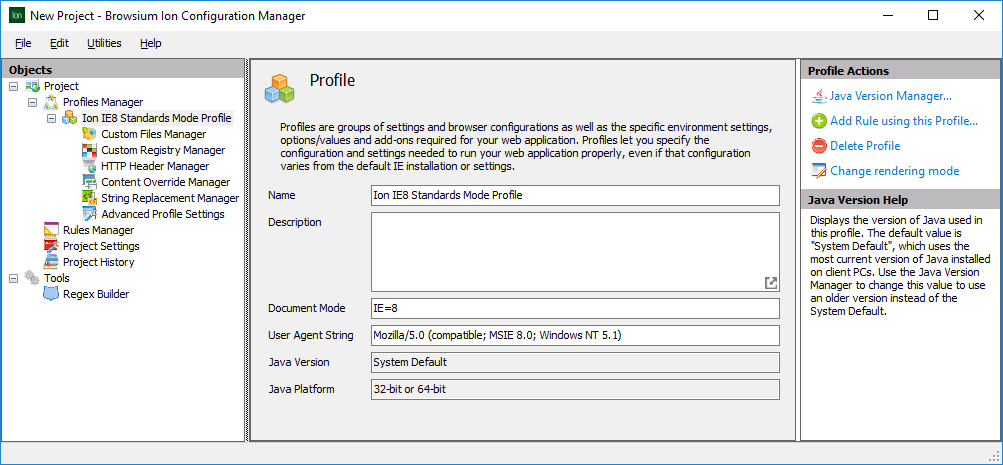 {width=“5.604166666666667in” height=“2.599141513560805in”}
Profile details (Name, Description, Document Mode, and User Agent String) other than Java Version and Java Platform can be edited on the Profile Properties screen. Java Version and Java Platform are modified via the Java Version Manager. Profiles are assigned default values based on the Rendering Mode template selected when adding a new Profile, or when selecting ‘Change rendering mode’ from the Actions Pane. Most values can be left at defaults, but Name and Description should be edited to reflect information relevant to your web applications and organization. Additional information about each setting is available from the ‘rollover’ information panel display in the Content Pane.
Name — The Profile Name can be modified to suit your remediation project.
Description — The Description field allows for a more complete explanation of the Profile.
Document Mode — Ion allows you to define which Document Mode is included for pages loaded using the specified Profile. Internet Explorer Document Modes are used to trigger different rendering and scripting engine behaviors. The default Document Mode included with each Profile is set based on the rendering mode selected when the Profile is created. The Document Mode can be changed at any time and is exclusive of the rendering mode choice. More information about Document Modes can be found on the MSDN website.
User Agent String — User Agent (UA) String settings let you specify the value passed to a web server by Internet Explorer for a given Profile. Some common web application compatibility issues can be resolved by simply adjusting the UA string values. Using this feature, Profiles can be configured to send the desired UA string without impacting the standard Internet Explorer UA string values. UA strings are defined by the originally selected rendering mode template, but can be changed at any time. More information can be found on the MSDN website.
As a general rule, Profiles created using any of the templates will set the UA string values to the minimum supported platform for the Internet Explorer release on which that rendering mode is designed. For Example, the UA string values for an Emulate IE8 Profile will be set as Windows NT 5.1 (Windows XP version number) as IE8 minimum support starts with Windows XP.Platform token value.
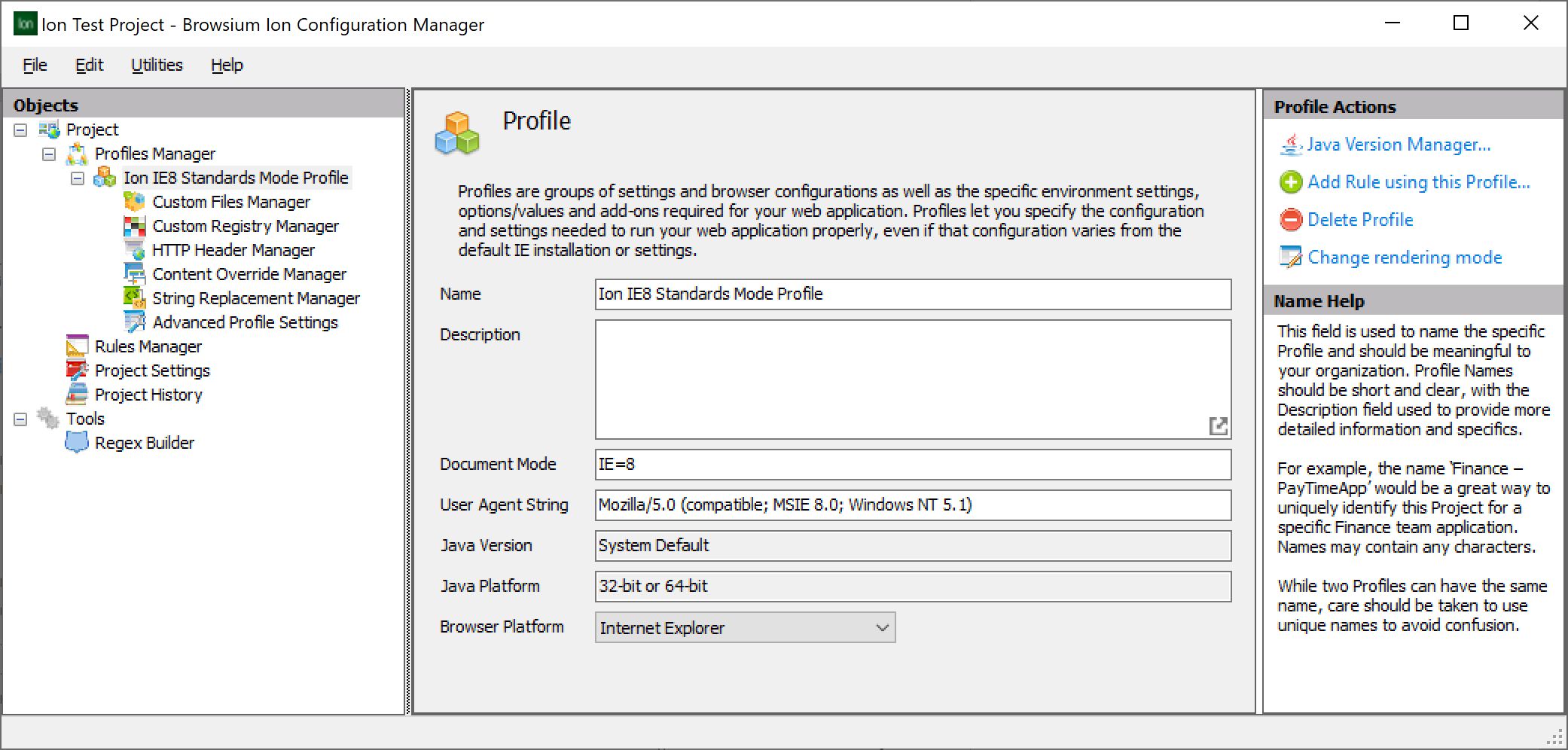
Java Version — Displays the version of Java used in this Profile. The default value is “System Default”, the most current version of Java installed on client PCs. To override the default version of Java with an earlier version, you must change the value in the Java Version Manager.
Java Platform — Displays the architecture for the selected version of Java, either 32-bit or 64-bit.
64-bit Java requires Internet Explorer to be run in a special 64-bit tab process mode. Ion automatically puts Internet Explorer (10 or 11) into this mode when a Profile using a 64-bit version of Java is invoked. However, no 32-bit browser add-ons can be used when in this mode and Ion does not support 64-bit Java in IE8 or IE9. It is therefore recommended that you only use 64-bit Java for applications that have a specific 64-bit requirement.
Browser Platform — Specifies the Browser Platform to be used for rendering sites using this Profile. Options include Auto, Internet Explorer, and Edge Internet Explorer Mode. Choosing the Auto option will load the Profile in the same browser the user originated the request. Selecting Internet Explorer or Edge Internet Explorer Mode will force the Profile to open in the specified browser.
Profiles created with a previous version of Browsium Ion will have Internet Explorer pre-selected as the Browser Platform.
Ion only supports Internet Explorer and Microsoft Edge, so the originating browser for these rules must be Internet Explorer, Edge or Edge IE Mode. Customers looking to redirect to Edge IE Mode from other browsers will need to purchase and deploy Browsium Catalyst. Contact support or your client account manager for more information.
Java Version Manager
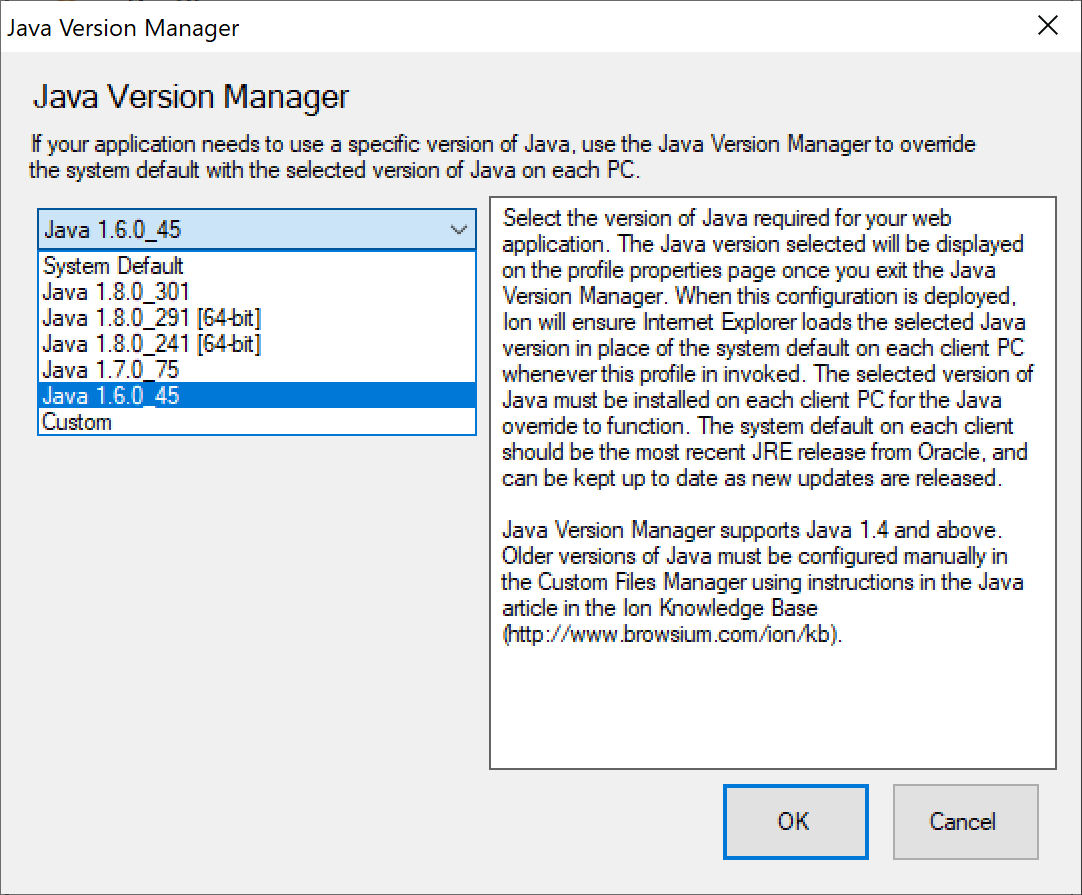
Section titled “Java Version Manager”By default, Internet Explorer uses the most recent version of Java installed on the system. But many enterprise applications require an older version of Java to run properly. The Java Version Manager automates the remediation of Java versions within an Ion Profile, enabling Ion to swap in the selected version of Java on client systems at runtime.
Java Version Manager provides a dropdown list of all versions of Java installed on the system running Ion Configuration Manager. The System Default choice at the top of the list is the default value in every full Ion Profile. Leaving this value unchanged instructs Ion to ignore Java and allow Internet Explorer to use the default (most recent) version when the Profile is invoked.
 {width=“3.1325984251968504in” height=“2.591088145231846in”}
Selecting any other version will kick off the process of adding a Java remediation to the Ion configuration, displaying the selected version in the Java Version field in the Profile Properties page. The Java selection can be changed by running the Java Version Manager again.
 {width=“5.89242125984252in” height=“2.8190452755905513in”}
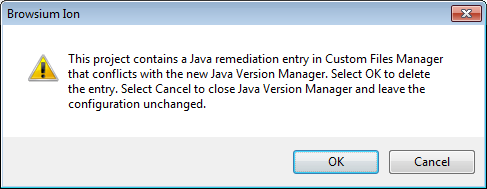
Running Java Version Manager in a project that contains a legacy Custom Files-based Java remediation will automatically delete the legacy Custom Files entry. You can then select the same version of Java from Java Version Manager to create the new remediation. You will see the following prompt before the Custom Files entry is deleted. Selecting Cancel will keep your legacy Custom Files entry unchanged. Browsium recommends selecting OK and deleting the legacy entry, followed by the Java version selection in Java Version Manager.
 {width=“3.7048108048993877in” height=“1.4378018372703412in”}
Projects with a legacy Custom Files-based Java remediation that has not yet been migrated using the new Java Version Manager will display System Default in the Java Version field in Profile Properties, even though the project will remediate Java using the entry in Custom Files Manager. It is recommended that all legacy Java remediations (for Java 1.4 and later) be migrated to the new remediation architecture using Java Version Manager.
Client PCs must be running the selected 32-bit or 64-bit version of the Java Runtime Environment (JRE) for the Profile to function as intended. A best practice is to install (and keep up to date) the most current version of the JRE on each client PC, along with the JRE versions required for the applications accessed by the user of that PC. Many organizations will install all legacy JRE versions required by applications used within the organization, along with the most current version, in a single Windows image that is then managed by Ion Profiles and rules.
Java Version Manager can also be used to “lock in” a modern version of Java for all business applications that require Java and work well with recent versions. This can be done alongside Profiles that use legacy versions of Java. So, for example, a Profile and rule combination can be created that always uses Java 8 update 73 for all sites in the intranet zone, even when newer releases of Java are installed. This allows the organization to avoid retesting all internal Java-dependent applications every time Oracle releases a security update for Java, yet still get the benefit of those security improvements for Internet sites.
Use Java Version Manager to lock in a Java version for all internal applications, yet still get the benefit of those security improvements for Internet sites.
Systems running Ion Configuration Manager have an additional requirement when using the Java Version Manager. These systems must run a recent 32-bit version of the Java Development Kit (JDK), as it is used by the Java Version Manager. The specific version of the JDK is not critical, as long as it’s newer than Java 7 update 40, and newer than the JRE versions needed in your Ion Profiles. Java 8 update 73 is the most recent version of the JDK as of the publication date of this guide, and is an excellent choice for use with Java Version Manager.
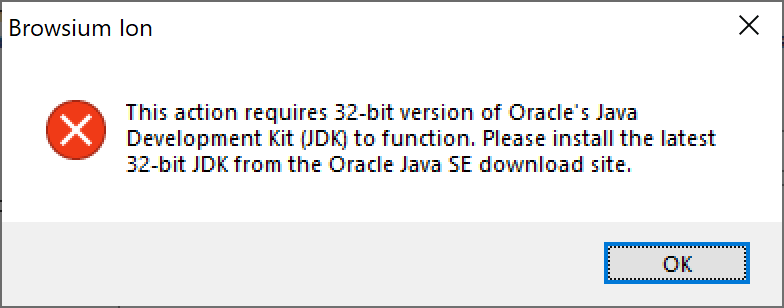
Running Java Version Manager without the JDK installed will result in the following error. If you experience this error, visit the Oracle Java SE download site to download and install the free JDK and then run Java Version Manager again. Note that you will also see a similar error if you have installed the 64-bit JDK. Ion supports both 32-bit and 64-bit versions of JRE, but Ion Configuration Manager requires the 32-bit JDK to run Java Version Manager.
 {width=“2.6524037620297465in” height=“1.0419750656167979in”}
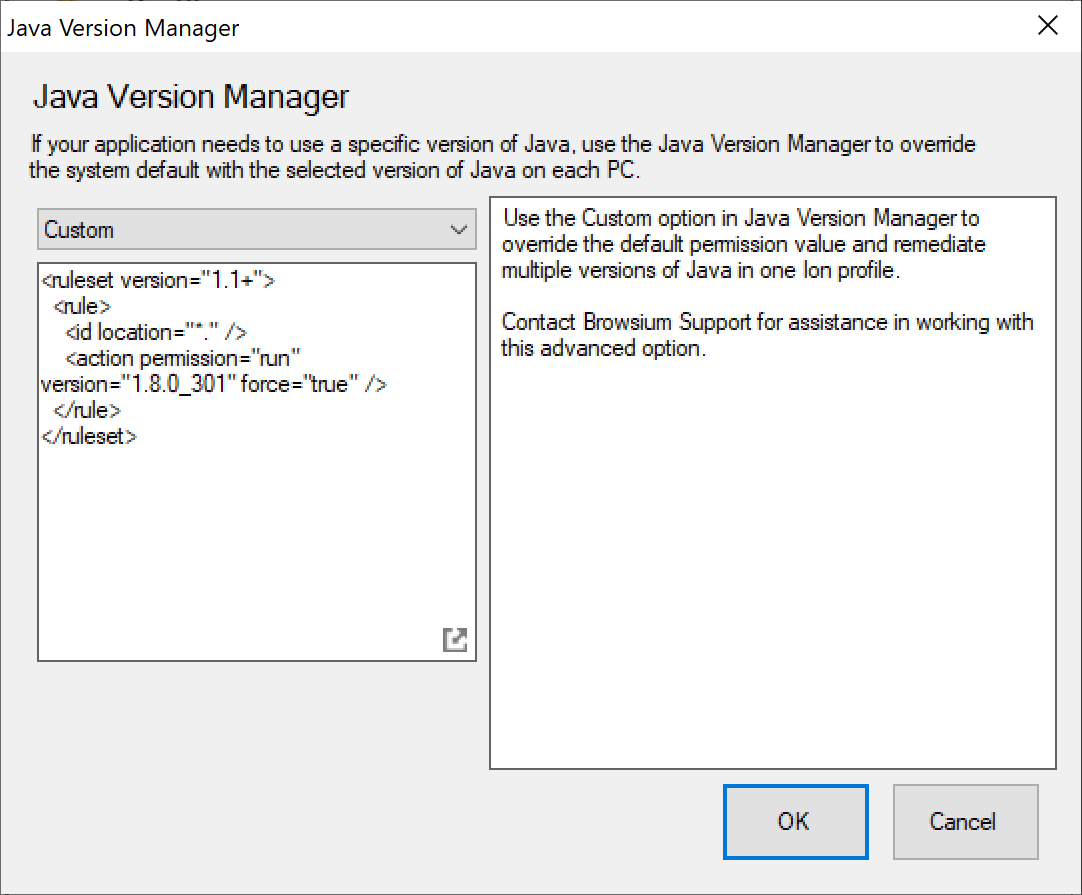
Java Version Manager also supports custom Java configurations, allowing direct editing of the XML to enable custom permissions or remediate multiple Java versions in one Profile. Contact Browsium Support for assistance in working with Custom Java configurations.
 {width=“3.421613079615048in” height=“2.830142169728784in”}
The Java Version Manager also provides for ‘plugin-based’ Java swaps to ensure a more broad range of scenarios. For some versions of Java, swaps can be performed by swapping out the Internet Explorer add-on rather than by using Java’s internal Deployment Ruleset system. The “force plugin-based swap” option should be selected if there are compatibility issues precluding the use of standard Java swaps. Note that if this option is selected, security settings may have to be adjusted for the application to run.
{width=“3.4467760279965005in” height=“2.8509547244094486in”}
Custom Files Manager
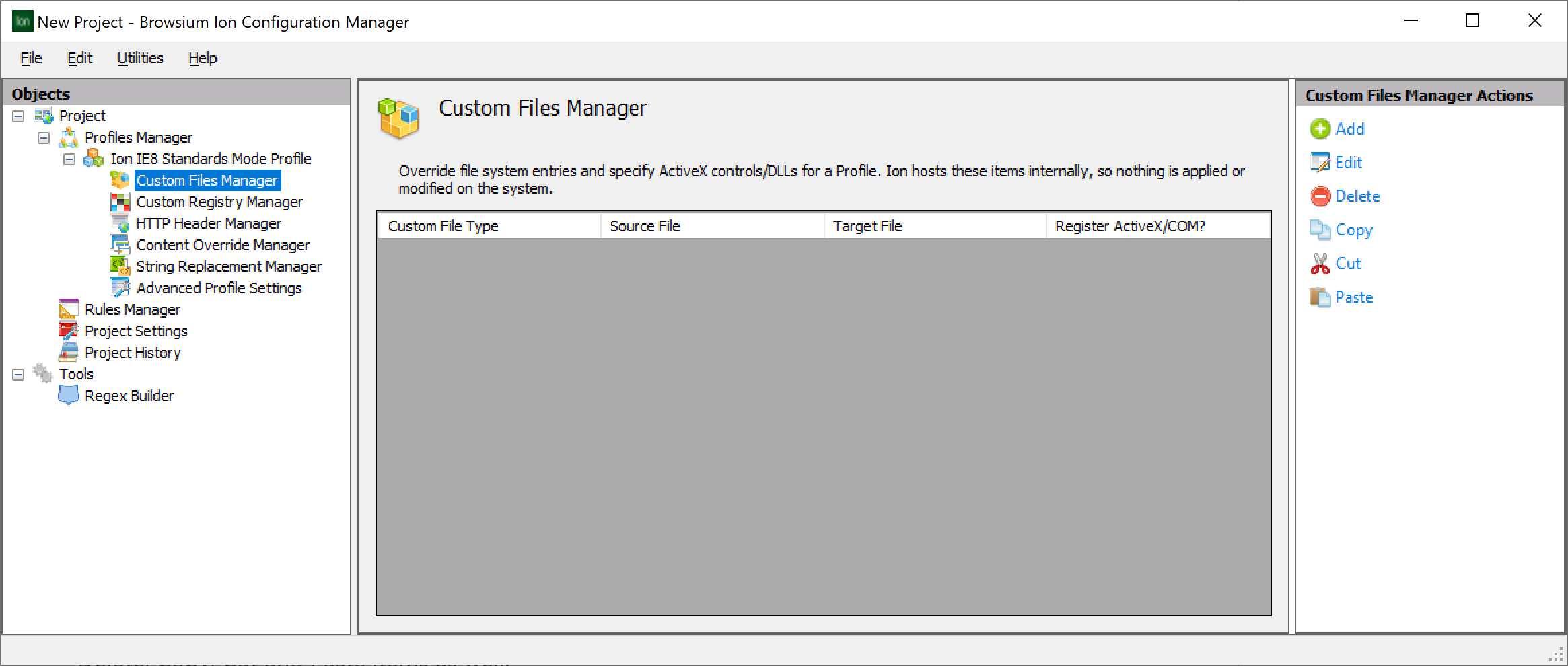
Section titled “Custom Files Manager”Ion allows you to create specific file system entries and define custom ActiveX controls for a Profile. Ion manages these items using a private memory address space, so nothing is applied or modified on the default Windows system running Browsium Client. These entries can reference a file on disk (available locally on the PC running Browsium Client or accessible via a server) or a text string (of arbitrary length) or binary file that is included in the Ion configuration.
 {width=“5.222036307961504in” height=“2.2188079615048117in”}
This screen displays all configured custom file and custom ActiveX mappings. To add a value, use the link in the Actions Pane on the right-hand side. To edit a value, highlight the item in the Content Pane and use the ‘Edit’ link in the Actions Pane. The Custom Files Manager supports the Delete, Copy, Cut and Paste items as well.
Custom Files Editor
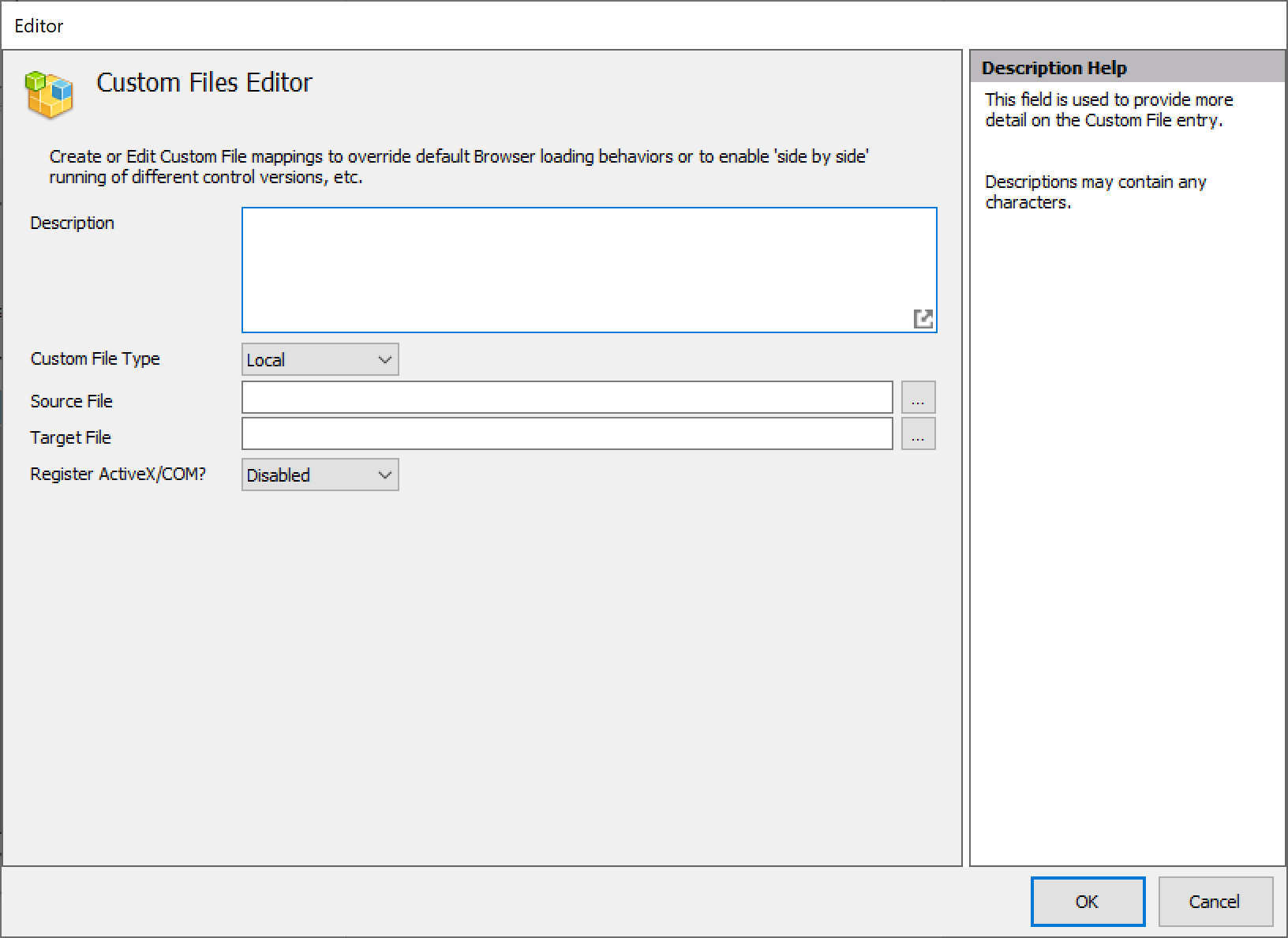
Section titled “Custom Files Editor”Use this screen to add or edit Custom File mappings. You may either type the file path or use the ellipses to browse the local file system and select the desired Source and Target files. It is a good practice to use environment variables, such as %ProgramFiles%, to ensure the file paths are properly resolved on both 32-bit and 64-bit editions of Windows.
 {width=“3.240964566929134in” height=“2.359394138232721in”}
The following fields are available in the Custom Files Editor:
Description — Allows for a more complete explanation of the Custom Files entry.
Custom File Type — Specifies the type of custom file swap being performed. Local (the default) specifies a Source File to replace a Target File. The Source File must be located on or accessible from the client PC running this Ion configuration. The Target File is typically already present on the client PC (e.g., a text-based settings file) or even installed on the client PC (e.g., a DLL).
Binary also specifies a Source File to be swapped for a Target File, but the Source File does not need to be present on the client PC. It will be included with the Ion configuration, embedded in the .BCX file. Text provides even more flexibility, with the Source File created on the fly in the Ion project in the Custom File Content field, as shown below.
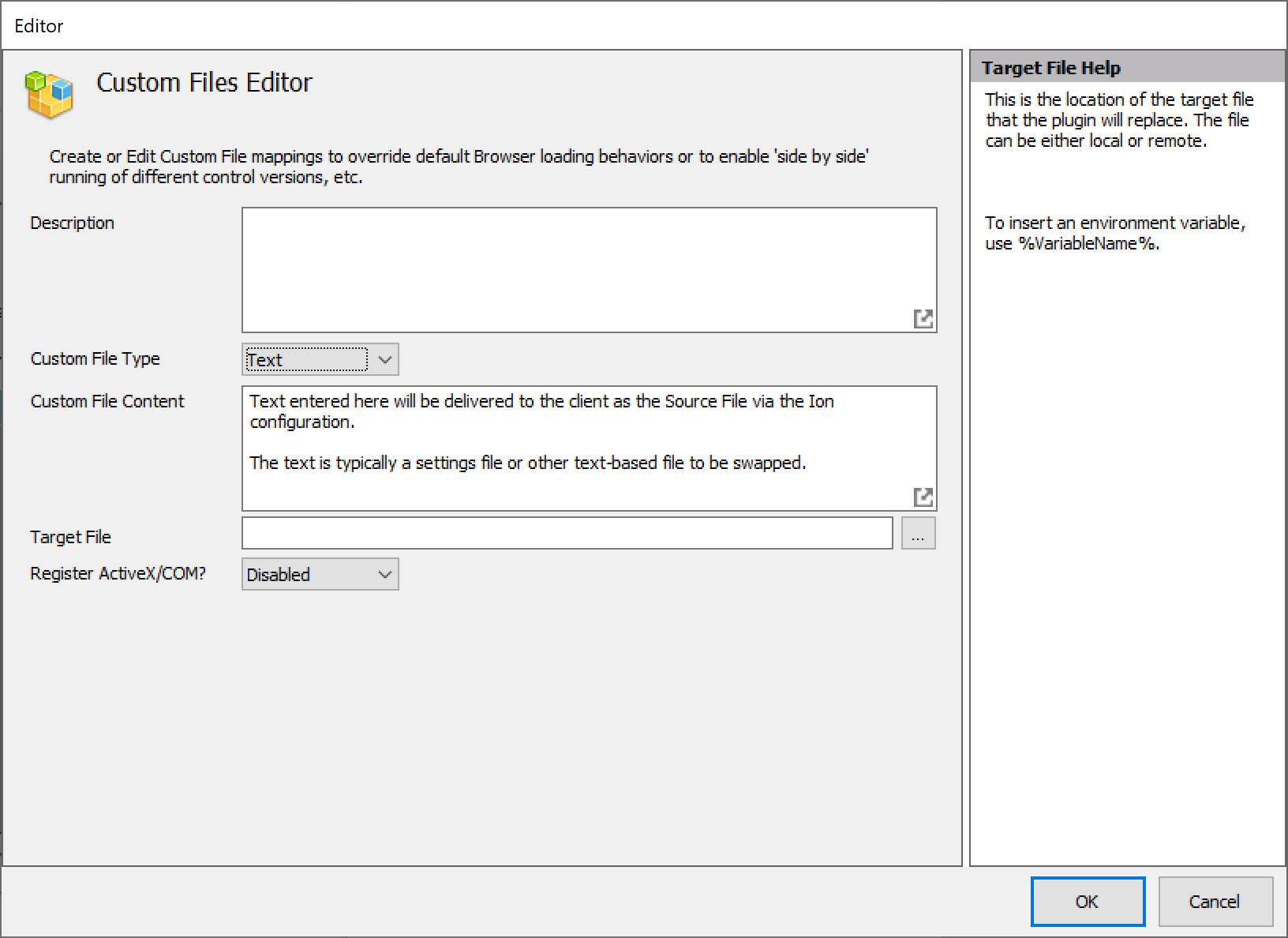 {width=“3.9923140857392827in” height=“1.9151826334208224in”}
Source File — Path to the file to replace the Target File.
Target File — Path to the file already on the client PC that will be replaced by the Source File.
Register ActiveX/COM? — This field is disabled by default. When enabled, the Source File will be added to a virtual registry in memory on the client system, but only while Ion is active. Once the Ion-managed instance has closed, the virtual registry is removed from memory.
Custom Registry Manager
Section titled “Custom Registry Manager”This screen allows you to create specific registry entries for a Profile. Ion provides an environment to host these items in memory, so nothing modified on the client system.
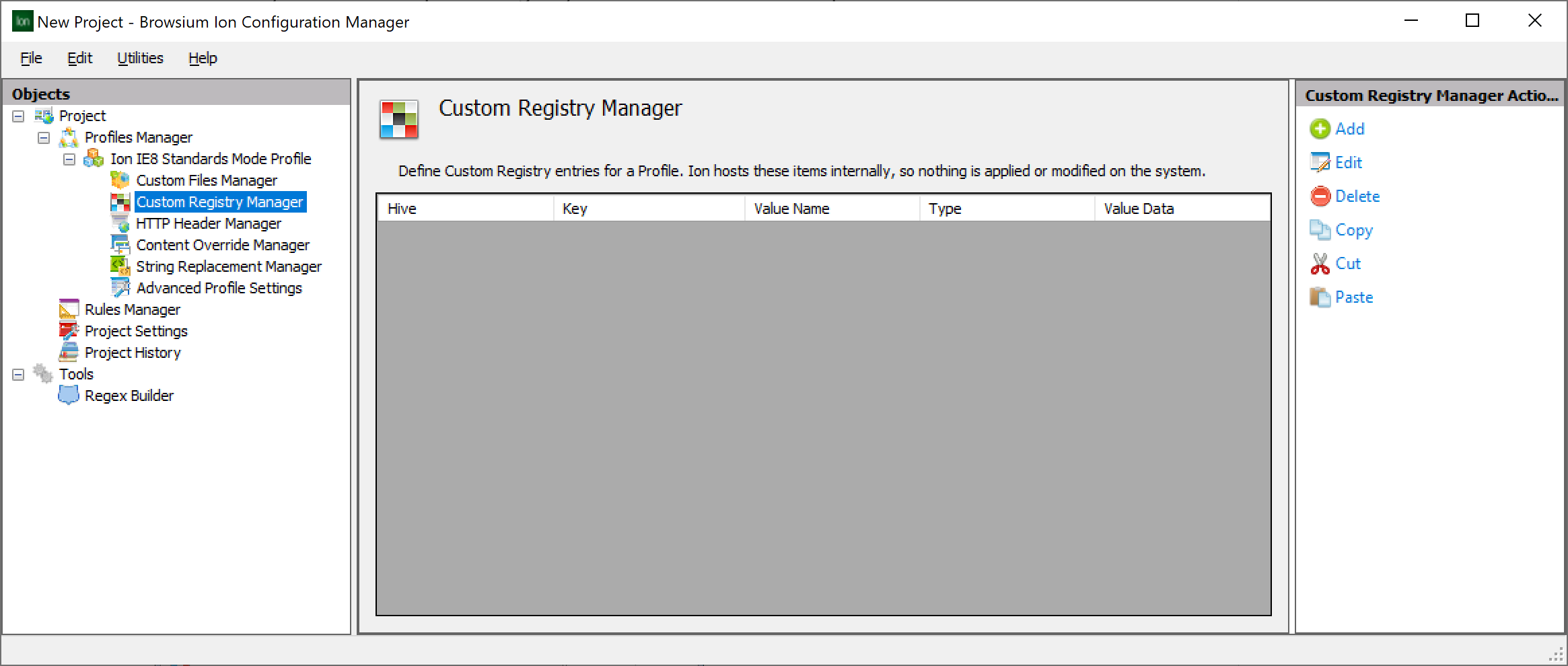 {width=“4.573784995625547in” height=“1.9433694225721785in”}
To add a value, use the link in the Actions Pane on the right-hand side and select the ‘Add’ item. To edit a value, highlight the item in the Content Pane and use the ‘Edit’ item in the Actions Pane. The Custom Registry Manager supports the Delete, Copy, Cut and Paste items as well.
Custom Registry Value Editor
Section titled “Custom Registry Value Editor”Any type of Registry entry can be created using this interface. Simply choose the Hive location and entry values, and then click OK.
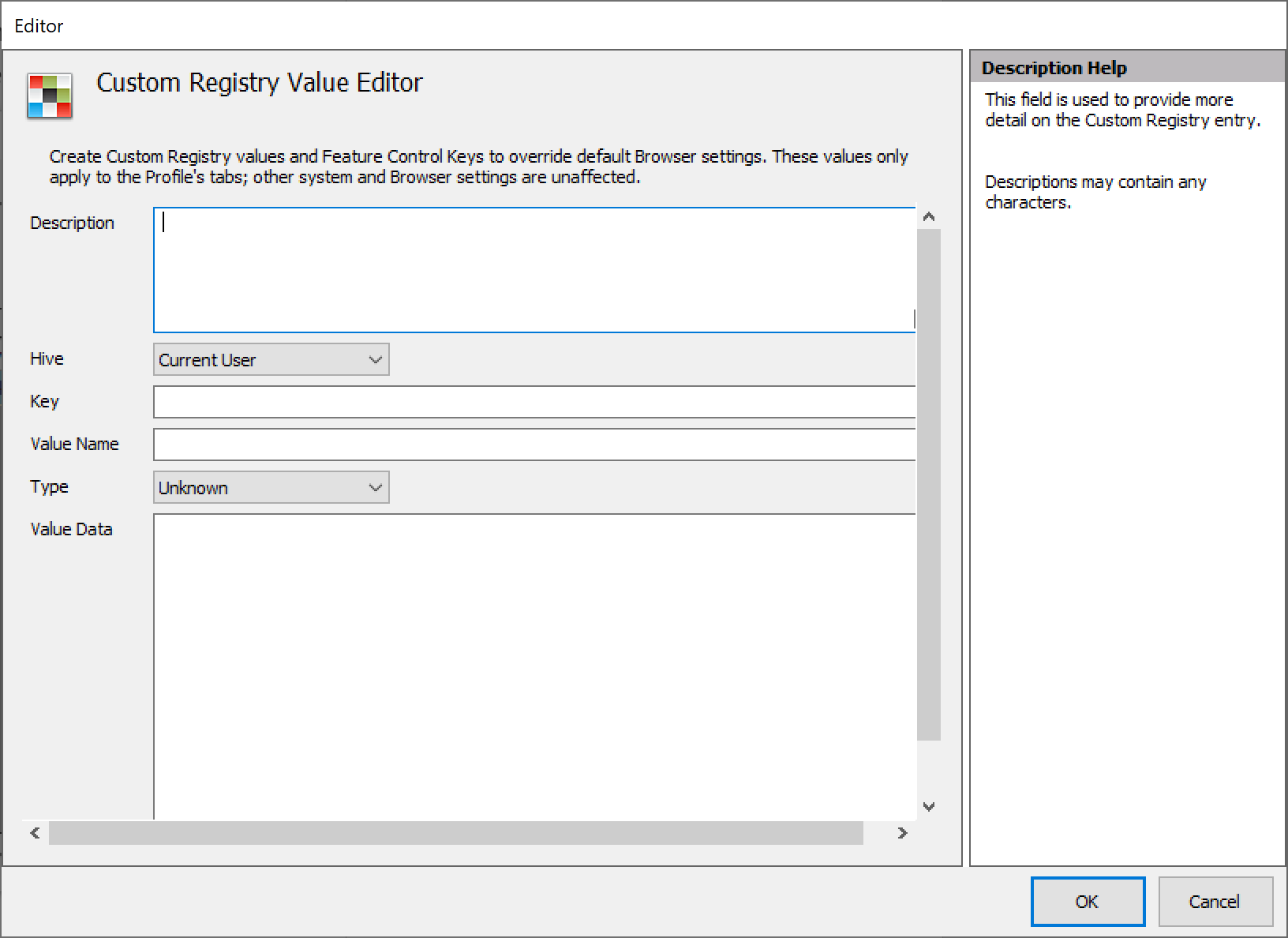 {width=“3.7719870953630794in” height=“2.7459755030621174in”}
HTTP Header Manager
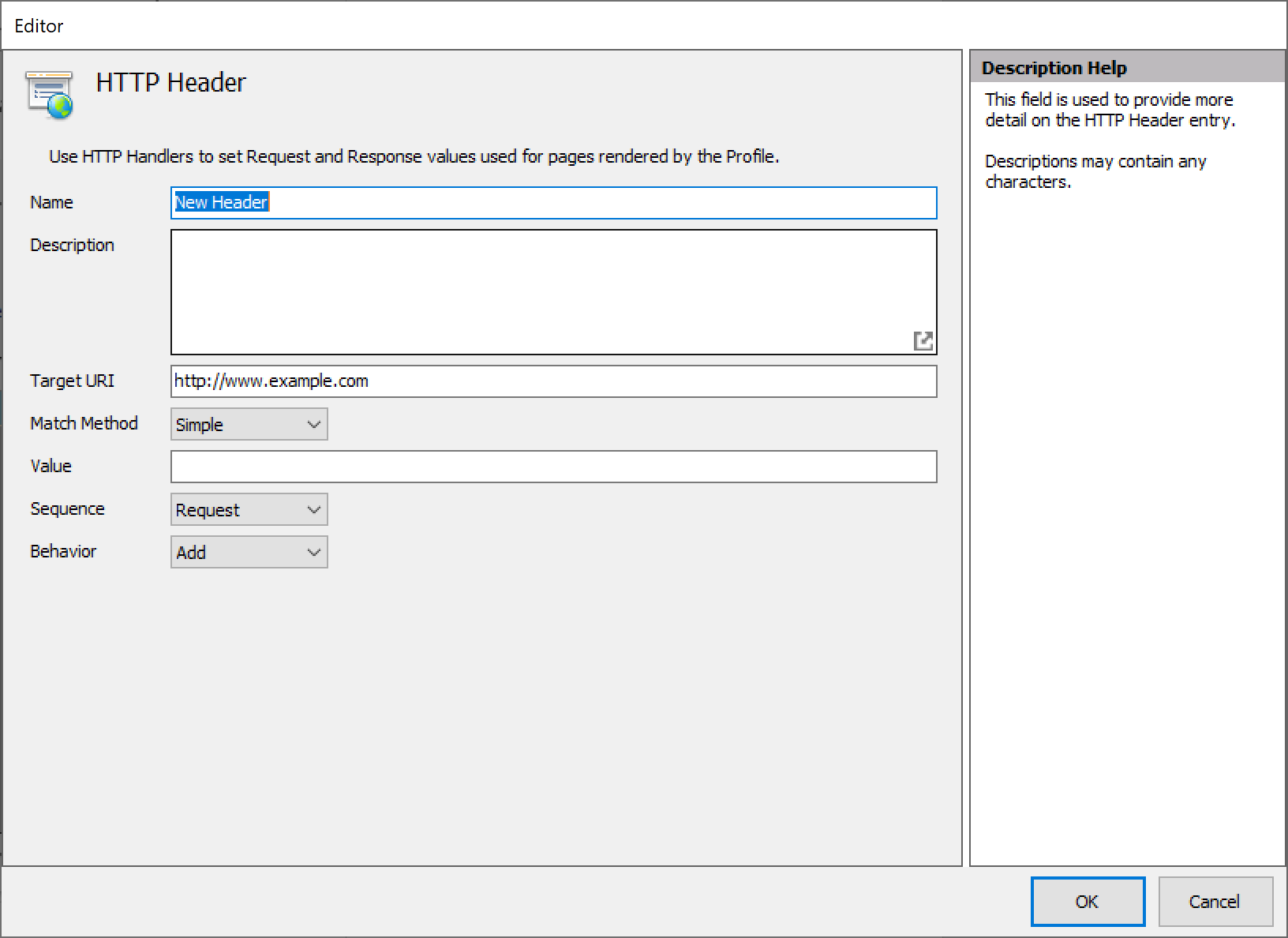
Section titled “HTTP Header Manager”This screen displays the list of defined Custom HTTP headers. HTTP header fields are components of the message header of requests and responses and some web applications rely on these headers to trigger certain behaviors and functionality. Ion enables easy creation and management of HTTP Headers.
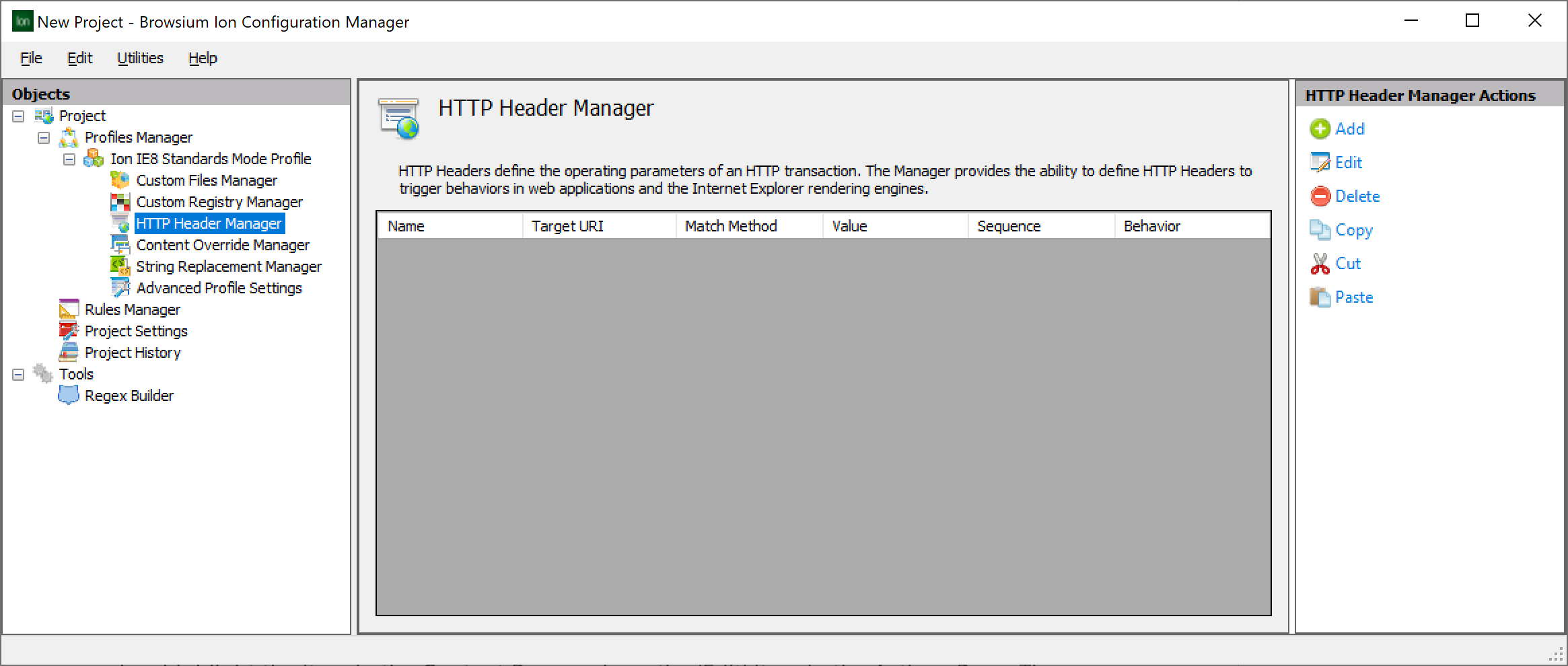 {width=“5.989159011373578in” height=“2.544752843394576in”}
A list of available HTTP Header fields can be found in this Wikipedia article. To add an HTTP Header, use the link in the Actions Pane on the right-hand side and select the ‘Add’ item. To edit a value, highlight the item in the Content Pane and use the ‘Edit’ item in the Actions Pane. The HTTP Header Manager supports the Delete, Copy, Cut and Paste items as well.
 {width=“3.826894138232721in” height=“2.785945975503062in”}
Content Override Manager
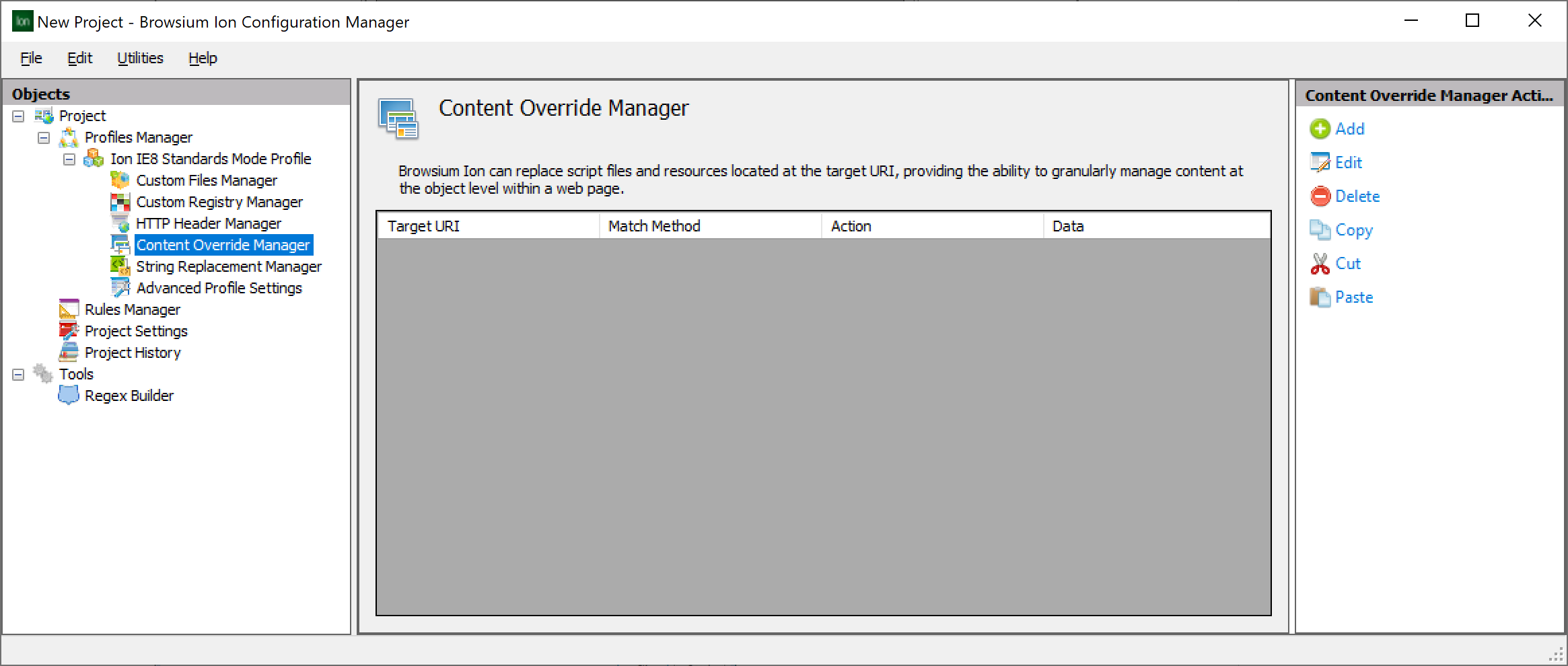
Section titled “Content Override Manager”Some older web applications may include content (JavaScript, HTML, CSS, images, etc.) resulting in compatibility issues with newer browser rendering engines that cause the application to work incorrectly. These issues can be as simple as layout issues, more complex coding related issues that prevent the site from loading or even serious issues that cause the web browser to crash when loading specific content.
Ion provides the ability to replace or block inline or linked content for a given web page to help solve these compatibility issues.
 {width=“6.0328094925634295in” height=“2.563299431321085in”}
Content Override Editor
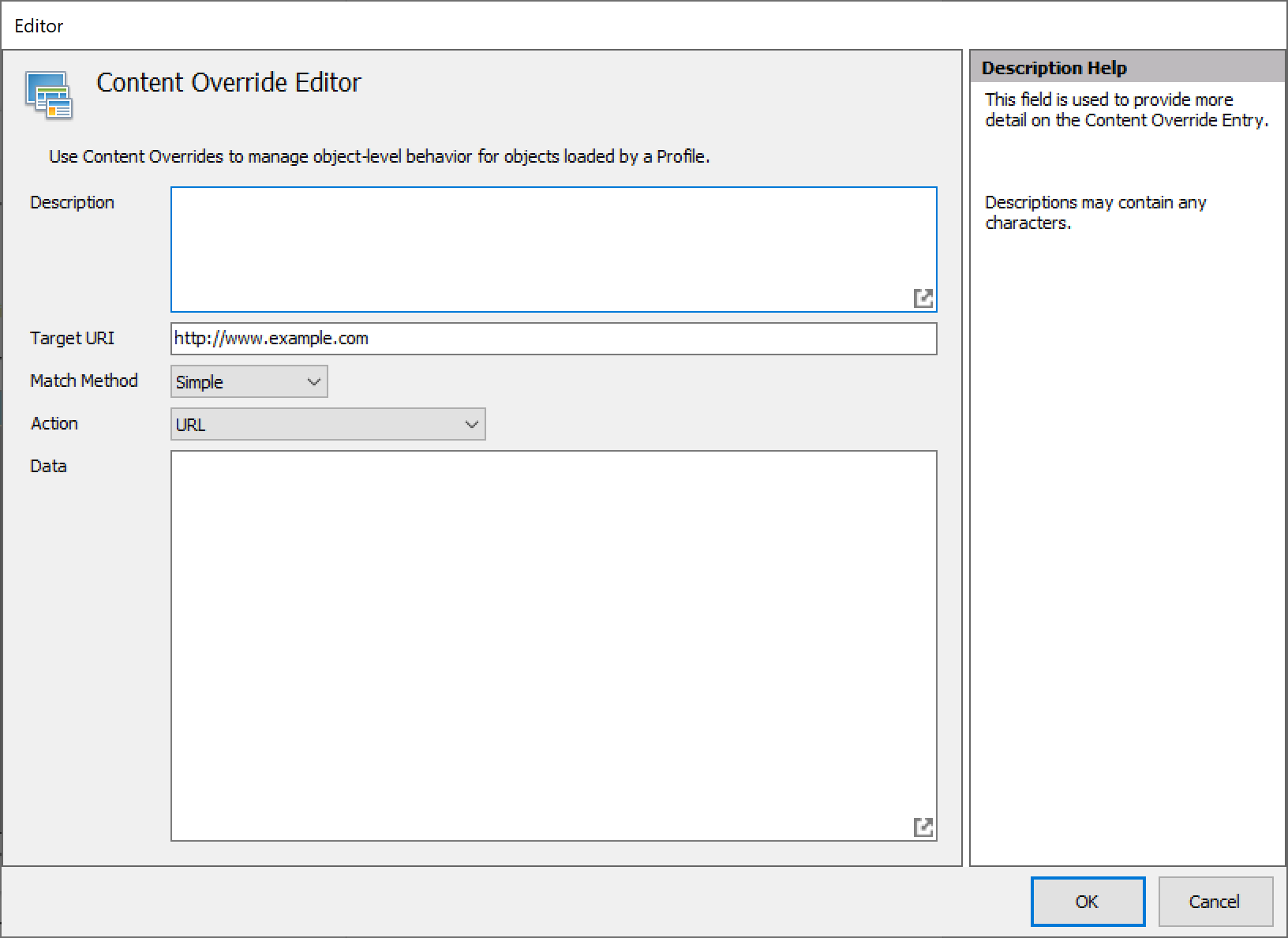
Section titled “Content Override Editor”Start by defining the Target URI — even though these settings are part of a Profile which would be triggered by a rule, Content Overrides have an additional layer of granularity and work with content regardless of the location so the Target URI must be specified for the content being replaced.
 {width=“4.107785433070866in” height=“2.9904330708661417in”}
The Content Override feature provides the ability to control the loading behavior taken by the browser for the specified content. The available actions are:
-
Block: Stops the content from being downloaded.
-
URL (Default): Redirects the request for the content at the specified URI to the URL specified in the Data field.
-
File — Body Only: Loads content from the file specified in the Data field.
-
File — Header and Body: Loads content from headers and file specified in the Data field.
-
Content: Replaces content from the specified URI with the content in the Data field.
The Data field will contain content based on the selected action.
In addition to application compatibility needs, the Content Override feature can be used to augment security and prevent downloading known malicious or restricted content. For example, using the Regex match method an organization can build a complex matching string to prevent downloading any exe, dll or other data types.
String Replacement Manager
Section titled “String Replacement Manager”Some older web applications need simple, targeted fixes to make an application work exactly right. Often the issues can be as simple as resizing an image or changing a word in some JavaScript. Changing the web application source code is a great way to go — but many organizations are using ‘off the shelf’ applications for which they don’t have source code access to change what is needed. Some commercial applications have license agreements that prohibit any modification to their source code or binaries. In addition, changing the source code is impractical for enterprise deployments where some users will remain on older browsers while some users get the latest versions.
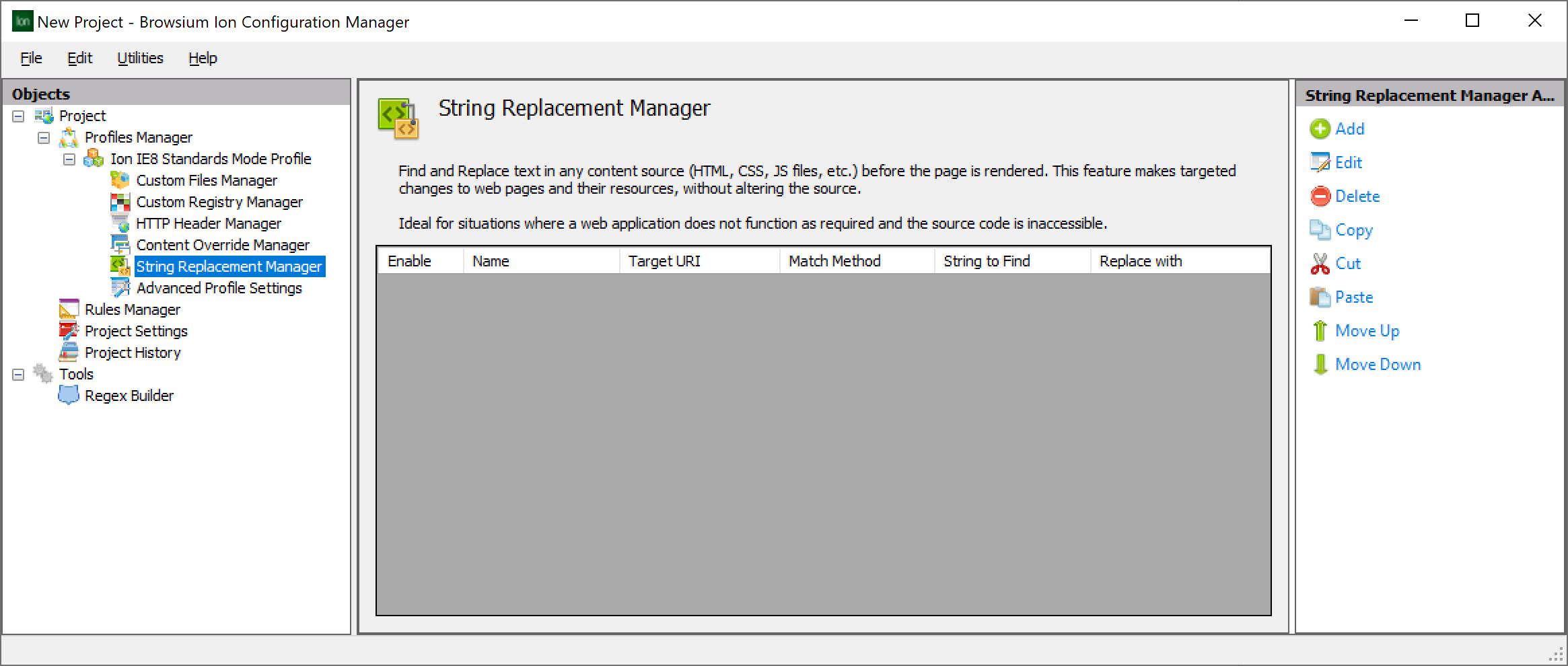
Ion offers the ability to edit text ‘inline’ before the browser rendering begins, enabling an organization to fix virtually any issue without touching the server-side source code. These changes are highly targeted and can be used to make pinpoint changes to the affected area of the web application.
 {width=“6.030473534558181in” height=“2.562306430446194in”}
Making a string replacement is easy. It all starts with the Target URI — even though these settings are part of a Profile which would be triggered by a rule, String Replacements are designed to work with content regardless of the location so the Target URI must be specified for the strings being replaced.
String Replacement Editor
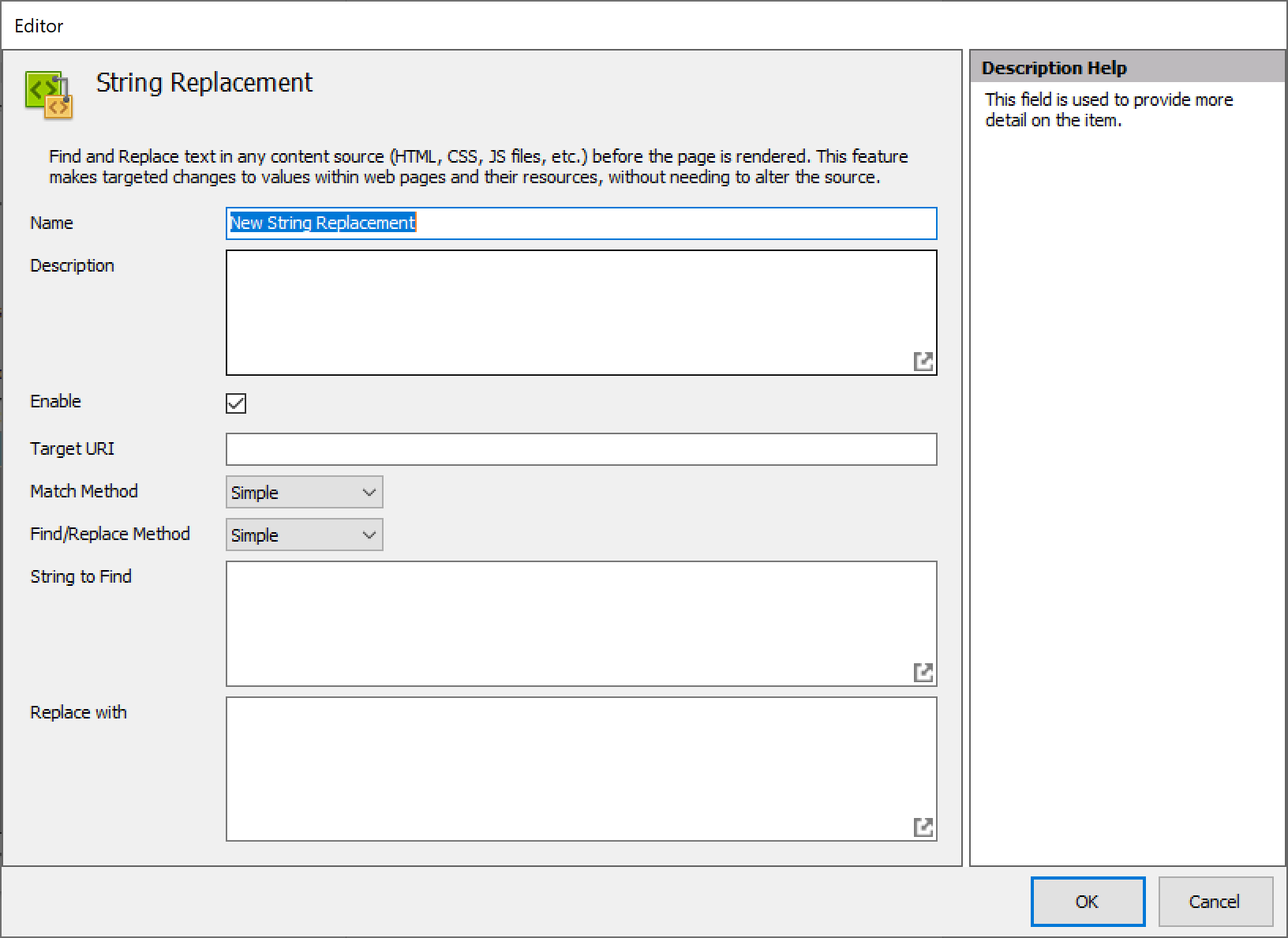
Section titled “String Replacement Editor”Browsium has worked with dozens of customers to resolve highly complex web application compatibility issues. Many of the more complex issues require a series of String Replacements. Since any given replacement can be targeted at a highly specific area, Ion includes data fields to define a Name and Description of each string replacement.
This metadata information is not used by Ion but provides administrators or developers an easy and convenient place to read notes about each item that could be used to convey history on that issue and avoid others from having to troubleshoot from scratch.
String Replacements can be easily enabled or disabled via the Enable checkbox, easing configuration development and troubleshooting.
The core of a String Replacement is the string to find — the pattern match can be Simple or RegEx depending on the Match Method property selected.
 {width=“3.7650153105861768in” height=“2.7408989501312337in”}
Advanced Profile Settings
Section titled “Advanced Profile Settings”Since web applications can utilize a combination of different development technologies, some Profiles may need additional advanced configurations to accommodate the varied technologies. For example, a web application can integrate JavaScript (interpreted) code while also calling an ActiveX control that runs outside the Internet Explorer process model. By offering an array of options to developers with which to build their applications, web development is an extremely powerful discipline. Those same benefits can also mean a specific application has unique and specific requirements which can complicate remediation.
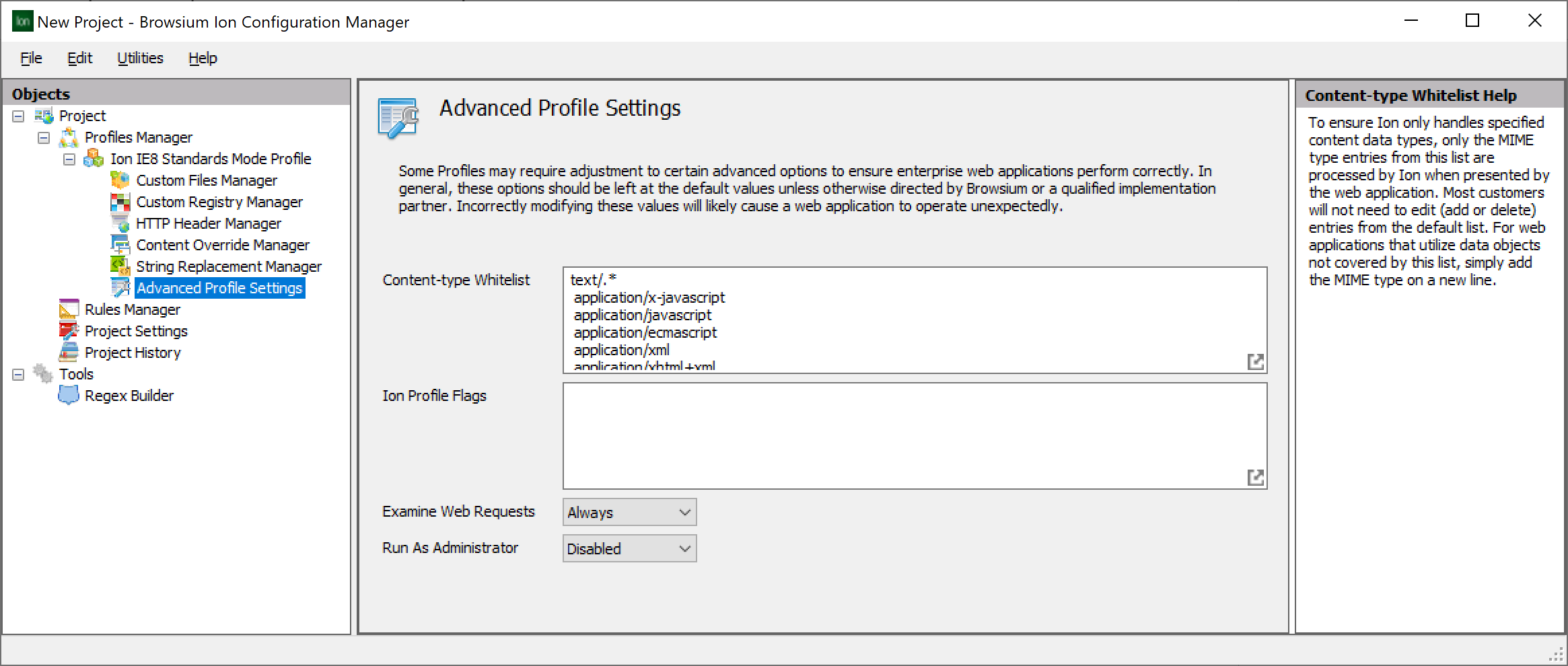
To help accommodate the unique scenarios that may be required, Ion offers additional behavioral and environmental controls using Advanced Profile Settings. As a rule, most web applications will work properly without modifying any of the entries or values in this area.
 {width=“5.60142716535433in” height=“2.380008748906387in”}
Content-type Whitelist
Section titled “Content-type Whitelist”The Content-type Whitelist feature is provided to address complex and unique web application scenarios that require uncommon data types. By default, Ion is designed to handle only those data types listed here. Any Content-type not included on this lit will be ignored by Ion and passed along to Internet Explorer for handling by the IE MIME type handler function.
In the case where some environmental, string manipulation or other modification is required of a given Content-type, the value should be added here. Adding additional Content-types is easy. Simply find the ‘Click to add a new item…’ line, select that entry and begin adding the required value. The values in the Content-type Whitelist are freeform text, not selected from a list, so care should be taken to ensure spelling and syntax are correct or Ion will not function as expected.
Customers are encouraged to avoid changing or deleting any of the pre-defined Content-type Whitelist entries. Incorrect modifications or deletions may result in Ion behaving unexpectedly.
Ion Profile Flags
Section titled “Ion Profile Flags”Ion Profile Flags provide a mechanism to add additional functionality, logging, and management capabilities without the need to update the Ion binaries. The feature is designed mainly for use in complex web application debugging scenarios. Certain Ion Profile Flags values can also be used to extend Ion functionality to meet an array of unique and specific edge-case scenarios. This version of Ion supports the following Ion Profile Flags.
Ion Profile Flag Description
Ion.LauncherWaitForProcessExit=true Causes the BrowsiumIonLauncher.exe process to wait for the Internet Explorer frame process. The Launcher process ends only when Internet Explorer frame process is closed. This flag is typically used by the Siebel Offline client.
Ion.IEAddonDetectRedirects=true When this flag is set, Internet Explorer will detect 30x redirection (typically a 302 redirect) and evaluate rules on the redirected URL. By default, 30x redirected URLs are ignored by Ion.
Ion.EnvShareAllowProc=‘value’ Enables sharing BoxedApp execution environment with specified processes. Multiple processes can be defined by appending .n to the Profile flag. E.g., Ion.EnvShareAllowProc.1=javaw.exe; Ion.EnvShareAllowProc.2=javaws.exe;
Ion.EnvShareWithAllChildren=true Enables sharing BoxedApp execution environment with all child processes.
Ion.SessionIsolation=true Forces session isolation between Ion-invoked Internet Explorer processes belonging to the same Ion Profile. This flag guarantees new Internet Explorer session creation only when launched using BrowsiumIonLauncher.exe.
Ion.SkipAutoAuth—fiddler=true Enforces Ion to skip Fiddler Core auto-authentication and provides flexibility for Internet Explorer to authenticate with a server.
Ion.SkipBuffering.n=‘string’ Ion, by default, buffers HTTP sessions originating from managed Internet Explorer instances. This could lead to experience problems when loading mp4 video, or any other binary content that typically is consumed via streaming. Ion.SkipBuffering.n will match URL patterns that should not be buffered. E.g., Ion.SkipBuffering.1 = \.mp4; Ion.SkipBuffering.2 = \.wav. Regex is used to match the string.
Section titled “Ion.SkipBuffering.n=‘string’ Ion, by default, buffers HTTP sessions originating from managed Internet Explorer instances. This could lead to experience problems when loading mp4 video, or any other binary content that typically is consumed via streaming. Ion.SkipBuffering.n will match URL patterns that should not be buffered. E.g., Ion.SkipBuffering.1 = \.mp4; Ion.SkipBuffering.2 = \.wav. Regex is used to match the string.”Examine Web Requests
Section titled “Examine Web Requests”Examine Web Requests determines when to send web requests and responses through the internal proxy for examination and content modification. ‘Always’ bypasses the routing logic and forces all traffic through the internal proxy. Auto allows Ion to decide and reduces proxy routing where possible. By default, Profiles are set to use ‘Always Examine Web Requests’ to ensure consistent application handling.[]{#_The_Rules_Manager .anchor}
Run As Administrator
Section titled “Run As Administrator”Some web applications require Internet Explorer to be launched with Administrator privilege to function properly. While this is a rare scenario, Ion supports these applications via the Run As Administrator flag. The default value for this flag is ‘Disabled’. When set to ‘Enabled’, the Ion-managed instances of Internet Explorer will be launched with Administrator privilege for this Profile. This field is not applicable on Windows XP or Windows Server 2003. All newer versions of Windows support Run As Administrator.
Global Java Profiles
Section titled “Global Java Profiles”Global Java Profiles are Ion Profiles that can solely remediate Java for specific web applications. A Global Java Profile cannot contain any other configuration settings, such as String Replacements or Custom Files.
Global Java Profiles build on Oracle Java Deployment Rule Sets (DRS) and control the version of Java within the native instance of Internet Explorer. Because Ion uses Oracle DRS for the Java remediation in Global Java Profiles, they can only be used with Java 6 update 10 and later. Java remediation for earlier versions of Java requires a full Ion Profile.
Ion Global Java Profiles have two key advantage over native Oracle DRS:
First, creating and deploying an Ion Global Java Profile is simple, as you’ll see in the sections that follow. Ion Configuration Manager provides a GUI, wizard-based approach to creating the remediation. And the Ion XML project file deployed to client systems handles all the overhead of creating and signing the DRS JAR files.
Second, client systems can be upgraded to the latest version of the Java Runtime Environment (JRE) and Ion Global Java Profiles will continue to work as originally created. The Browsium Client Controller maintains the integrity of the DRS files on each client system, ensuring Java swaps, and Java blocks, always work as expected.
Contrast these Ion advantages with Oracle DRS which requires manual editing of XML files, manual certificate-based signing of JAR files, and repackaging/redeployment of the DRS JAR file every time a new JRE is released.
Creating a Global Java Profile
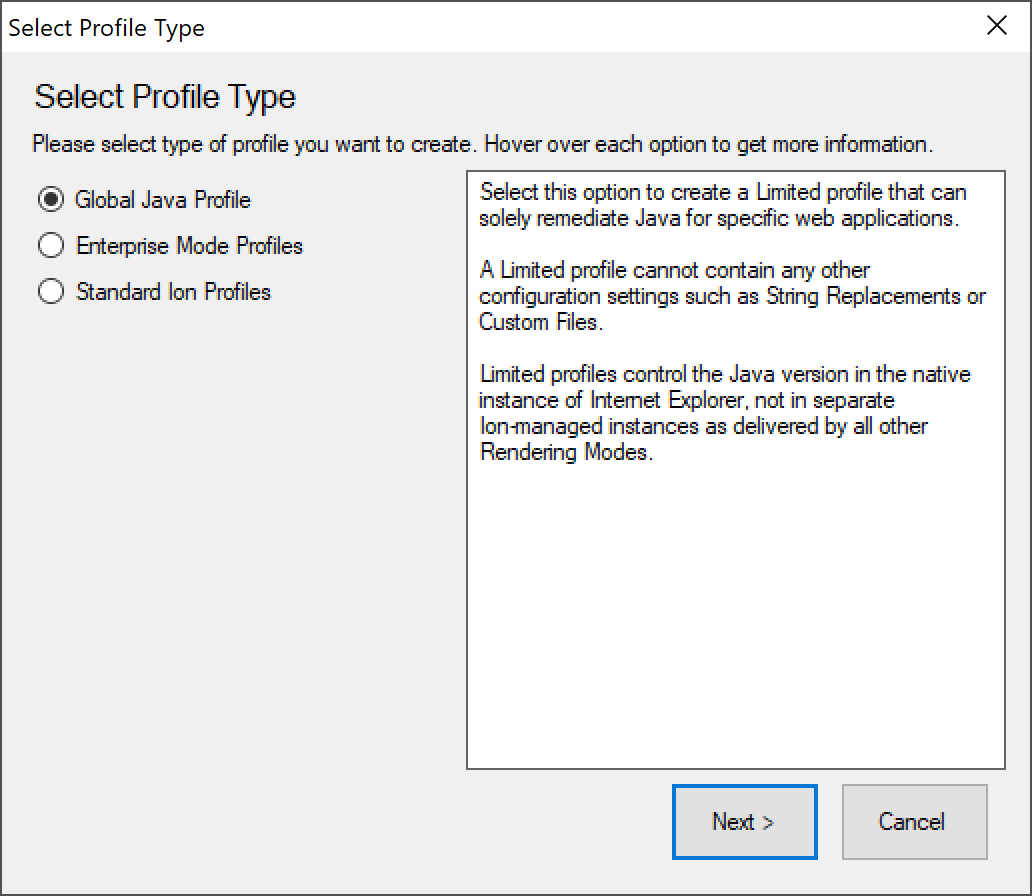
Section titled “Creating a Global Java Profile”To create a Global Java Profile, select Add from the Profiles Manager and select the Global Java Profile option.
 {width=“3.308067585301837in” height=“2.8722933070866143in”}
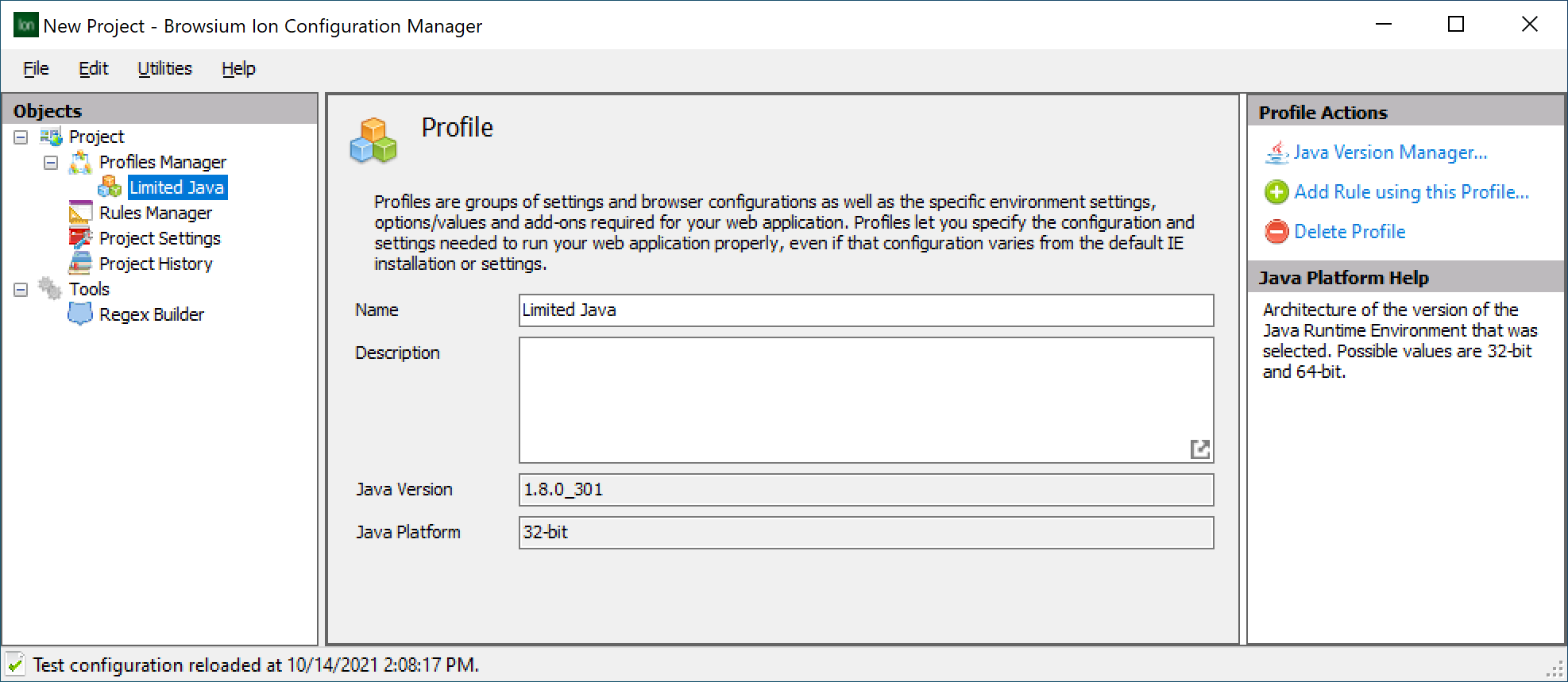
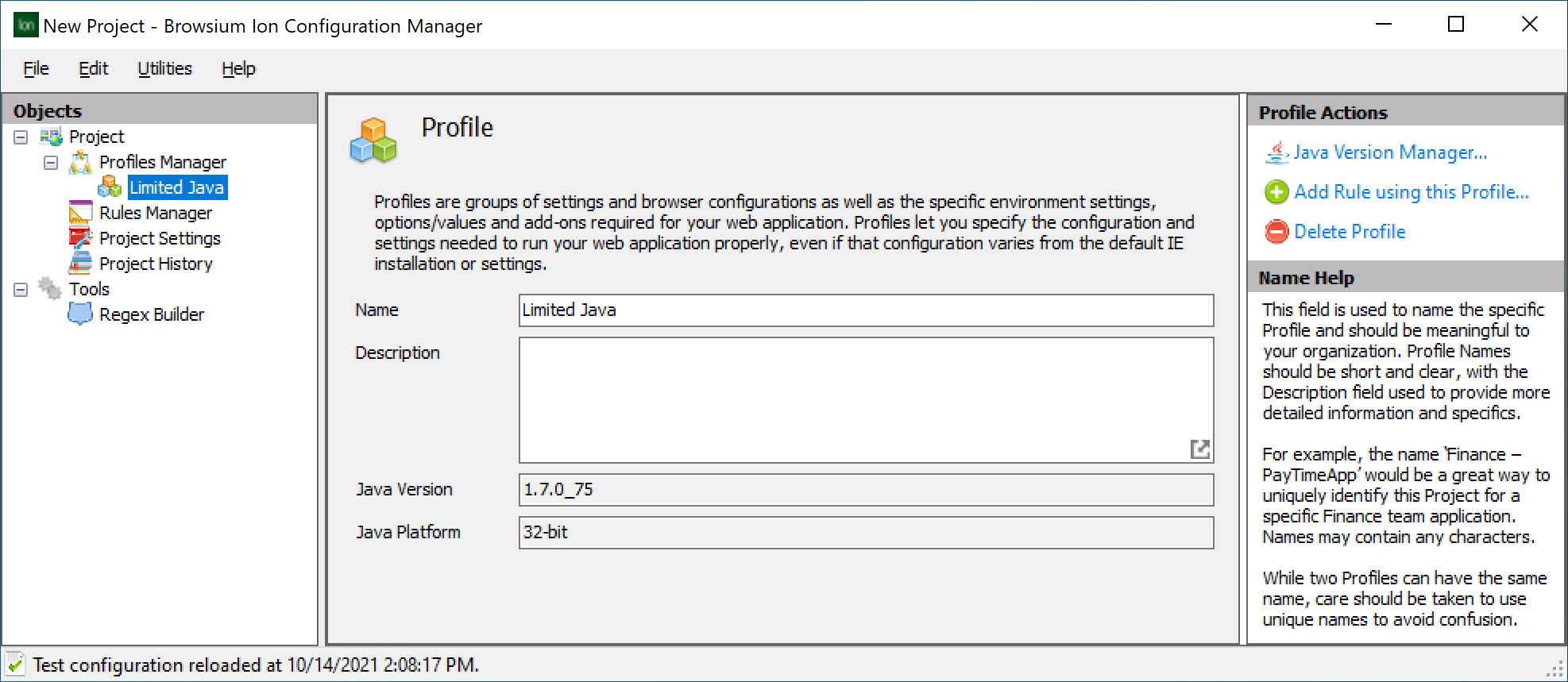
Clicking ‘Next>’ launches the Java Version Manager, where you must select the version of Java required for the web application. Next the Profile Properties page is displayed, where you can edit two fields: Name and Description. The two other fields, Java Version and Java Platform are uneditable. The Java Platform value is always 32-bit for Global Java Profiles. (You’ll need to use a full Ion Profile for 64-bit Java, as described in section 3.3.2.2.) You’ll notice that the Profile name defaults to Global Java Profile, with the selected Java version in parenthesis. You may want to change this to a more descriptive name, especially if you’re creating multiple Global Java Profiles, each setting a different version of Java.
 {width=“6.326838363954506in” height=“2.6155260279965002in”}
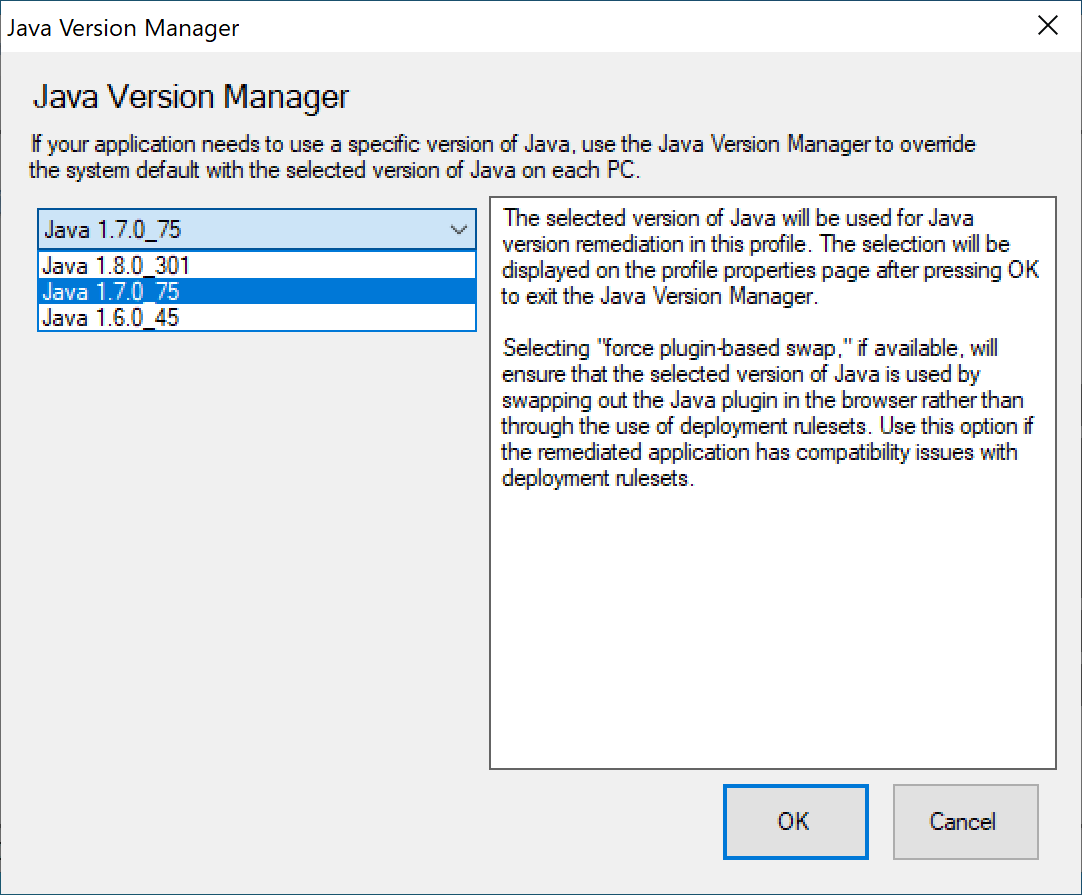
The Java version defaults to the default version of Java on the system you’re using to create the Profile — in this case Java 8 update 301. It cannot be manually edited. It must be edited via the Java Version Manager. Select the Java Version Manager in the Profile Actions Pane to set the desired version of Java for your Profile.
 {width=“3.810041557305337in” height=“3.1514260717410325in”}
Only 32-bit Java versions newer than Java 6 update 10 will appear in Java Version Manager for a Global Java Profile. If you need an older version of Java, or 64-bit Java, you’ll need a full Ion Profile. See section 3.3.2.2 for complete documentation of the Java Version Manager for full Ion Profiles.
Once you have selected your desired version of Java, click OK to return to the Profile Properties page. Now would be a good time to edit the Profile name to match the Java version selected.
 {width=“5.9296489501312335in” height=“2.4446620734908135in”}
Rules Manager Node
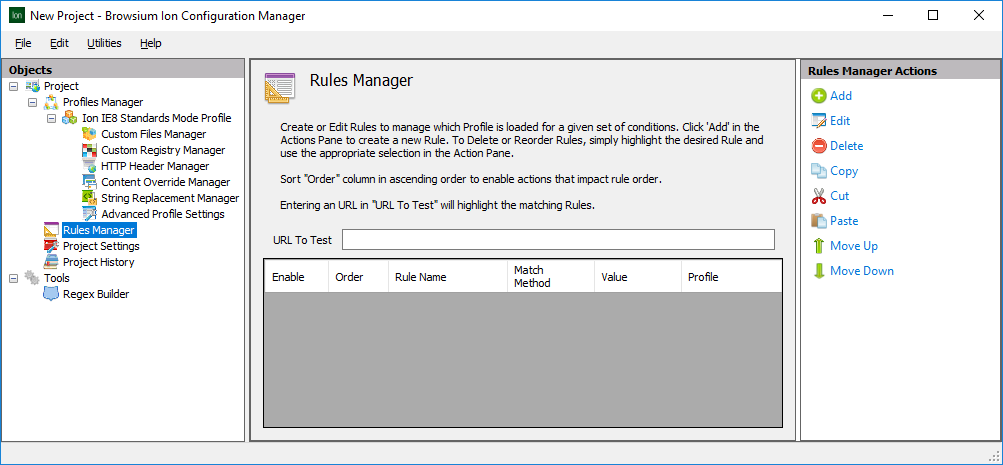
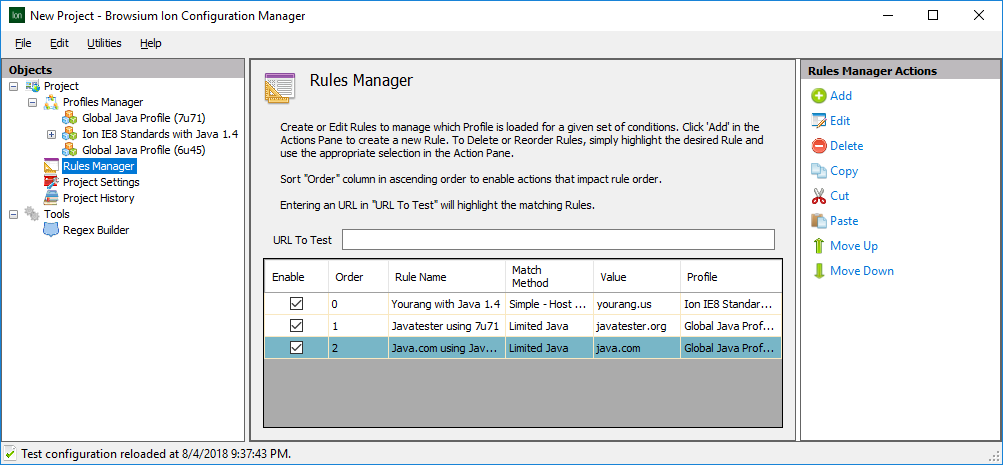
Section titled “Rules Manager Node”The Rules Manager is the main interface for creating, editing and managing evaluation criteria to determine which websites are rendered using Ion Profile instead of the default Internet Explorer settings. This section provides details on the various elements of this interface.
 {width=“5.201388888888889in” height=“2.4123392388451443in”}
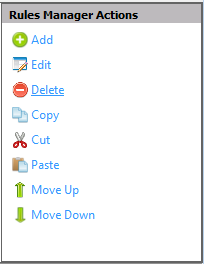
The Content Pane shows the hierarchical rules list that Ion uses to determine how to handle web application rendering. The Url To Test box allows administrators an easy way to enter a given Url and see which Rule will be triggered by the value. The heading for each column in this window refers to the specific rule element (e.g. Rule Name, Match Method, Value, Profile) for a given rule. Use the Actions Pane to work with rules using the ‘Add’, ‘Edit’, ‘Delete’, ‘Copy’, ‘Cut’ and ‘Paste’ items. The Actions Pane also contains the ‘Move Up’ and ‘Move Down’ items for re-ordering rules.
 {width=“1.6144860017497813in” height=“1.8370002187226597in”}
Add Rule - To create a new rule, click the Add Rule link in the Actions Pane to bring up the Rule Editor window. By default, the rule will be added at the bottom of the list in Rules Manager. If you first select a rule in Rules Manager, the new rule will be added immediately below the selected rule. See the description of the Move Rule Up/Move Rule Down feature for more information on rule order. The Rule Editor section provides details on the options and values in the Rule Editor window. See the How to Create a Rule section for details on creating rules.
Edit Rule - URLs and rule definitions can be complex, and complexity may lead to typographical errors. In the event you make a mistake or need to revise a rule, simply double click the line to edit (or highlight the line and click the Edit Rule link in the Actions Pane) to make the necessary changes.
Delete Rule - To delete a rule, select it from the Rules Manager Window, then click the Delete Rule link in the Actions Pane. To disable a rule, rather than remove it, uncheck the Enable checkbox.
Copy — To copy a rule, select the item from the Rules Manager Window and click the Copy item in the Actions Pane.
Cut - To cut a rule (which copies the item to the clipboard rather than delete it entirely), select the item from the Rules Manager window and click the Cut item in the Actions Pane.
Paste — The Paste item in the Actions Pane can be used to paste items from the clipboard to the currently loaded, active project. For example, you can Copy/Paste items within a single project or Copy from one project and Paste into another.
Move Rule Up/Move Rule Down - Rules are evaluated in the order they are stored, so the sequence of rules can be critical to the proper functionality of your web applications in Ion. By default, rules are ordered in the sequence they are added. You can override this default by selecting a rule in Rules Manager prior to adding a new one. The new rule will be added immediately below the selected rule. To manually adjust the order of a rule, simply highlight the rule and use the Move Up and Move Down actions to move it to the proper placement.
Rules for Global Java Profiles are always evaluated in order from top to bottom after rules for all full Profiles, regardless of the order displayed in Rules Manager.
 {width=“5.381944444444445in” height=“2.4946806649168853in”}
Rule Editor
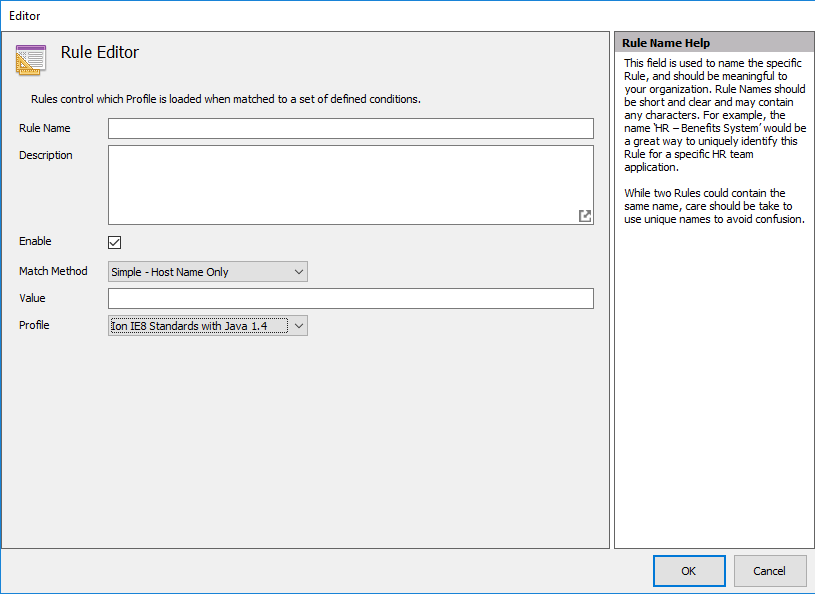
Section titled “Rule Editor”The Rule Editor window is used for creating new rules or editing existing rules.
 {width=“4.0318547681539805in” height=“2.9277777777777776in”}
Rule Name — You can name a rule using any characters without restriction or character count limit. Rule names are for your use and identification only, and have no impact on functionality. Browsium recommends using rule names that clearly describe what the rule is used for, so it can be easily identified in the Rules Manager display.
Description — Allows for a more complete explanation of the purpose of the rule.
Enable (checkbox) — All rules are enabled by default when created. Some rules may contain complex parameters or complex paths and it may be more practical to simply disable a rule rather than remove it if the rule is not needed or to test ordering behaviors, etc. In addition, some users may choose to keep only a single rule set and want to disable a specific rule for some given period of time. To disable a rule, click the checkbox to remove the check or click the checkbox next to the Rule Name in the Rules Manager.
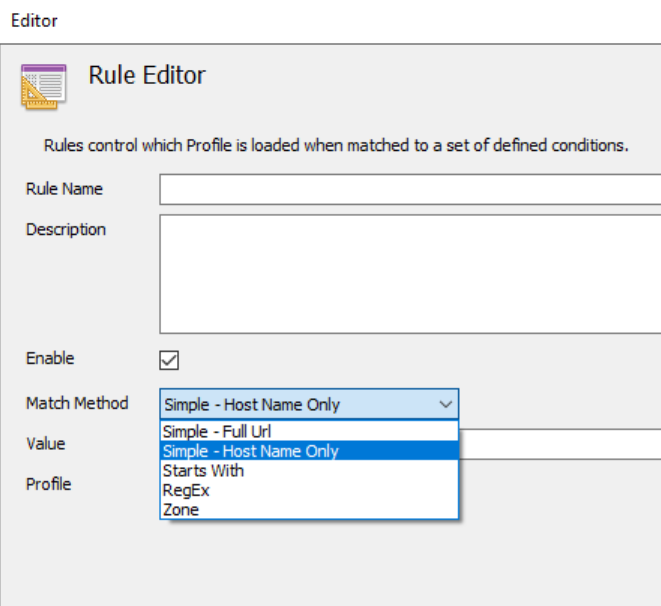
Match Method — Most rules require a simple pattern match of the FQDN in order to trigger Ion to manage the web application experience and load the required Profile. Some complex URL configurations require advanced pattern matching techniques, so Ion provides the ability to match based on the entire Url (including path and query string) as well as matching on regular expressions (RegEx) if needed. You may also use Zone as the match method so that rules are triggered based on the Internet Explorer Zone of the target web application.
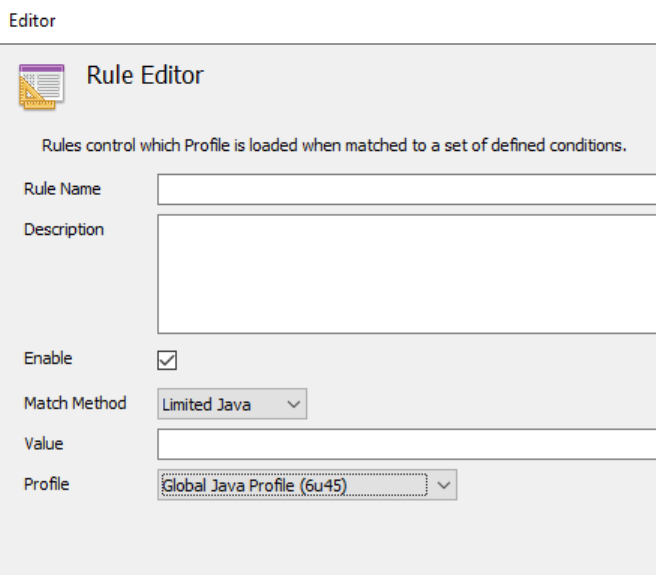
When creating a new Rule, the Match Method is not visible at first. A Profile must be selected before the Match Method dropdown will appear. If the Profile selected is a Global Java Profile, the Match Method dropdown will only display ‘Limited Java’ as there are no complex match operations available for Global Java Profiles.
For Limited Java, Ion performs case-insensitive matches of the content in the Value field on the URLs based on the components of the URL as specified in Oracle’s Deployment Rule Set documentation. Browsium-recommended syntax can be found in the next section below the description of the Value field.
 {width=“2.243367235345582in” height=“2.0566601049868765in”}
Global Java Profiles require a special Limited Java Match Method. Limited Java is the only Match Method option available when a Global Java Profile is selected in the Profile setting.
 {width=“2.835294181977253in” height=“2.485122484689414in”}
Rules can be set to trigger based on following types of pattern matching. The first four options are available for full Profiles. Global Java is the only option for Global Java Profiles.
Simple — Host Name Only (default): Performs case-insensitive, substring matches on the Fully Qualified Domain Name (FQDN). E.g., will match “example” in http://www.example.com.
Simple — Full Url: Performs case-insensitive, substring matches on the entire Url including subpath AND query string.
RegEx: Performs complex matching using regular expressions. Be careful to escape special characters such as periods.
Starts With: Performs case-insensitive, ‘starts with’ string matches. If provided, the protocols must exactly match. (e.g., http://www.example.com will not match https://www.example.com)
Zone: Matches URLs that are in specified zones.
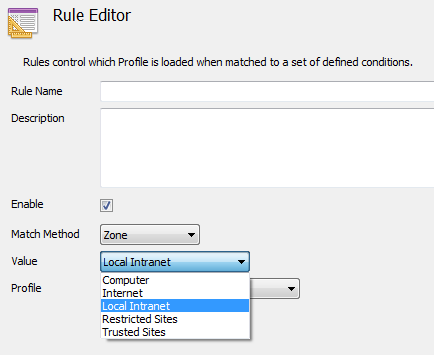
Value — This field contains the string to conditionally match for the selected Ion Profile to be invoked. If Match Method is set to Zone, the Value field will change to a dropdown menu containing Computer, Internet, Local Intranet, Restricted Sites, and Trusted Sites.
 {width=“2.403992782152231in” height=“1.9663998250218722in”}
The Value field for a Global Java Match Method performs case-insensitive matches on the URLs based on the type of the URL.
Hostname Only (Intranet): If the Value does not have a period (.) in the string, contents of the Value will be matched with the hosts. Use of * (wild card) to do a substring match on hostnames is not permitted. For example, the Value browsiumintranet will match http://browsiumintranet, https://browsiumintranet/hr but will not match http://www.browsiumintranet.com.
Hosts with Domain: If the Value has a period (.) in the string, contents of the Value will be matched to the domain in the URL. * (Wild card) can be used to match all the hosts on that particular domain. For example, the Value *.browsium.com will match http://www.browsium.com/ion, http://ion.browsium.com and http://browsium.com.
Path Matches: Optionally, the Value can also specify a path in the URL. In that case, contents of the Value will be matched to the beginning of the path. Use of * (wild card) is not permitted to match the path. For example, the Value *.browsium.com/ion will match http://www.browsium.com/ion and http://www.browsium.com/ion/test but will not match http://www.browsium.com/iontest or http://www.browsium.com/test.
Port Numbers: Optionally, the Value can also specify the port numbers. For example, the Value browsiumintranet:8081 will match http://browsiumintranet:8081 and will not match https://browsiumintranet:8080.
Protocols: Optionally, the Value can also specify the protocols. For example, the Value https://www.browsium.com or https://browsiumintranet will not match http://www.browsium.com or http://browsiumIntranet.
Profile — The Profile selection determines which Ion Profile is used for the matching website. Any configured Profiles will be listed in this dropdown. In a default configuration, there are no Profiles available. To change the Profile used for a given rule, simply change the value in this field and save the project.
Copy a Rule
Section titled “Copy a Rule”Creating rules is fast and easy, but some customers have demonstrated the need to create nearly identical rules for several related sites. For example, your organization may have a development, test and production version of the same system. Each of those systems have unique hostnames, but the URL string is identical beyond that. Ion includes the ability to copy/paste a rule to quickly duplicate it rather than having to create it from scratch again and again.
The process is simple. Just select the rule you need, click the ‘Copy’ option in the Actions pane and then ‘Paste’ to add a duplicate entry into the Rules Manager. Pasted rules will be appended to the end of the existing rules list so you may need to re-order rules when you’ve finished copying the needed rules. Rules can be re-ordered by simply selecting the rule and using the Move Up or Move Down options in the Actions Pane.
Ion Configuration Manager uses both the Copy and Paste steps, rather than a single ‘Duplicate’ option since the process is designed to be the same for copying within a project as well as across multiple projects. A single instance of Ion Configuration Manager can only load one project file at a time, so working with two project files requires loading each in a unique Ion Configuration Manager instance. For example, if your organization has separate projects for different business units and deploys configurations based on OU membership, copying Profile and rule settings between configurations is easy. Just open each project file in its own Ion Configuration Manager, select the item you want, hit Copy and switch to the target project file and hit Paste.
Remove a Rule
Section titled “Remove a Rule”Rules are easily removed using the Browsium Ion Configuration Manager when they’re no longer needed. This feature is best shown by example. In this example, assume we have taken the needed steps to mitigate the compatibility issues with the web application running on www.aggrid.com, so we no longer need to render the site using Ion.
You can remove a rule by following these steps:
- Open Ion Configuration Manager and open the project containing the rule you want to remove, or simply double-click on the project file (*.bcx) in Windows Explorer.
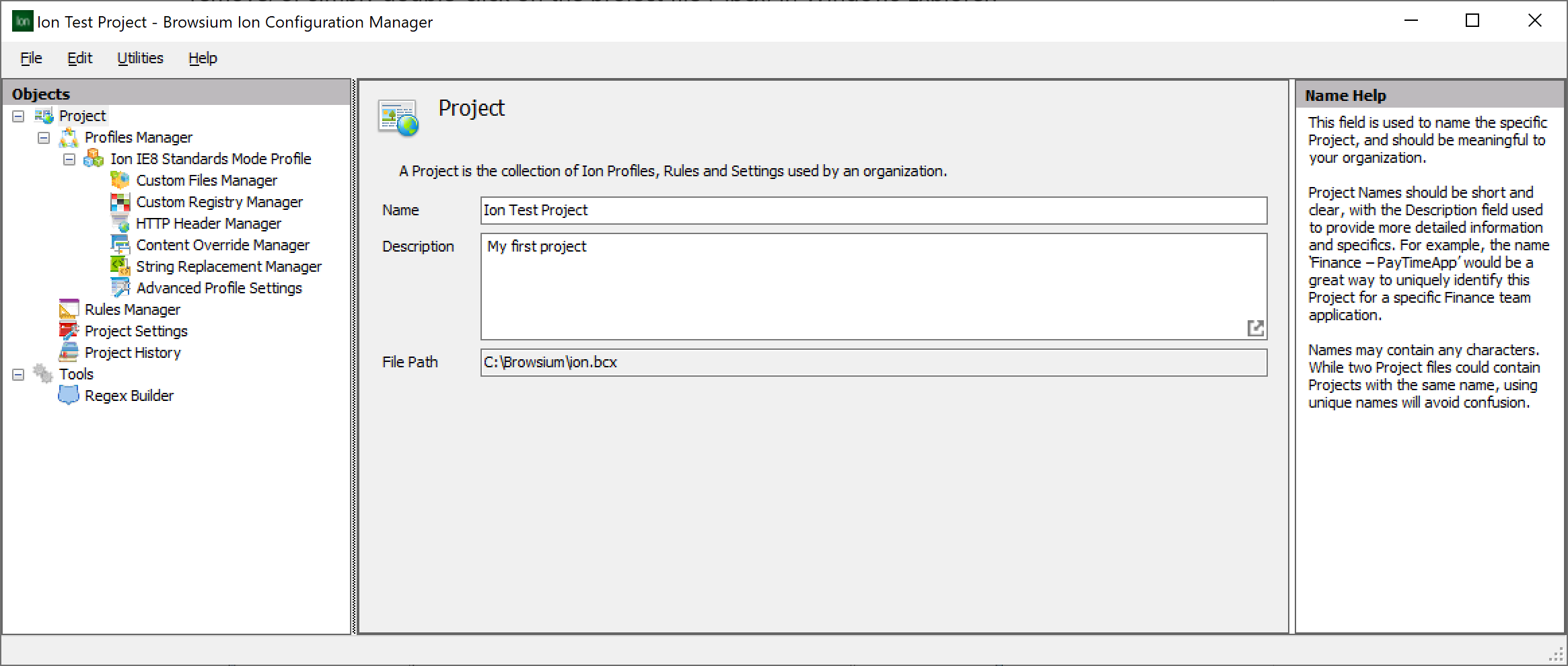 {width=“5.146533245844269in” height=“2.1867268153980755in”}
- With the project open, click the Rules Manager node to bring up the ordered list of rules. Select the rule you wish to remove from the list of rules.
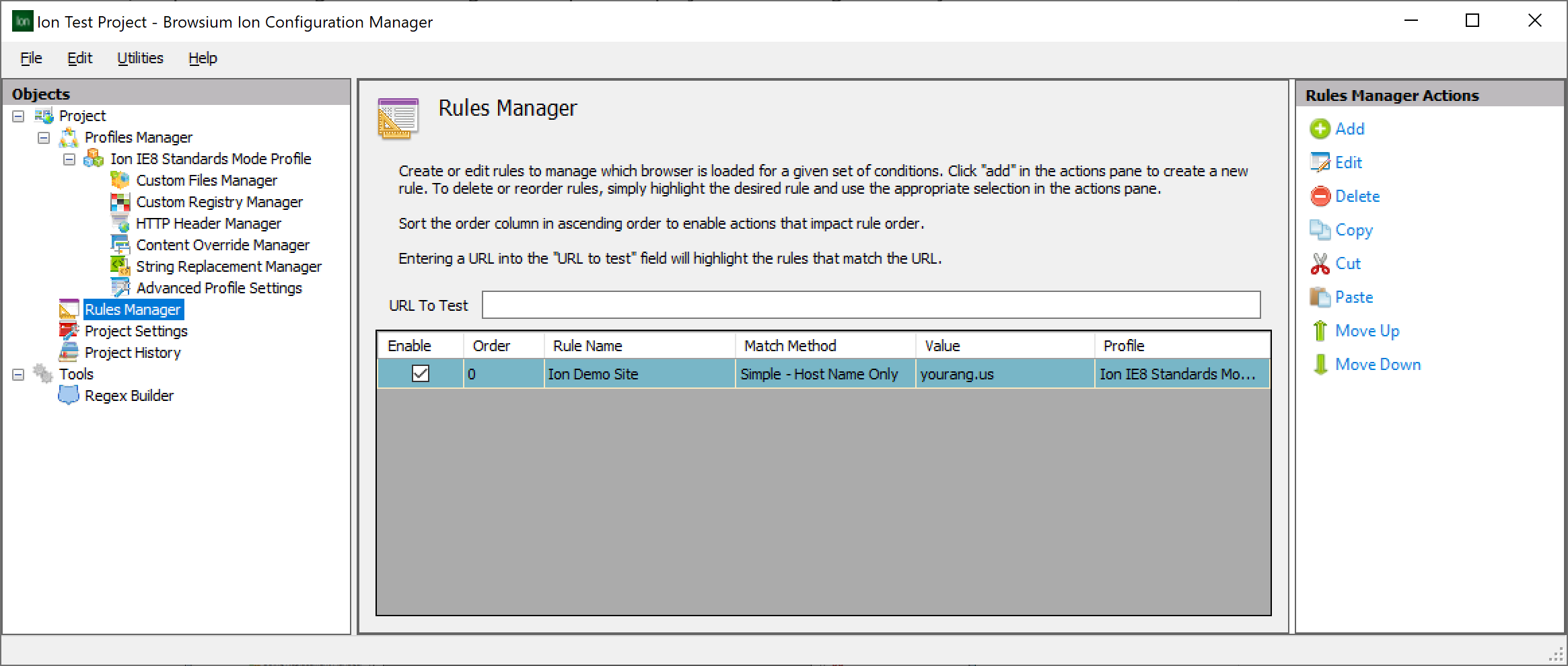 {width=“5.214610673665792in” height=“2.2156517935258093in”}
- Click the Delete Rule in the Actions pane.
Remember to save the configuration using the File menu (either using Save, Save As, or Start Test Configuration) before closing Ion Configuration Manager to ensure the deleted rule is removed from your configuration.
[]{#_The_Settings_Node .anchor}
Project Settings Node
Section titled “Project Settings Node”The Project Settings node gives you the ability to edit global settings for Ion configurations that will be applied to all Profiles. These settings encompass features such as the Listener Service Port, Splash Screen and Cache Clearing behavior, and generic security and network behaviors.
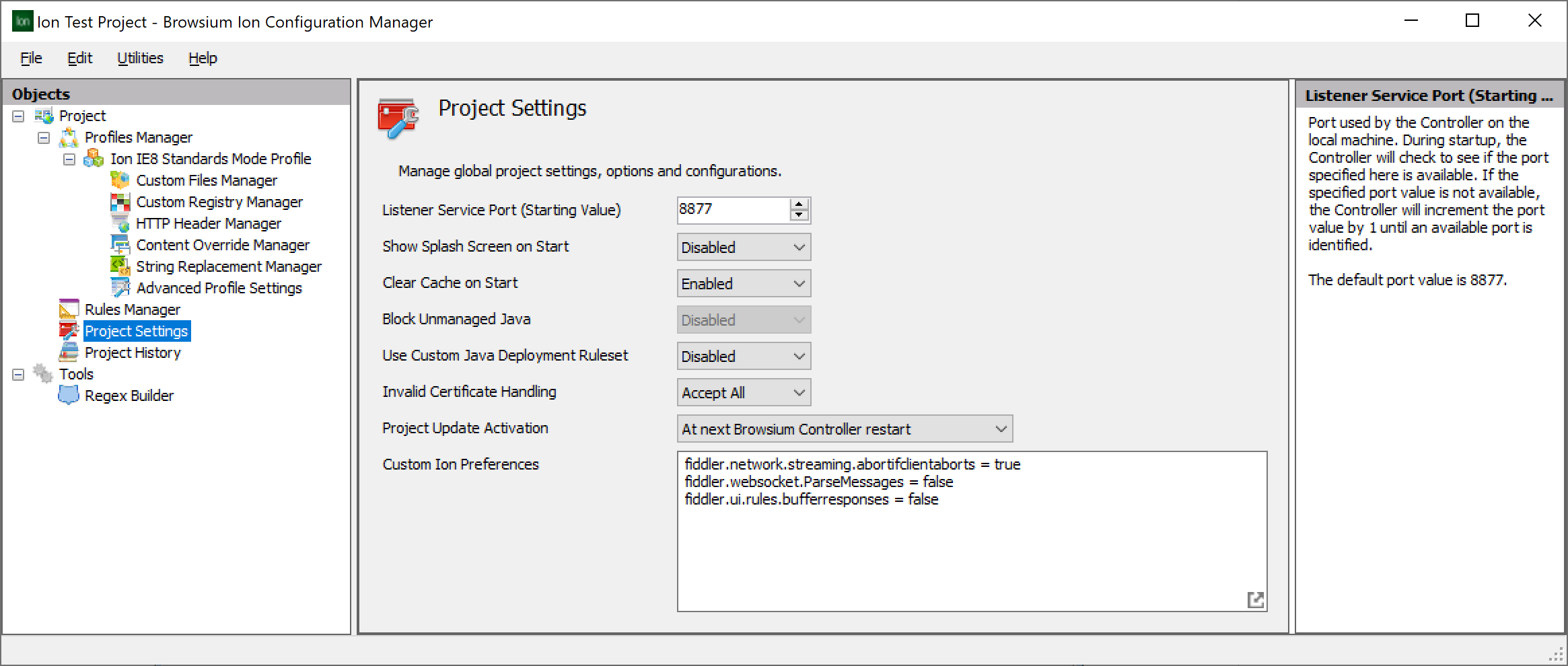 {width=“6.026668853893264in” height=“2.5606911636045493in”}
Listener Service Port — Port used by the Controller on the local machine. During startup, the Controller will check to see if the specified port is available. If that port is not available, the Controller will automatically increment the port value by 1 until an available port is identified. The default port value is 8877.
Show Splash Screen on Start — By default, Ion disables showing the splash screen (Ion graphic with the product name and version number) on client systems when the Controller is started. This option can be enabled during project configuration. The splash screen is only displayed at startup (usually set to user login) so users should not regularly see this display.
Clear Cache on Start — By default, Ion will clear the Internet Explorer cache when the Controller starts and detects a configuration change since the last time it started. This is done to ensure proper rendering and eliminate any potential of older/stale files from being loaded via the system cache versus being obtained from the server. When files are loaded from the local system cache, Ion may be unable to properly manage the web application and cannot ensure configurations will work as expected.
Block Unmanaged Java — Internet Explorer allows the default version of Java installed on the PC to be invoked by any website containing a Java applet. Setting Block Unmanaged Java to Enabled uses Oracle DRS to block Java globally for all websites unless specifically allowed in an Ion Profile (limited or full) and associated rule.
Use Custom Java Deployment Ruleset — Allows the creating and editing of a custom Java deployment ruleset XML file, per Oracle’s Deployment Ruleset (DRS) specification. Enabling this option will add a Custom Java Deployment Ruleset field to Project Settings, and preclude the use of the Block Unmanaged Java option and Global Java Profiles (as both are controlled from the single DRS file created by this setting). When ‘Use Custom Deployment Ruleset’ is enabled, ‘Block Unmanaged Java’ is disabled and grayed out, and Global Java Profiles do not appear in the list of rendering modes when creating a new Profile.
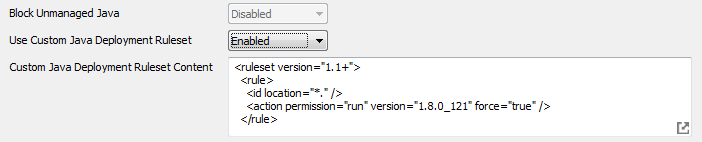 {width=“5.075304024496938in” height=“1.0264479440069991in”}
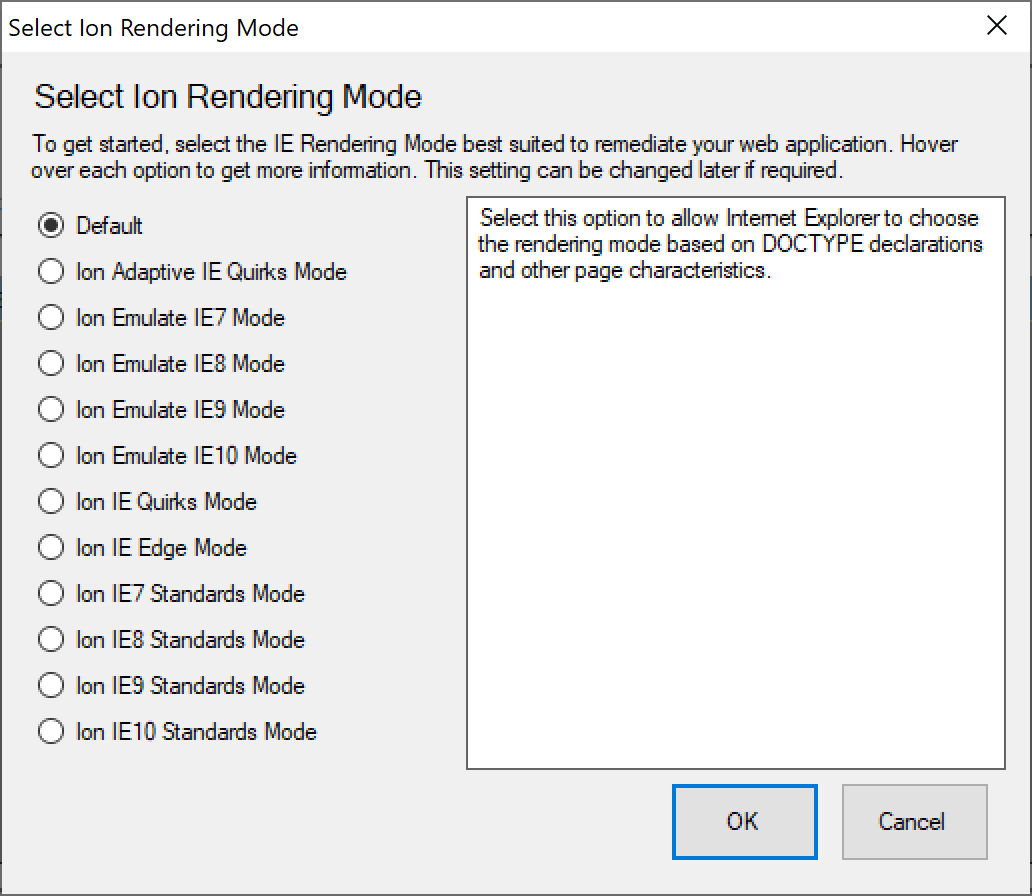 {width=“3.4385903324584426in” height=“1.2858727034120734in”}
Invalid Certificate Handling — When presented with invalid HTTPS Certificates, Internet Explorer 6 did not generally warn users or prevent navigations. HTTPS Certificate handling behavior has become more secure in recent versions of Internet Explorer, such that invalid HTTPS Certificates will trigger blocked navigation, user prompts or related behaviors that prevent web applications from functioning as they did previously. Ion provides the ability to manage how invalid HTTPS Certificates are handled. Available options are:
-
Reject All: Rejects all invalid HTTPS Certificates and navigation is cancelled.
-
Accept All (Default): Accept all invalid HTTPS Certificates and continue with navigation.
Project Update Activation — Project Update Activation enables new Ion configurations to be loaded on the fly without restarting Browsium Controller (which typically requires a reboot or logoff/logon of the client computer). The field can be set to load the new configuration immediately, at a scheduled time, or upon next Controller restart (the default).
All Ion-managed instances of Internet Explorer and Edge Internet Explorer Mode will be closed automatically when the new configuration is loaded. Careful planning is recommended when choosing non-default options so users working in Internet Explorer or Edge Internet Explorer Mode are not interrupted by an Ion configuration deployment.
Custom Ion Preferences — This section is used to add features or product behaviors that may be needed by customers for unique and specific browser or web application settings. Ion provides the ability to control sub-component behaviors through these preference options. Customers running older or custom developed web applications may need the ability to control Ion to respond in non-standard ways for specific and defined scenarios.
For example, an organization may have an application that is designed to force users to present login credentials rather than use their current login user information. Ion is designed to work only using the integrated Windows user credentials, as controlled by Internet Explorer settings. In this case a custom Ion preference could be used to change the default Ion behavior rather than modifying global IE settings that may impact other applications where the logged in user credentials are preferred.[]{#_Tools .anchor}
The following Custom Ion Preferences are supported in this release.
+------------------------------------------+-------------------------------------------------------------------------------------------------------------------------------------------------------------------------------------------------------------------------------------------------------------------------------------------------------------------------------------------------------------------------------------------------------------------------------------------------------------------------------------------------------------------------------------------------------------------+ | Custom Ion Preference | Description | +==========================================+===================================================================================================================================================================================================================================================================================================================================================================================================================================================================================================================================================================+ | IgnoreRule.x = Url\ | IgnoreRule provides a way for a certain URLs to continue navigating within the same context as the referring website. In other words, URLs matching ignore rules will continue to navigate in the native instance of Internet Explorer if they are invoked from the native instance and will continue to navigate in an Ion-managed instance of Internet Explorer if invoked from an Ion-managed instance.\ | | (where ‘x’ is an integer ≥ 1) | \ | | | This flag is typically added for authentication servers that may be serving both Ion-managed and unmanaged web applications. For example, login.live.com is the authentication server used by all Microsoft properties from OneDrive to Outlook to Bing. If you want to load OneDrive in an Ion-managed instance but want to leave Outlook and Bing in native instances, you will add an Ignore rule for login.live.com (IgnoreRule.1 = login.live.com) so that it can be navigated in both managed and native contexts. Regex match is used to match the string. | +------------------------------------------+-------------------------------------------------------------------------------------------------------------------------------------------------------------------------------------------------------------------------------------------------------------------------------------------------------------------------------------------------------------------------------------------------------------------------------------------------------------------------------------------------------------------------------------------------------------------+ | Config.oHeaderEncoding | Config.oHeaderEncoding explicitly sets the header encoding to use on HTTP responses from the server. This flag is only needed to work around problems created by incorrect encoding settings on an HTTP web server.\ | | | \ | | | This is a very advanced property and should only be used with direct guidance from the Browsium support team. | +------------------------------------------+-------------------------------------------------------------------------------------------------------------------------------------------------------------------------------------------------------------------------------------------------------------------------------------------------------------------------------------------------------------------------------------------------------------------------------------------------------------------------------------------------------------------------------------------------------------------+ | ion.TurnOnIEContextMenu\ | False by default. Set to true to enable the use of a context menu when right-clicking on managed instances of Internet Explorer. When clicked, a dialog will appear which shows detailed information about the Profile being used. See example in next section. | | = True | | +------------------------------------------+-------------------------------------------------------------------------------------------------------------------------------------------------------------------------------------------------------------------------------------------------------------------------------------------------------------------------------------------------------------------------------------------------------------------------------------------------------------------------------------------------------------------------------------------------------------------+ | ion.SwapDefaultCACertsOnly = False | True by default. Set to false to insert required certificates into the certificate store of all installations of Java on this system rather than solely default installations. This flag should only be set in certain circumstances where customized installations of Java or existing Java installer bugs cause issues setting up Java remediations and can cause a performance impact when opening a managed instance of Internet Explorer on older machines. | +------------------------------------------+-------------------------------------------------------------------------------------------------------------------------------------------------------------------------------------------------------------------------------------------------------------------------------------------------------------------------------------------------------------------------------------------------------------------------------------------------------------------------------------------------------------------------------------------------------------------+ | ion.turnoffautofilljavasettings = True | False by default. When set to true this flag disables automated adding of deployment.properties custom file swap for requested java version. | | | | | | Enable this flag only when you need to use system deployment.properties configuration. | +------------------------------------------+-------------------------------------------------------------------------------------------------------------------------------------------------------------------------------------------------------------------------------------------------------------------------------------------------------------------------------------------------------------------------------------------------------------------------------------------------------------------------------------------------------------------------------------------------------------------+ | Ion.IEAddonDetectRedirects\ | When this flag is set, Internet Explorer will detect 30x redirection (typically a 302 redirect) and evaluates rules on the redirected URL. By default, 30x redirected URLs are ignored. | | = True | | +------------------------------------------+-------------------------------------------------------------------------------------------------------------------------------------------------------------------------------------------------------------------------------------------------------------------------------------------------------------------------------------------------------------------------------------------------------------------------------------------------------------------------------------------------------------------------------------------------------------------+ | Ion.disablecve202144228protection = True | False by default. Set this value to true to disable (remove) protection against log4shell in Java based applications loaded in Ion Profiles. | +------------------------------------------+-------------------------------------------------------------------------------------------------------------------------------------------------------------------------------------------------------------------------------------------------------------------------------------------------------------------------------------------------------------------------------------------------------------------------------------------------------------------------------------------------------------------------------------------------------------------+ | Ion.InvocationArgs = (Arguments) | This advanced profile setting allows custom arguments to be set for the managed Internet Explorer or Edge IE Mode instance. This will allow Ion-managed Internet Explorer or Edge IE Mode instances to launch with custom behavior. Please note that setting certain command line arguments may cause Ion to not run correctly for the specified profile. | | | | | | When in use, please set the profile browser platform to either Internet Explorer or Edge IE Mode for consistent results as Internet Explorer and Edge (Chromium) both take different sets of command line arguments. | +------------------------------------------+-------------------------------------------------------------------------------------------------------------------------------------------------------------------------------------------------------------------------------------------------------------------------------------------------------------------------------------------------------------------------------------------------------------------------------------------------------------------------------------------------------------------------------------------------------------------+
Cookie Sharing Domain management
Section titled “Cookie Sharing Domain management”Some organizations may require cookie sharing to facilitate a smoother end user experience when switching between browsers or between browsers and Edge IE Mode. Setting Ion.CookieSharingDomain.x = (Domain), where’x’ is an integer >= 1, for an Ion profile will ensure that the Ion profile inherits cookies of the specified domain from the default Edge (Chromium) browser profile. Up to 99 domains per profile can be specified.
This flag can be used to ensure applications which depend on technologies such as Single Sign On (SSO) can be authenticated in Edge but still be launched in an authenticated state in Internet Explorer or Edge IE Mode.
Internet Explorer Context Menu
Section titled “Internet Explorer Context Menu”Setting the Ion Custom Preference ion.TurnOnIEContextMenu = True adds an entry labeled “Managed by Ion …” to the Edge IE Mode right-click context menu. This entry will appear in all Ion-managed Internet Explorer and Edge Internet Explorer Mode windows, which are controlled by a full Ion Profile. Selecting “Managed by Ion …” will open a window validating the Ion settings, including the Browsium Client version number, the name of the Ion Profile, the document mode set by the Profile, and the user agent string set by the Profile.
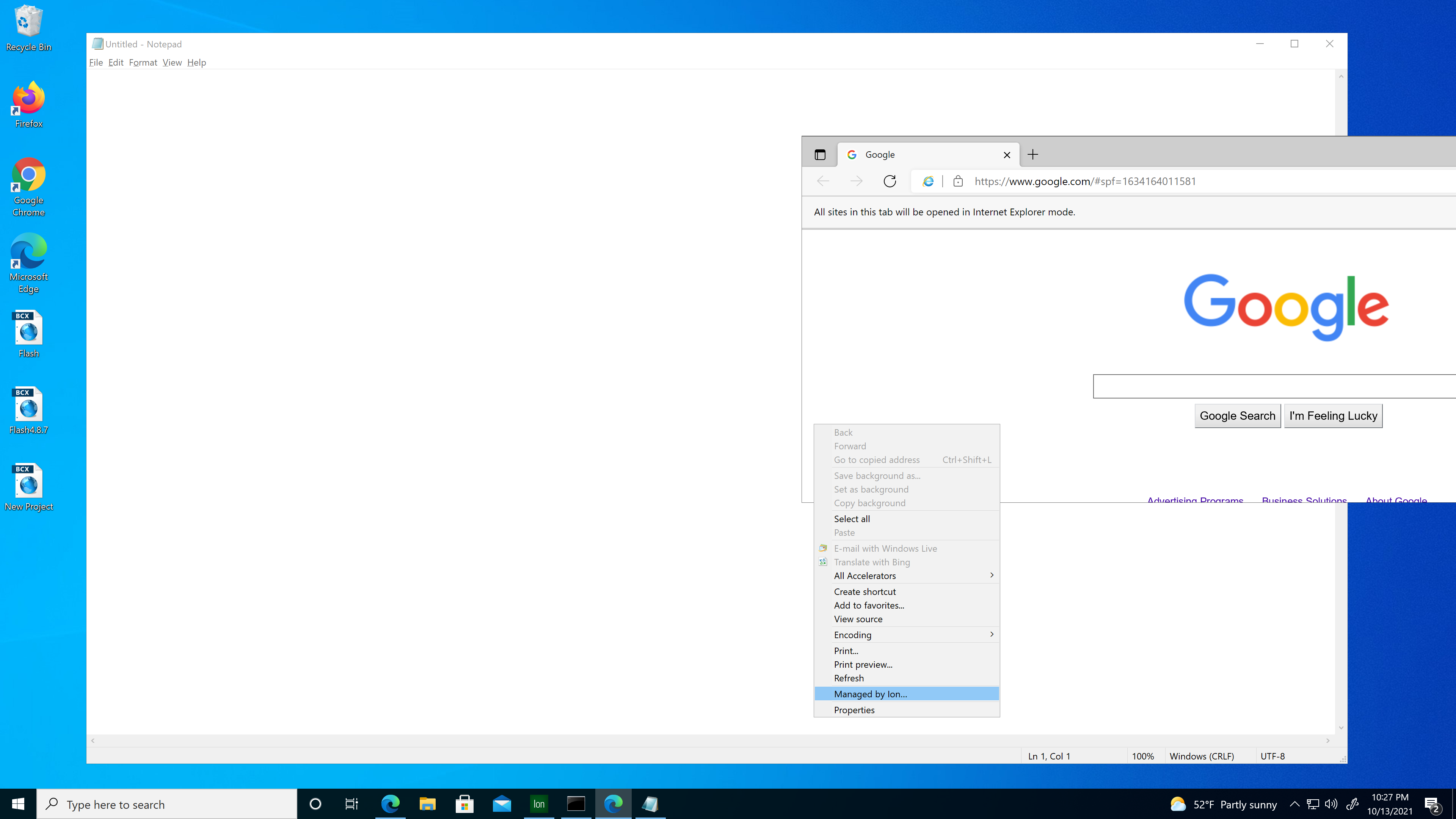 {width=“2.395566491688539in” height=“3.7673031496062994in”}
 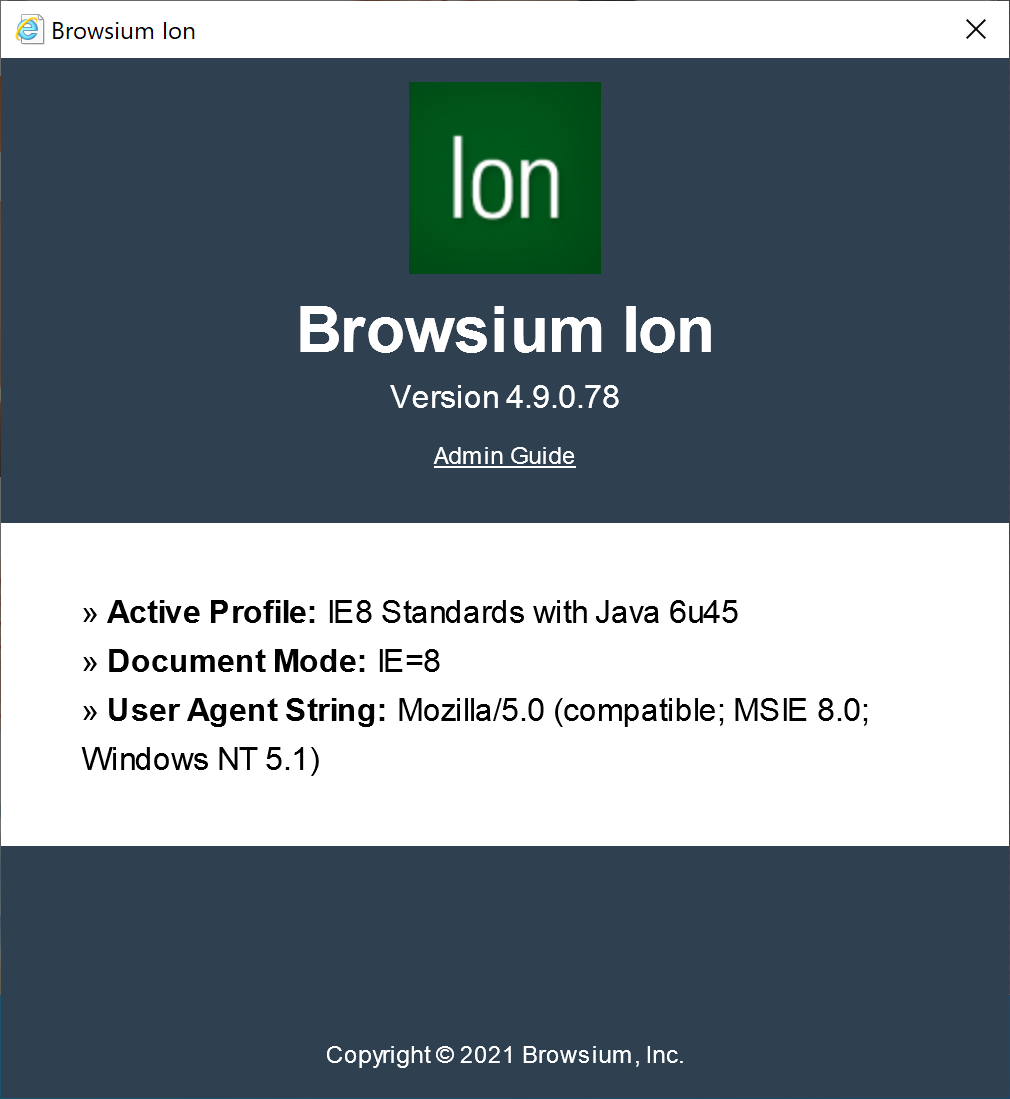 {width=“3.535744750656168in” height=“3.847389545056868in”}
This information is very useful during project development and when providing remote helpdesk support for end users who may need to report whether an Ion Profile is properly controlling the web application they’re using.
This feature is disabled by default. It can be turned on for any project that uses a full Ion Profile. However, it may add additional processing overhead to Profiles that don’t already have custom file or custom registry entries.
Project History
Section titled “Project History”Project History provides a simple interface to record comments when saving an Ion project. This feature is intended for project developers who want to keep a manual changelog for their Ion projects. It’s particularly helpful if multiple project developers are editing a single project file.
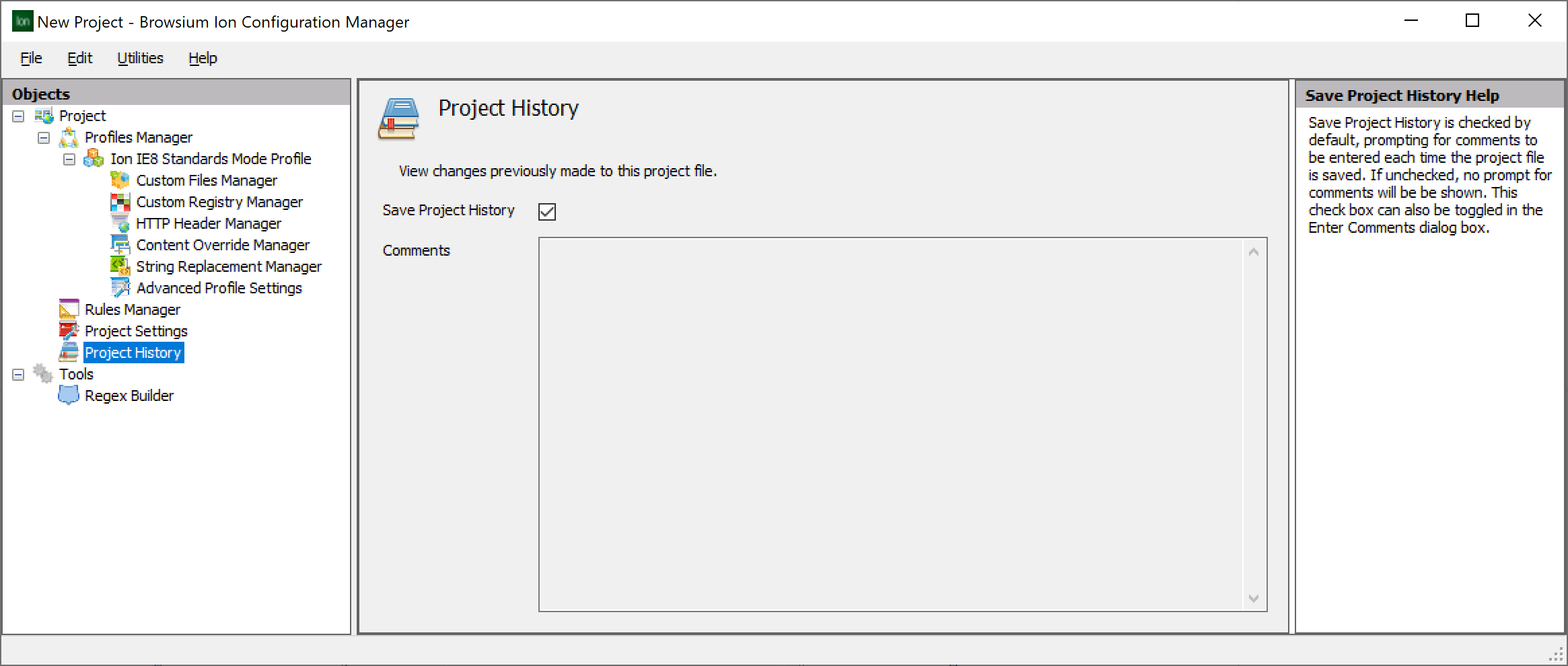 {width=“5.203813429571303in” height=“2.211065179352581in”}
Project History is enabled by default by the Save Project History checkbox. Unchecking this box will turn off this feature but will not delete any comments already logged to Project History. With Project History enabled, a prompt will be displayed during every save operation where project changes are detected (a.k.a., a “dirty” project). This will occur when performing Save Project, Save Project As, or Start Test Configuration, as all three trigger the save function.
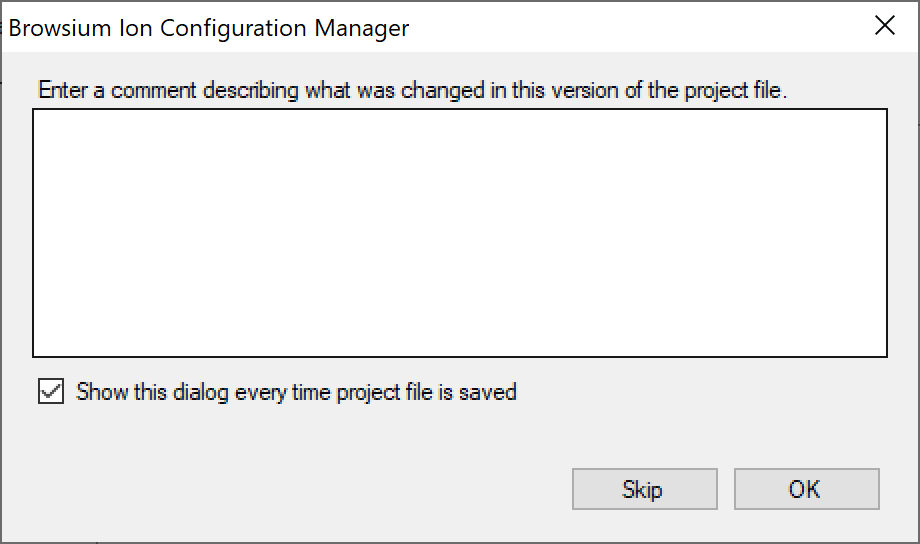 {width=“2.8671817585301835in” height=“1.6954975940507437in”}
Comments are entered as standard text with no limits on characters or line breaks. A version number, time stamp and the user name of the currently logged in user are also recorded with the comment. Clicking OK will commit this text and related data to the Project History. Clicking Skip will save the project without comments. Unchecking the “Show this dialog …” box is the equivalent of unchecking the Save Project History checkbox on the Project History screen. The checkbox selection will be applied by clicking either Skip or OK.
The following shows the results of two save operations with comments entered for each one.
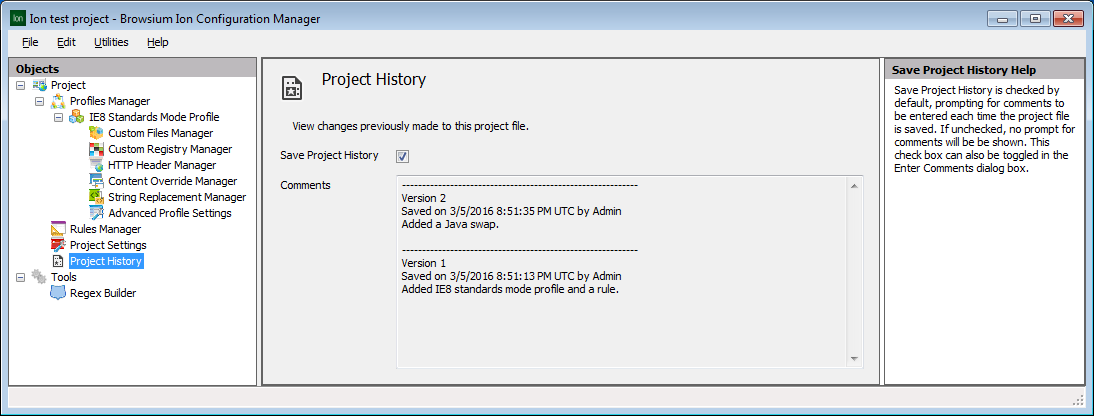 {width=“4.345528215223097in” height=“2.277666229221347in”}
Tools Node
Section titled “Tools Node”The Tools Node was designed to provide a set of ‘helper’ applications for creating, testing and designing Profiles and rules. Additional Tools may be added later and can be installed by simply placing the specific DLL file in the directory with the Browsium Ion Configuration Manager.
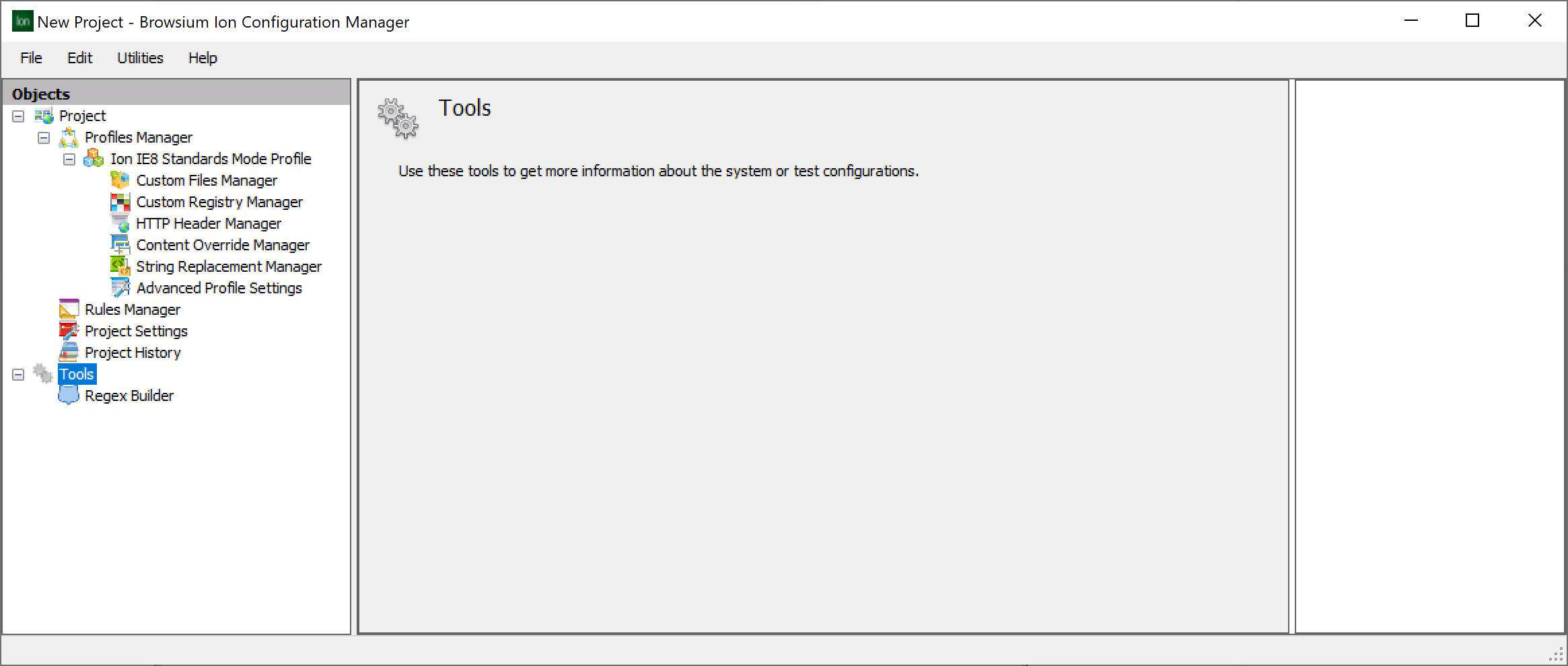 {width=“5.669406167979003in” height=“1.6187685914260717in”}
Regex Builder
Section titled “Regex Builder”The Regex (Regular Expression) Builder is for administrators to create and validate complex Regular Expressions that can be used in the rules evaluation criteria.
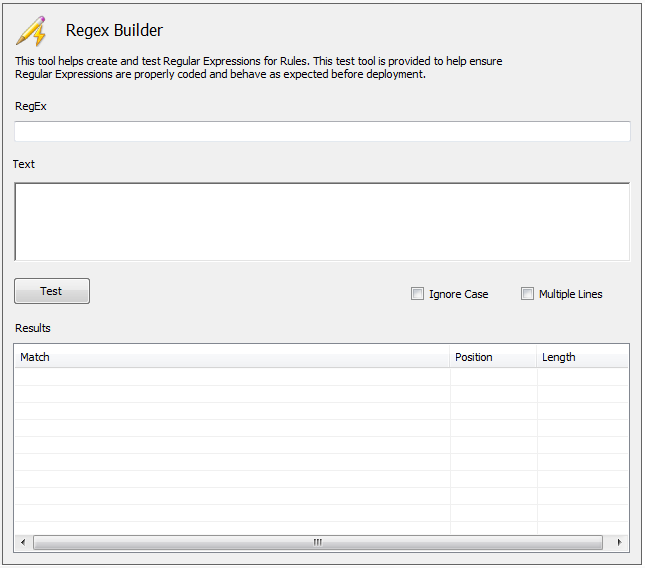 {width=“3.1727963692038497in” height=“2.794161198600175in”}
The Regex Builder provides a simple integrated tool for writing and testing Regular Expressions before using them as rules evaluation criteria to help avoid errors in pattern matching.
For more information on the Regex Builder, including a step-by-step example, please read the ‘Using regular expressions in Ion rules’ document in the Ion Knowledge Base.
More information on building and testing Regular Expressions can be found online, including regexhero.net or regexpal.com.
 {width=“0.9305555555555556in” height=“0.9305555555555556in”}
Section Four
Configuration Tutorial
In this section, you will learn:
-
How to create a Profile, including using the Java Version Manager
-
How to create a rule using that Profile
-
How to test configurations before deployment
-
Best practices for building Ion rules