Installation
Browsium Ion is simple to install — administrators need both the Browsium Ion Configuration Manager and the Browsium Client, while end users only need the Browsium Client installed. The Browsium Client requires administrator permission to install but can run using standard user permissions so system access can remain tightly controlled. This section provides details on the specific components of Ion, as well as information on how to manage the Browsium Client installation in an enterprise environment.
The Browsium Client is a lightweight, unified client agent that works with all modules in the Browsium browser management suite. Install Browsium Client once and enable Ion, Proton, and Catalyst services as required for your organization.
Ion Components
Section titled “Ion Components”Browsium Ion is comprised of two main components: a configuration manager for defining configurations, and a client for interpreting the configurations for end users. The client includes a Controller process and browser extensions for Microsoft Internet Explorer, Microsoft Edge (Chromium), Google Chrome, and Mozilla Firefox, though only the Internet Explorer add-on and Microsoft Edge (Chromium) extension are needed for Ion.
- Ion Configuration Manager (Ion-Setup.exe)
Ion Configuration Manager (BrowsiumIonManager.exe) is the single management interface for the Ion system. This application provides the central point for creating, configuring and managing Profiles, rules, and settings. This application is not intended to be run by end users, so Ion-Setup.exe should not be installed broadly — installation of this package should be limited to system administrators, web application owners, or business unit managers.
- Browsium Client (Browsium-ClientSetup.exe)
The Browsium Client is responsible for loading Ion configuration data and invoking Ion-managed instances of Internet Explorer for end-users. The client package must be installed on all PCs in your organization that require web application remediation or Java management with Ion. The Browsium Client consists of two core components:
- Browsium Controller, Ion Broker, and Browsium Monitor
Browsium Controller (BrowsiumController.exe) is the main component of the client infrastructure used by Ion to handle content loading, rules implementation and redirection. Ion Broker (BrowsiumIonBroker.exe) handles communication between Browsium Controller and Ion-managed instances of Internet Explorer. Browsium Management Service (BrowsiumService.exe) runs as a Windows service with System privileges to handle content loading for projects that require elevated permissions. Browsium Monitor (BrowsiumMonitor.exe) is responsible for ensuring that Controller is running reliably.
- Browsium Client Internet Explorer Extension
Browsium Client installs an extension to facilitate communication between Internet Explorer and Browsium Controller and Ion Broker.
In addition to the Internet Explorer extension, Browsium Client also installs extensions for Google Chrome, Mozilla Firefox and Microsoft Edge. These extensions are required for Proton and Catalyst, but are not used by Ion.
System Requirements
Section titled “System Requirements”The following minimum system specifications are required to run Browsium Client and Ion Configuration Manager.
-
Operating System:
-
Windows 10 (1607) or later
-
Windows Server 2008 R2 or later (for multi-user terminal servers)
-
-
Microsoft Internet Explorer 8, 9, 10, or 11
-
.NET Framework Version 4.0
-
32-bit Java Development Kit (JDK) 7u40 or later for Ion Configuration Manager;
Client PCs requiring Java remediations only need the appropriate 32-bit or 64-bit JREs -
1 GHz 32-bit (x86) or 64-bit (x64) processor
-
1MB or more system memory; 2GB when used on multi-user terminal servers
While Browsium Client can be installed on systems with less than 1GB of memory, users may experience performance issues.
“Following the end of life for Windows 7 support in January 2020, Browsium Ion only supports Edge Internet Explorer Mode for systems on Windows 10 (1909 or later).”
Installing Browsium Ion Configuration Manager
Section titled “Installing Browsium Ion Configuration Manager”This section covers the installation process for the Browsium Ion Configuration Manager. The Browsium Client must also be installed on the system to test rules and Profiles.
The steps for installing Ion Configuration Manager are as follows:
- Locate Ion Configuration Manager installation file (Ion-Setup.exe) and double click to run the program.
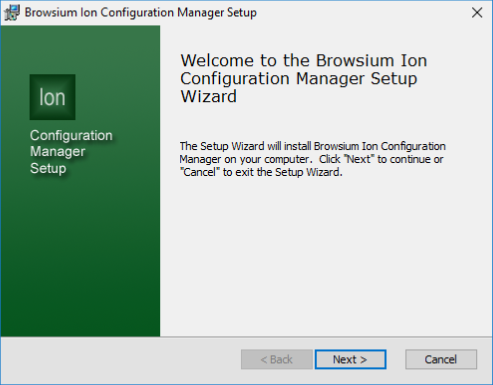 {width=“3.5118700787401576in” height=“2.7430555555555554in”}
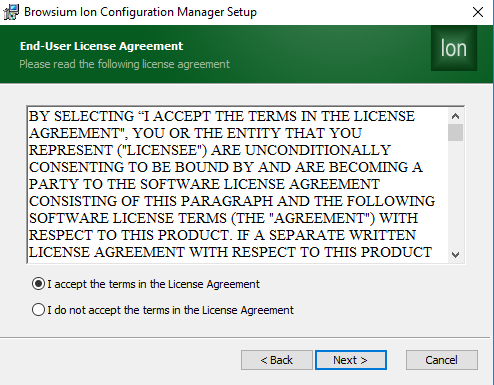
- Confirm you have read and agreed to the End-User License Agreement (EULA) by clicking ‘I accept to the terms in the License Agreement’ and Next to continue with installation.
 {width=“3.48990813648294in” height=“2.7222222222222223in”}
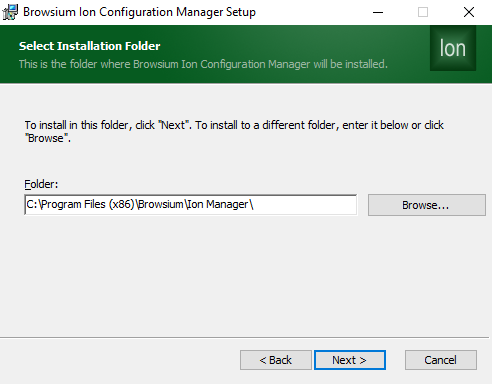
By default, the installer places the required files in “\Program Files\Browsium\Ion Manager” (32-bit systems) or “\Program Files (x86)\Browsium\Ion Manager”
(64-bit systems) on the system drive.
 {width=“3.4166666666666665in” height=“2.6666666666666665in”}
Select an installation location and click *Next.*
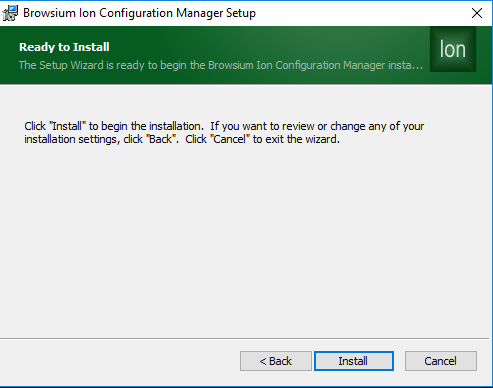
- Now you’re ready to install Ion Configuration Manager. Click Install.
 {width=“3.434756124234471in” height=“2.701388888888889in”}
Ion Configuration Manager requires Administrator rights so the installer may generate a UAC prompt before installing.
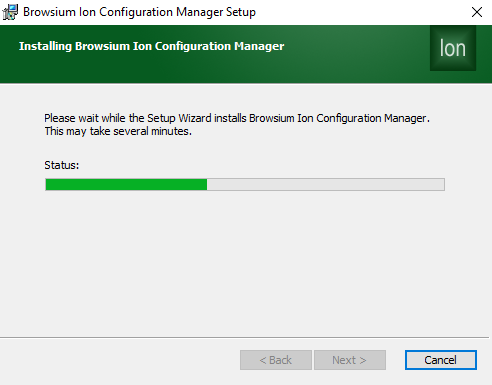
- During the installation process you will see a progress window
 {width=“3.486111111111111in” height=“2.7303149606299213in”}
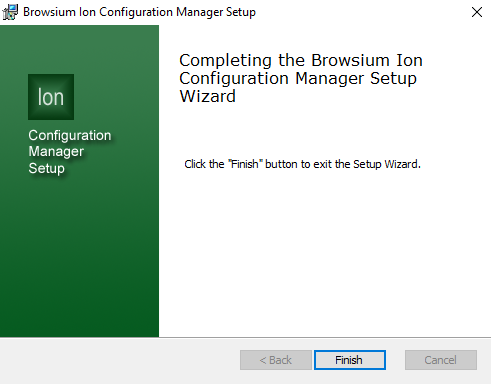
This screen will be displayed when the installation is complete and all necessary files have been configured. Click Finish and you are ready to begin working with Ion.
 {width=“3.420923009623797in” height=“2.673611111111111in”}
Installing Browsium Client
Section titled “Installing Browsium Client”Detailed information on installation and deployment of the Browsium Client package can be found in the Browsium Client Installation and Deployment Guide.
Upgrading from Evaluation to Licensed Version
Section titled “Upgrading from Evaluation to Licensed Version”If you have chosen to trial Ion in a proof of concept using the 30-day evaluation period, or simply started your deployment without a Browsium Client Management Server (BCMS) in place and now want to ensure all Ion clients function properly, you will need to have a BCMS in place.
Clients must contact the BCMS server to obtain authorization and continue functioning as licensed software. Failure to regularly connect to the BCMS server (at least once every 30 days) will result in the client machine becoming ‘unauthorized’ and the software will no longer function.
Upgrading clients to licensed status is simply a matter of configuring them to contact the BCMS server. If the BCMS server includes a valid license file, provided by Browsium, client communication with the BCMS will ensure registration and authorization happen automatically. Clients DO NOT need the license file deployed to any systems.
For more information about BCMS please see the Browsium Client Management System Administration Guide.
 {width=“0.9194444444444444in” height=“0.9194444444444444in”}Section Three
Introduction to
Ion Configuration Manager
In this section you will learn:
-
More about the Browsium Ion Configuration Manager
-
Where to find settings in the Browsium Ion Configuration Manager
-
How to navigate the screens, settings and options in the Browsium Ion Configuration Manager