Installation
Installing BCMS is simple. The installation package guides through the necessary steps and obtaining prerequisites (if needed). This section includes relevant information on the installation screens and process. Since BCMS includes a SQL server component, ensure you have the correct account information or standards for your organization to ensure proper setup.
BCMS Components
Section titled “BCMS Components”BCMS is comprised of three main components: BCMS Service, BCMS Database and BCMS Manager. The BCMS Service and BCMS Database can be run on a single server or distributed and clustered among multiple servers to increase scalability. The components are defined as:
BCMS Service — a web service, running on IIS (or IIS Express in the case of Proton Express) that communicates with all other Proton components to facilitate data collection, reporting, and client management.
BCMS Database — a highly scalable database, built on Microsoft SQL Server, that holds all the data collected from clients and queries for the reporting system.
BCMS Manager — a web application that provides the user interface into the Proton Server for reporting and configuration.
System Requirements
Section titled “System Requirements”BCMS is designed to support a wide range of Windows systems and configurations.
BCMS System
Section titled “BCMS System”Operating System Windows Server 2008 R2 or later
.NET Framework Version 4.0 or later
Additional Components Microsoft IIS 7 or later
Microsoft SQL Server 2017 Express or higher
Processor 1 GHz or faster 32-bit (x86) or 64-bit (x64) processor
Memory 4 GB RAM
Section titled “Memory 4 GB RAM”BCMS Manager
Section titled “BCMS Manager”The BCMS Manager is name of the interface used to control the BCMS system. It’s a client-side web application hosted on the BCMS server so all the code necessary to render the user interface is run completely within your browser.
Because all the code runs in your browser, Proton Manager works best when accessed via the most modern, fastest browsers available. We recommend Microsoft Internet Explorer 11 or the latest version of Microsoft Edge (Chromium), Google Chrome or Mozilla Firefox.
Installing BCMS
Section titled “Installing BCMS”Run BCMS-Setup.exe to install BCMS. BCMS can be installed before or after you have Browsium Clients deployed. If BCMS is installed after clients are deployed, it may require going back to those clients to ensure they are properly configured with the BCMS location. If they were deployed using with the proper configuration, no further effort is required on the clients for proper licensing and activation.
For customers who have not previously deployed Browsium Clients, once you have a functioning server you may install Browsium Client using Browsium-ClientSetup.msi, which requires the address of your BCMS server to complete setup.
The BCMS installer includes components required for running Browsium Proton. As a result, you may see installer screens specific to Browsium Proton requirements or settings. If you have purchased Browsium Proton, or plan to run it later, this design will streamline your deployment — simply enter a valid license key and everything is ready to go. Without a valid license key none of the Browsium Proton software will be visible.
BCMS Installation
Section titled “BCMS Installation”Before installing, please review section 2.2.1 — BCMS system requirements. You can manually install any missing components, or the BCMS installer will identify required pieces, download, and install them as necessary.
- Locate and run the BCMS Setup Installation program (BCMS-Setup.exe) to launch the BCMS Setup Wizard. Click Next to continue through setup.
{width=“3.4166666666666665in” height=“2.6666666666666665in”}
- Accept the End User License Agreement and click Next.
{width=“3.4027777777777777in” height=“2.6666666666666665in”}
- Enter your Browsium product license keys here. If you do not have keys at this time, or do not enter them now, keys can always be added at any time using the BCMS Manager application. Once ready, click Next
.
{width=“3.4027777777777777in” height=“2.6527777777777777in”}
- As mentioned earlier, BCMS is comprised of three main parts — the Web Service, a SQL server and Manager application. By separating these components in the installer, the design allows for maximum flexibility in deployment. Each piece can be run separately or all on a single system. Some customers may prefer to use existing SQL infrastructure. Choose which piece of the BCMS system to install now, then click Next.
{width=“3.4166666666666665in” height=“2.6666666666666665in”}
BCMS Database supports any edition of Microsoft SQL Server 2017 or higher.
- The BCMS server connection URL can be customized or left to the default (the machine name of the local server). BCMS uses port 443 by default, the well-known HTTPS port for use on a dedicated server. If you’re running BCMS on a server with another web service that is already using port 443 (not recommended for deployment), you can choose another port. The BCMS Service installation automatically adds the selected port to Windows Firewall ruleset. In a hosted environment, (e.g., Microsoft Azure), an additional step may be required to open the port (or “endpoint”) using the hosting manager for that environment.
{width=“3.4305555555555554in” height=“2.6666666666666665in”}
- For security, BCMS only operates over HTTPS. Installing BCMS requires an SSL certificate. BCMS supports trusted CA-issued or self-signed certificates (in .PFX format). Browsium recommends CA-issued certificates for maximum security. If needed, follow our guidance to create a self-signed certificate. Select the certificate file and provide the password, then click Next.
{width=“3.4166666666666665in” height=“2.6666666666666665in”}
- BCMS Server requires an existing SQL Server on which it can create and access a database. Enter the SQL Server hostname and instance name, and then configure a database name (the default is ‘Proton’). You can also customize the location of the data and log directories if desired. Then click Next to continue. If SQL Server is installed locally, use ‘(local)’ as the Hostname.
{width=“3.4166666666666665in” height=“2.6666666666666665in”}
Since BCMS is designed to share resources with Browsium Proton to avoid duplication of systems, the default database name is set to ‘Proton’. You can change this to suit the needs of your organization.
- In this dialog the installer establishes which account the BCMS server will use to communicate with the SQL Server after BCMS is installed. The defaults should work well for most SQL installations, but you can use this dialog to customize and specify the login credentials for SQL Server as necessary. Confirm settings, then click Next.
{width=“3.4027777777777777in” height=“2.6666666666666665in”}
Browsium recommends changing the defaults only for organizations that have formally defined specific security and user account requirements.
- Setup is now ready to continue. Click Install to allow setup to proceed.
{width=“3.4166666666666665in” height=“2.6666666666666665in”}
Setup may take several minutes to complete. Please do not disturb the setup process while it is running. During this phase of installation, you may see additional dialogs and status messages pop up as BCMS Setup configures your server, but none of them should require interaction.
- Depending on the options selected and need to download and install prerequisites, you may see the following dialog during installation. No interaction is necessary.
{width=“3.4166666666666665in” height=“2.6527777777777777in”}
{width=“3.4732327209098863in” height=“2.622290026246719in”}
- When setup is complete, select Finish to close the wizard. BCMS Server is now installed. See [section 4.1](#connecting-to-bcms-manager-for-the-first-time) for instructions on how to connect to the BCMS Manager and get started managing your Browsium environment.
{width=“3.4166666666666665in” height=“2.6666666666666665in”}
Configuring Single Sign On (SSO)
Section titled “Configuring Single Sign On (SSO)”By default, BCMS utilizes a self-contained user and authentication environment. Organizations can choose to leverage their existing SSO solutions for user authentication by taking these additional configuration steps after BCMS has been installed. At this time only Okta and Azure AD SSO solutions are supported.
Contact support to request additional SSO provider enablement in future releases
Enabling Okta SSO support for BCMS
Section titled “Enabling Okta SSO support for BCMS”-
Log into your Okta admin console.
-
Click on ‘Applications’, and then ‘Create App Integration’
-
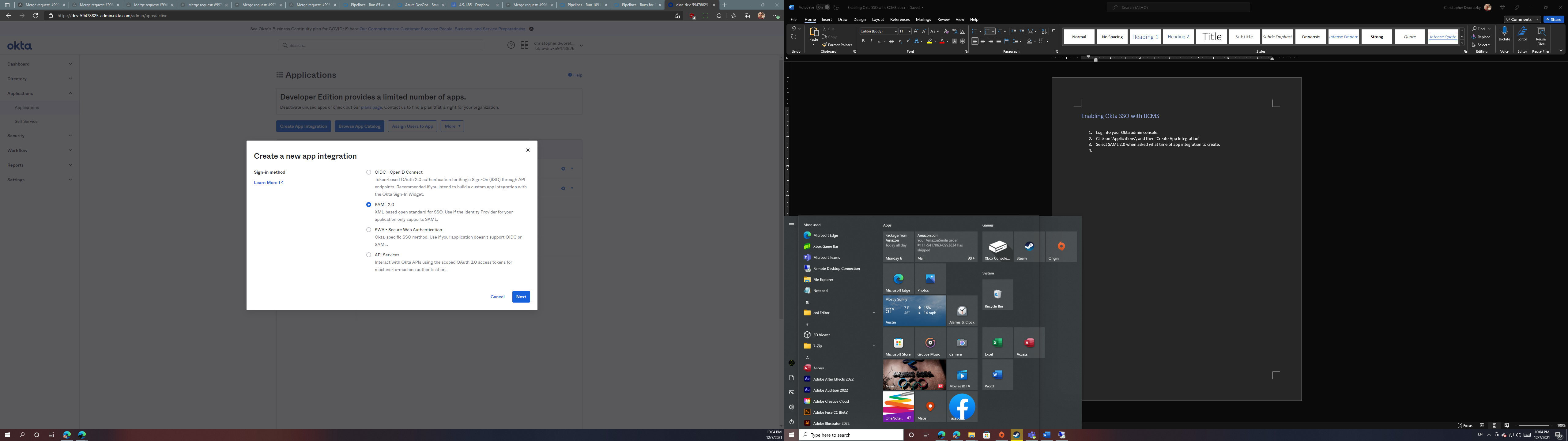
Under ‘new app integration’ type, select ‘SAML 2.0’ and then click ‘Next.’
 {width=“4.564061679790027in” height=“2.672293307086614in”}
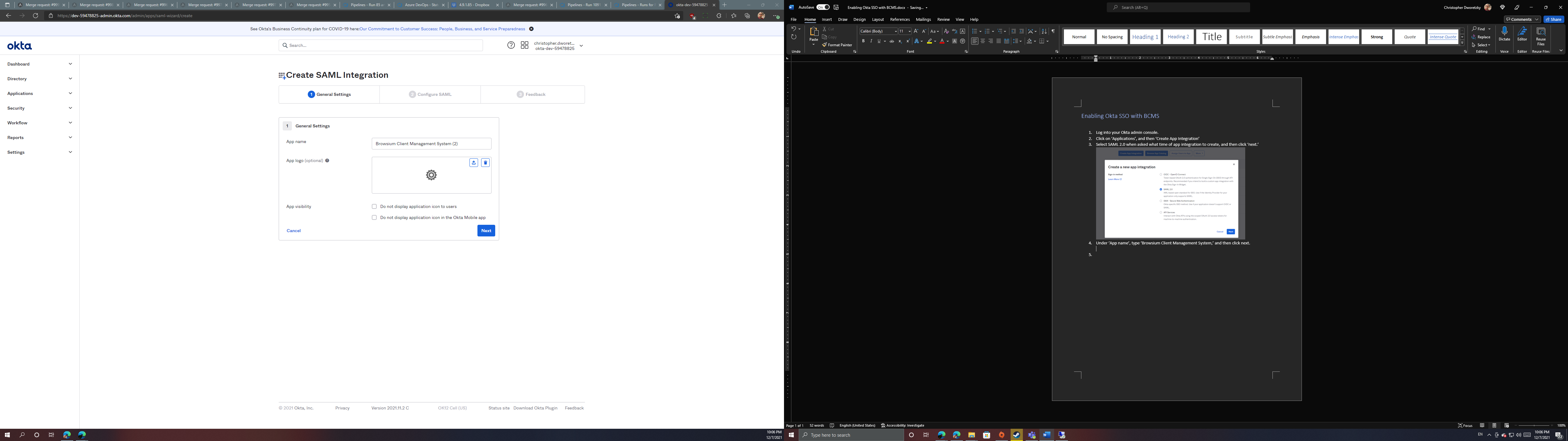
- Under ‘App name’, enter ‘Browsium Client Management System,’ and click ‘Next’.
For customers with multiple BCMS environments, use this value field to denote which BCMS server is connected to each integration. You may create one integration per environment.
 {width=“4.6719422572178475in” height=“3.42752624671916in”}
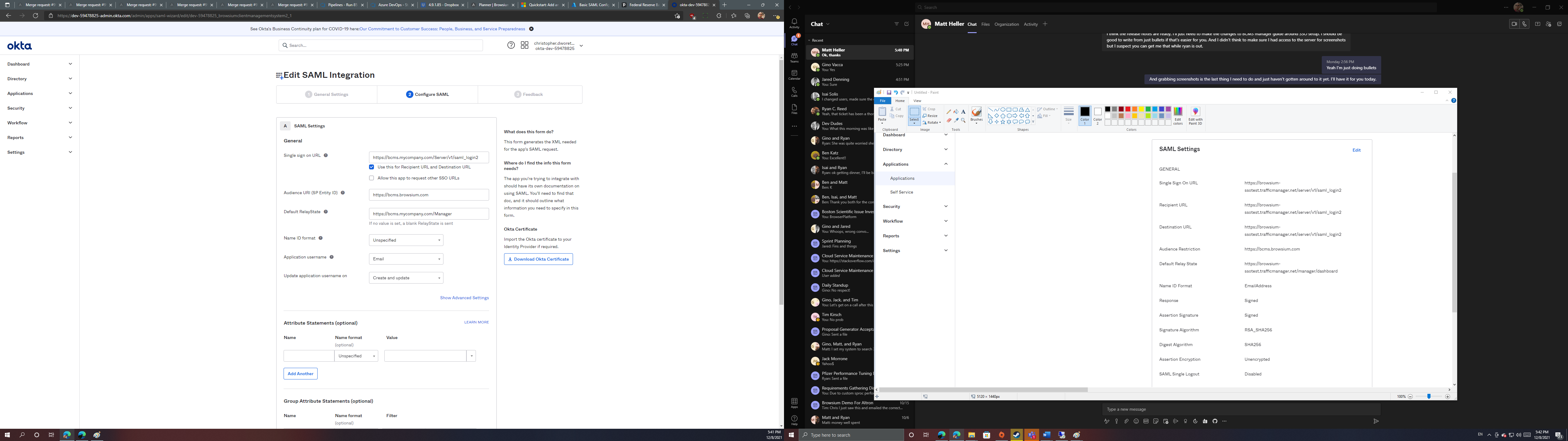
- For the ‘Single sign on URL’ value, enter the full address of the Browsium Client Management Server with ‘/v1/saml_login2’ at the end. The first part must exactly match the address of the server used when logging into BCMS via the Browsium Client Manager. In a load-balanced environment, use the URL of the load balancer.
For example: For a server located at https://bcms.mycompany.com/Server, enter https://bcms.mycompany.com/Server/v1/saml_login2.
-
For ‘Audience URI’, enter ‘https://bcms.browsium.com’.
-
For ‘Default RelayState’, (optional) enter the URL of the Browsium Client Manager used to sign into the Browsium Client Management Server. This value is used when logging into BCMS using Okta apps via the Okta end user dashboard. Without this value, users will only be able to initiate a BCMS login by directly navigating to the Browsium Client Manager itself and attempting to login via the end user dashboard will result in visible error. This url must end in ‘/Manager’.
-
For ‘application username’, select ‘Email.’
-
Leave all other settings on the defaults.
 {width=“4.295516185476815in” height=“3.9109044181977253in”}
-
Click the ‘Next’ button to continue.
-
On the feedback page, select ‘I’m an Okta customer adding an internal app’ and click the finish button to finalize the integration.
-
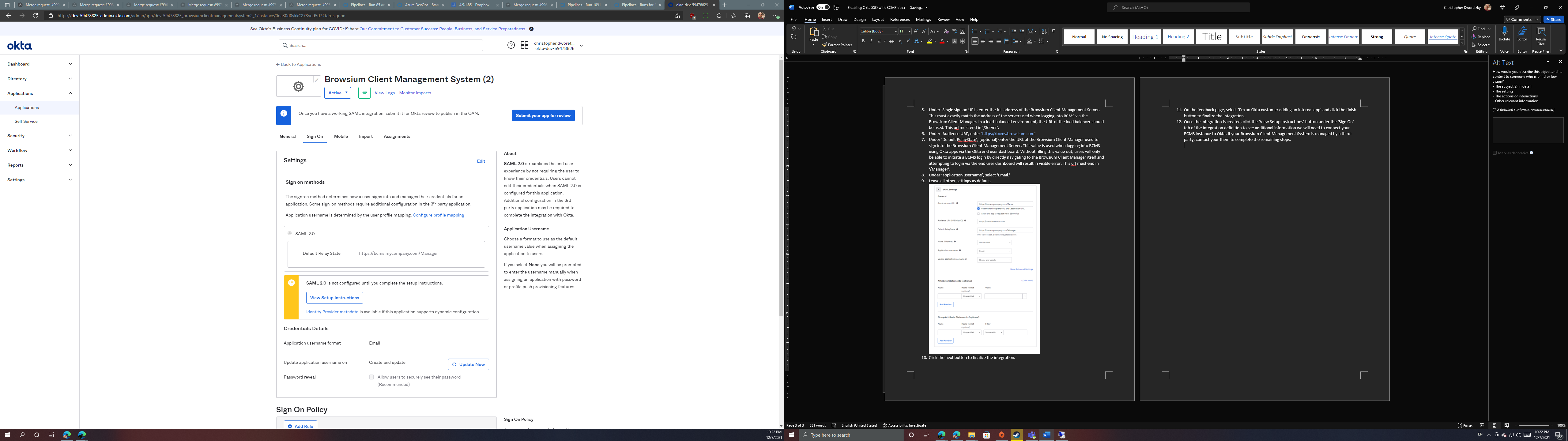
With the integration created, click the ‘View Setup Instructions’ button under the ‘Sign On’ tab to display the additional information needed to connect your BCMS instance to Okta.
If your BCMS is managed by a third-party, contact them for assistance to complete the remaining steps.
 {width=“5.248611111111111in” height=“3.9166666666666665in”}
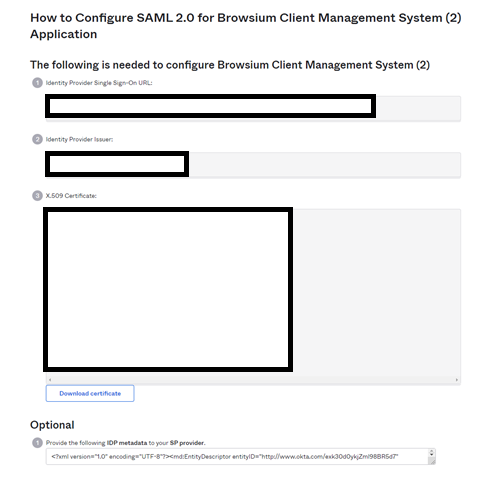
- On the setup instructions page, copy the identity provider single sign-on URL (value marked with #1). It will be needed for later.
 {width=“4.790937226596675in” height=“4.863583770778653in”}
-
Click the ‘download certificate’ button (under value marked with #3) to download the certificate that BCMS needs to read SAML traffic from Okta.
-
On your Browsium Client Management Server, navigate to C:\ProgramData\Browsium\Proton. Rename the certificate you downloaded in the previous step to ‘saml_idp_cert.cert’ and copy it into this directory.
The certificate is needed on each BCMS server or machine with the BCMS manager. The certificate it NOT required for client machines that will access the BCMS manager via a browser.
-
Navigate to the Browsium Client Management Server base directory. By default, this is C:\Program Files (x86)\Browsium\Browsium Client Management System\Server\Sites\Server.
-
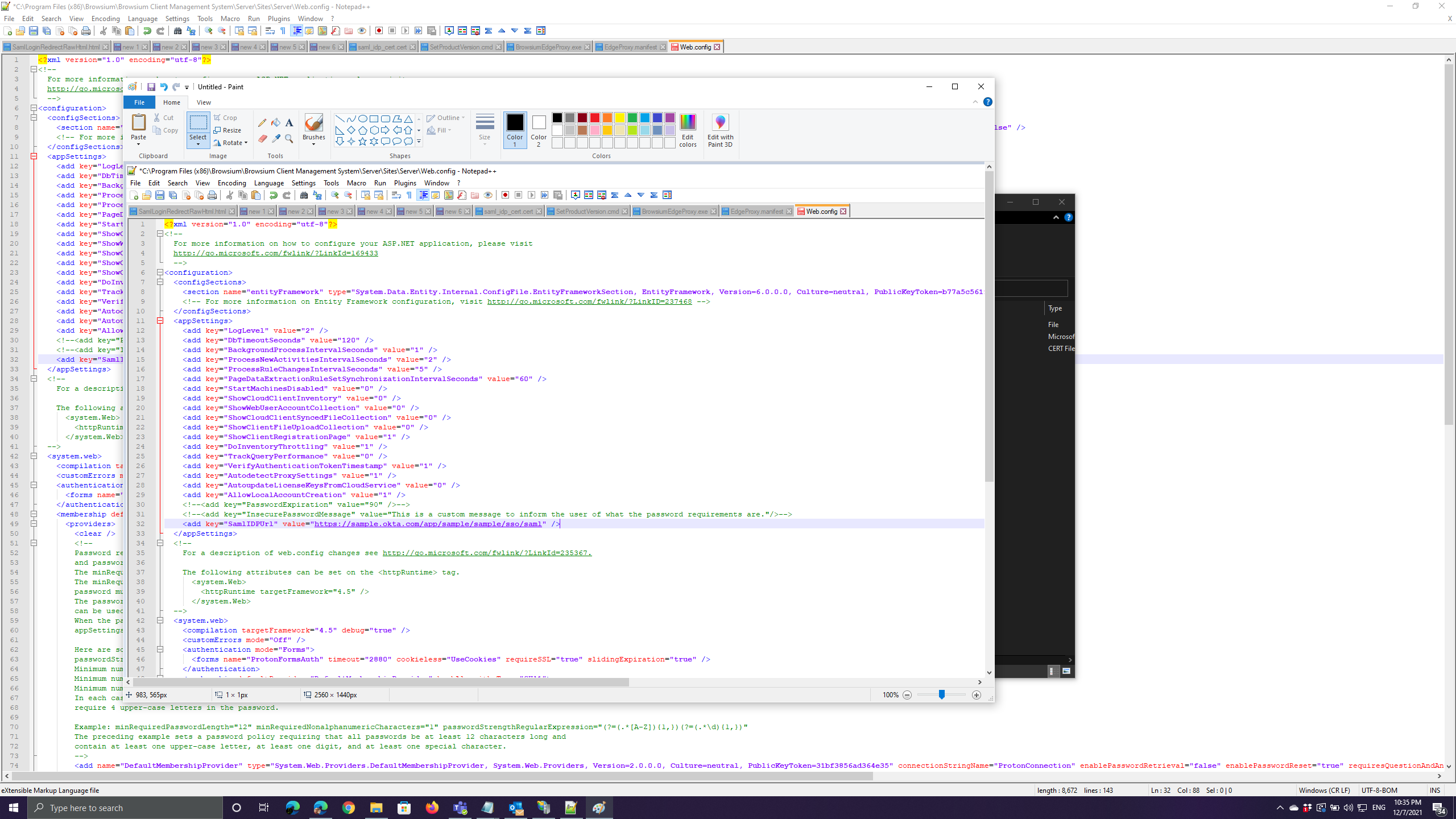
Edit the Web.config xml file, removing the commenting notations (!—) from the ‘SamlIDPUrl’ value listing near the bottom of the the ‘appSettings’ configuration node. Enter the identity provider single sign-on URL you copied in step 13 as the value property.
 {width=“6.400202318460193in” height=“0.49963363954505685in”}
Alternatively, the configuration editor built into IIS Manager can be used to add this configuration value.
Note: Web.config is replaced when upgrading to a new version of BCMS. You’ll need to save a copy of your Web.config file (or keep a separate document with the edits you have made) before upgrading and apply your custom settings to the new file. You should not assume that the old Web.config file will work on the new version of BCMS as other aspects of Web.config may have changed to support new features in Proton so Browsium does not recommend replacing the new Web.config file with an older one. Instead, make edits to the new Web.config file to match the old version, ensuring the fields and values are correct.
- To disable local account creation and rely only on SSO logins, change the app setting value of ‘AllowLocalAccountCreation’ from 1 to 0. This will block the ability for users to create new local, non-SSO logins.
Okta and other SSO providers recommend creating at least one local administration account for systems with ‘hybrid’ authentication options in the event the SSO system becomes unavailable so not all users will be locked out.
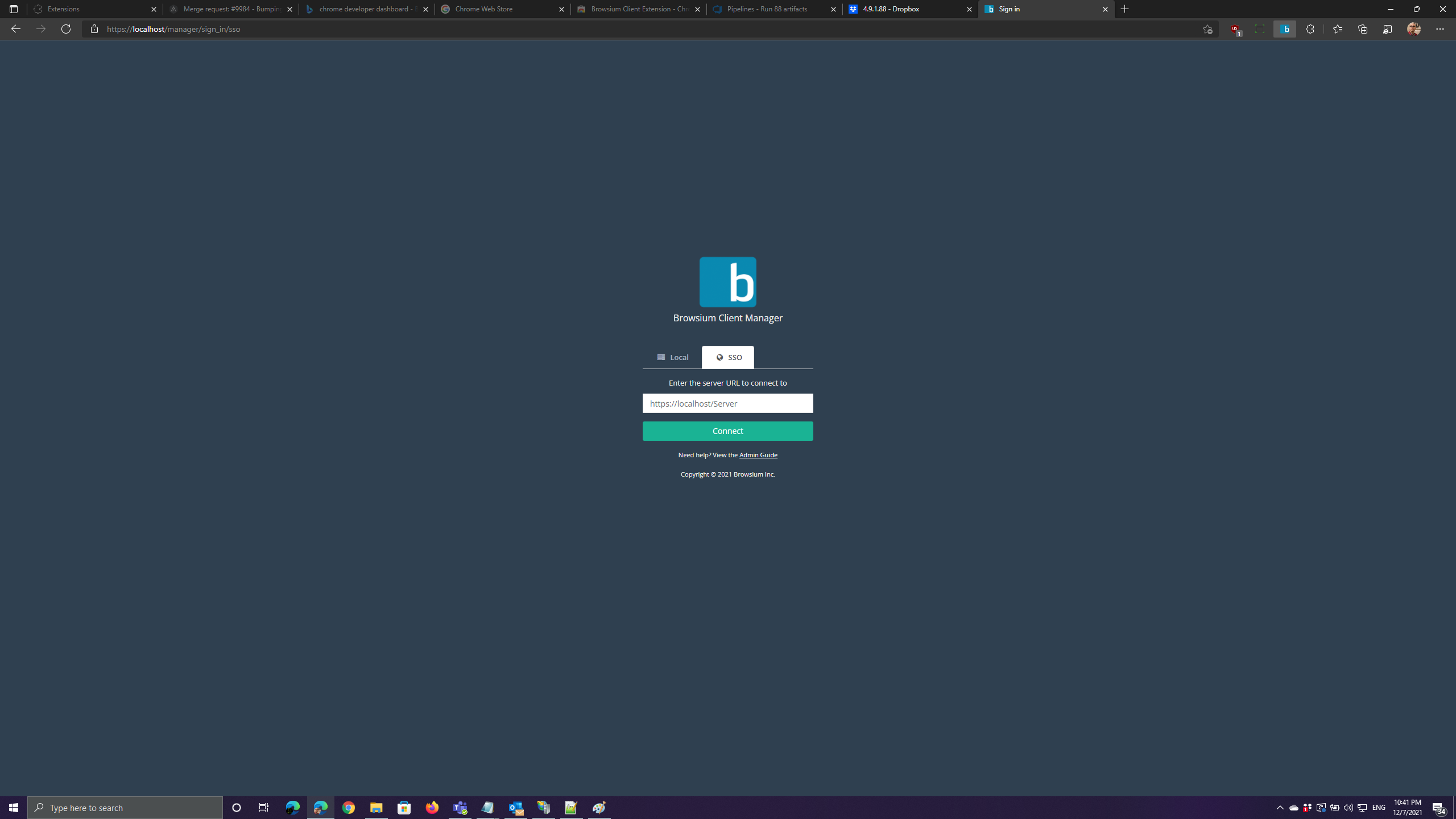
- Navigate to the Browsium Client Manager, and the new ‘SSO’ tab should now be located on the login page. Click this tab and then click on the ‘Connect’ button to sign in via Okta, supplying the same Browsium Client Management Server URL you would supply for local logins.
 {width=“2.7472167541557306in” height=“3.369288057742782in”}
Enabling Azure AD support for BCMS
Section titled “Enabling Azure AD support for BCMS”-
Log into the Azure Active Directory admin center using an Azure AD account with administrator privileges.
-
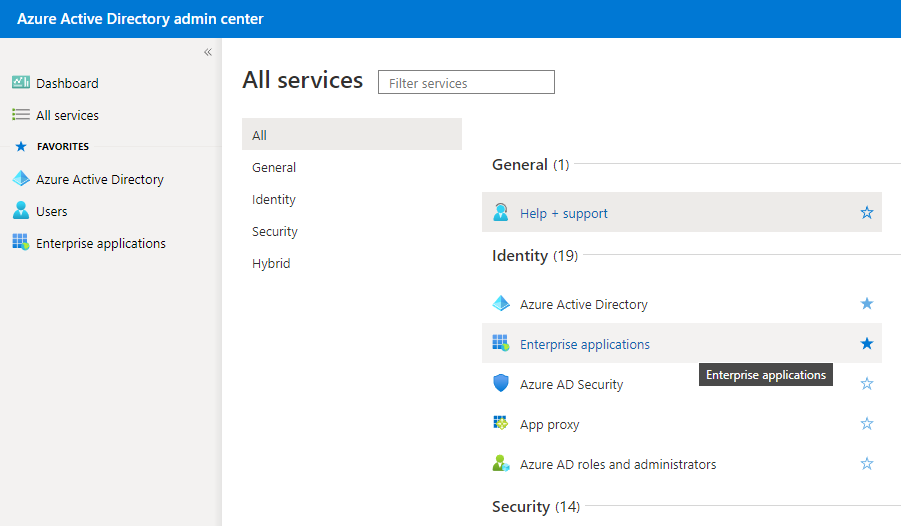
Select ‘All services’, and then ‘Enterprise applications.’
 {width=“5.175694444444445in” height=“3.0240004374453195in”}
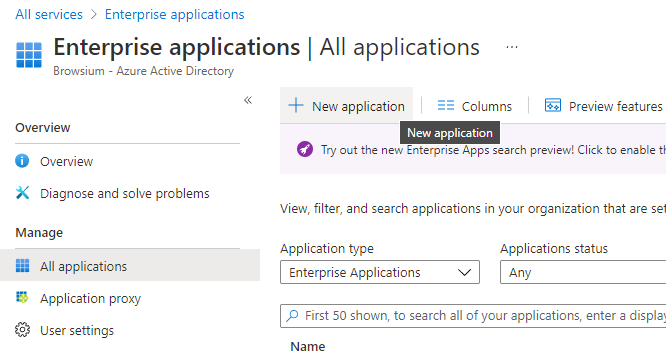
- In the Enterprise applications control panel, click ‘New application’ to open the Azure AD gallery.
 {width=“5.225921916010499in” height=“2.805582895888014in”}
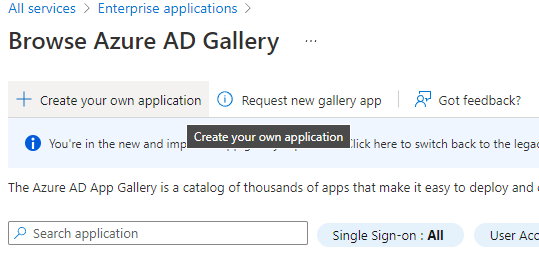
- In the Azure AD gallery, select ‘Create your own application.’
 {width=“5.614583333333333in” height=“2.7291666666666665in”}
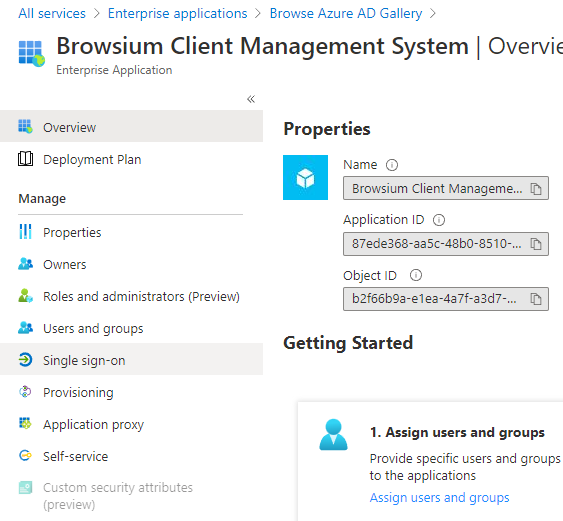
- In the Properties fields, type ‘Browsium Client Management System’ in the Name field.
For customers with multiple BCMS environments, use this value field to denote which BCMS server is connected to each integration. You may create one integration per environment.
-
When prompted ‘What are you looking to do with your application?’ select ‘Integrate any other application you don’t find in the gallery (Non-gallery)’. Click ‘Create’.
-
After Azure AD completes making the application definition, click the ‘Single sign-on’ listing.
 {width=“5.864583333333333in” height=“4.136000656167979in”}
-
Select ‘SAML’ as the single sign-on method.
-
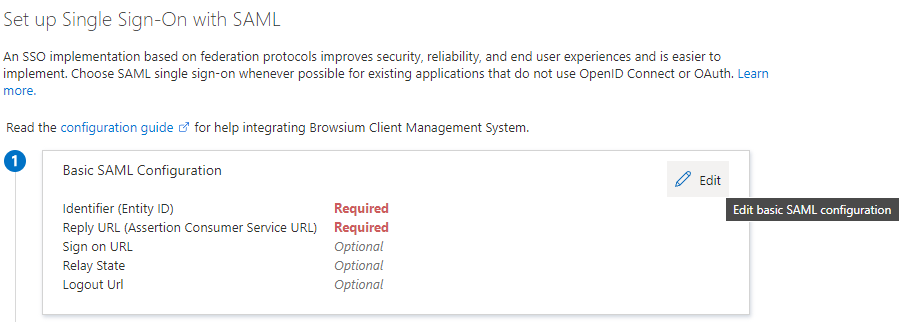
In the SAML setup wizard, click the first ‘Edit’ button under Step 1: Basic SAML Configuration.
 {width=“6.5in” height=“2.3020833333333335in”}
- Add https://bcms.browsium.com under ‘Identifier (Entity ID)’, then select the ‘Default’ checkbox to make it the default.
{width=“4.863999343832021in” height=“4.863999343832021in”}
- Under ‘Reply URL’, enter the full address of the Browsium Client Management Server with ‘/v1/saml_login2’ at the end. The first part must exactly match the address of the server used when logging into BCMS via the Browsium Client Manager. In a load-balanced environment, use the URL of the load balancer.
For example: For a server located at https://bcms.mycompany.com/Server, enter https://bcms.mycompany.com/Server/v1/saml_login2.
-
For ‘Sign on URL’ and ‘Relay State,’ enter the URL for your instance of the Browsium Client Manager. This url must end in ‘/Manager’.
-
BCMS does not currently support SAML Logout so leave ‘Logout Url’ blank.
-
Click the ‘Save’ button.
If your BCMS is managed by a third-party, contact them for assistance to complete the remaining steps.
-
Click the icon to the right of ‘Login URL’ under ‘Step 4: Set up Browsium Client Management System’ to copy the URL and save it for later.
-
Click the ‘download’ button next to ‘Certificate (Base64)’ under ‘Step 3: SAML Signing Certificate’ to download the certificate required for BCMS to communicate with Azure AD.
-
On your Browsium Client Management Server, navigate to C:\ProgramData\Browsium\Proton. Rename the certificate you downloaded in the previous step to ‘saml_idp_cert.cert’ and copy it into this directory.
The certificate is needed on each BCMS server or machine with the BCMS manager. The certificate it NOT required for client machines that will access the BCMS manager via a browser.
-
Navigate to the Browsium Client Management Server base directory. By default, this is C:\Program Files (x86)\Browsium\Browsium Client Management System\Server\Sites\Server.
-
Edit the Web.config xml file, removing the commenting notations (!—) from the ‘SamlIDPUrl’ value listing near the bottom of the the ‘appSettings’ configuration node. Enter the identity provider single sign-on URL you copied in step 13 as the value property.
{width=“6.400202318460193in” height=“0.49963363954505685in”}
Alternatively, the configuration editor built into IIS Manager can be used to add this configuration value.
Note: Web.config is replaced when upgrading to a new version of BCMS. You’ll need to save a copy of your Web.config file (or keep a separate document with the edits you have made) before upgrading and apply your custom settings to the new file. You should not assume that the old Web.config file will work on the new version of BCMS as other aspects of Web.config may have changed to support new features in Proton so Browsium does not recommend replacing the new Web.config file with an older one. Instead, make edits to the new Web.config file to match the old version, ensuring the fields and values are correct.
- To disable local account creation and rely only on SSO logins, change the app setting value of ‘AllowLocalAccountCreation’ from 1 to 0. This will block the ability for users to create new local, non-SSO logins.
Best practice guidance from SSO providers recommends creating at least one local administration account for systems with ‘hybrid’ authentication options in the event the SSO system becomes unavailable so all not users will be locked out.
- Navigate to the Browsium Client Manager, and the new ‘SSO’ tab should now be located on the login page. Click this tab and then click on the ‘Connect’ button to sign in via Okta, supplying the same Browsium Client Management Server URL you would supply for local logins.
 {width=“0.9194444444444444in” height=“0.9194444444444444in”}Section Three
BCMS System Walkthrough
In this section you will learn:
-
More about the BCMS system
-
Understanding the menus and screens in BCMS
-
Where to find configuration settings in BCMS